> ## Documentation Index
> Fetch the complete documentation index at: https://docs.prophecy.ai/llms.txt
> Use this file to discover all available pages before exploring further.
# Prophecy status page
> Monitor the health of your Prophecy environment and subscribe to incident notifications
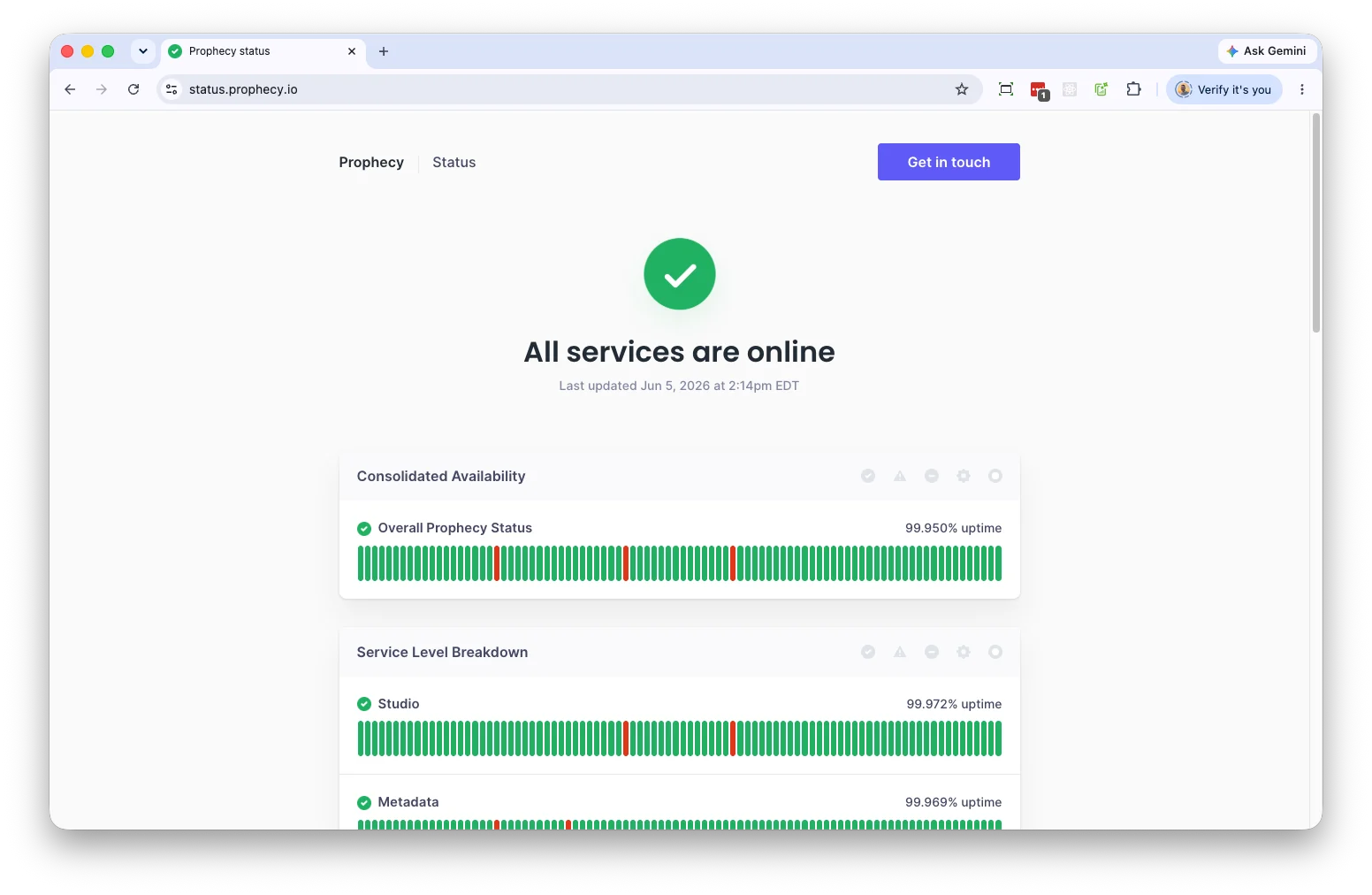
The Prophecy Status Page provides real-time visibility into the health and availability of your Prophecy environment.
Use the status page to:
* Check if your Prophecy environment is currently operational.
* Track ongoing incidents and maintenance windows.
* View historical uptime and past incident details.
* Subscribe to notifications so you are alerted immediately when something changes.
 ## Status indicators
Each component is assigned a status indicator:
| Status | Description |
| -------------------- | ------------------------------------------------------------------------------------------------------------------------- |
| 🟢 Operational | All systems are running normally. No action needed. |
| 🔴 Major Outage | A significant portion of the platform is unavailable. Incident is open and being worked on with high priority. |
| 🟣 Under Maintenance | Scheduled maintenance is in progress. This is a planned activity communicated in advance. Temporary disruption may occur. |
| ⚪ Unknown | Status cannot be determined. This may indicate a monitoring gap. Contact support if this persists. |
## View incidents
When an issue affects the platform, Prophecy posts updates on the status page.
Incidents typically progress through the following states:
1. **Investigating** - The team has been alerted and is actively looking into the issue. Not all root causes are known at this point. The status page will be updated as information becomes available.
2. **Identified** - The root cause has been found. The team is now working on a resolution. An estimated time to fix may be shared at this stage.
3. **Monitoring** - A fix has been applied and the team is watching to confirm the issue is fully resolved. Services may still show as degraded during this period.
4. **Resolved** - The incident is closed. All affected services are back to normal operation. A post-incident summary may be shared with affected customers.
Incident updates are displayed in chronological order and include information about impact, mitigation efforts, and resolution status.
## Subscribe to notifications
You can subscribe to be notified by email when incidents are created, updated, or resolved.
To subscribe:
1. Open the status page.
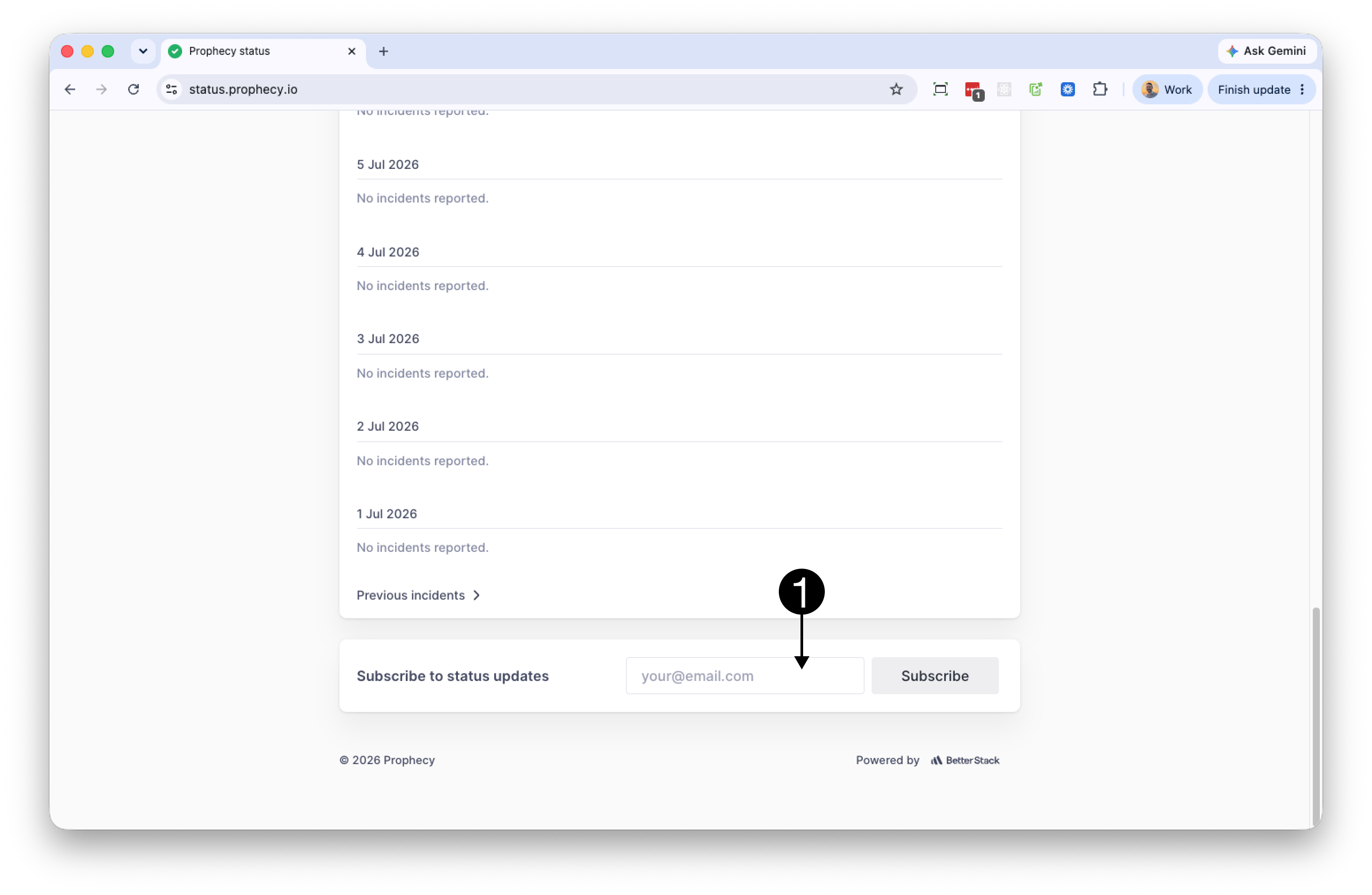
2. Scroll to **Subscribe to status updates** (1).
3. Enter your email address.
4. Click **Subscribe**.
5. Confirm the subscription using the link sent to your inbox.
After confirmation, you will receive notifications for future status changes and incidents.
## Status indicators
Each component is assigned a status indicator:
| Status | Description |
| -------------------- | ------------------------------------------------------------------------------------------------------------------------- |
| 🟢 Operational | All systems are running normally. No action needed. |
| 🔴 Major Outage | A significant portion of the platform is unavailable. Incident is open and being worked on with high priority. |
| 🟣 Under Maintenance | Scheduled maintenance is in progress. This is a planned activity communicated in advance. Temporary disruption may occur. |
| ⚪ Unknown | Status cannot be determined. This may indicate a monitoring gap. Contact support if this persists. |
## View incidents
When an issue affects the platform, Prophecy posts updates on the status page.
Incidents typically progress through the following states:
1. **Investigating** - The team has been alerted and is actively looking into the issue. Not all root causes are known at this point. The status page will be updated as information becomes available.
2. **Identified** - The root cause has been found. The team is now working on a resolution. An estimated time to fix may be shared at this stage.
3. **Monitoring** - A fix has been applied and the team is watching to confirm the issue is fully resolved. Services may still show as degraded during this period.
4. **Resolved** - The incident is closed. All affected services are back to normal operation. A post-incident summary may be shared with affected customers.
Incident updates are displayed in chronological order and include information about impact, mitigation efforts, and resolution status.
## Subscribe to notifications
You can subscribe to be notified by email when incidents are created, updated, or resolved.
To subscribe:
1. Open the status page.
2. Scroll to **Subscribe to status updates** (1).
3. Enter your email address.
4. Click **Subscribe**.
5. Confirm the subscription using the link sent to your inbox.
After confirmation, you will receive notifications for future status changes and incidents.
 Confirmation links expire after 24 hours. If your link expires, start a new subscription.
If you have confirmed but are not receiving notifications, do the following:
* Check your spam or junk folder.
* Add [updates@statuspage.betterstackupdate.com](mailto:updates@statuspage.betterstackupdate.com) to your contacts or safe sender list.
* Verify that you subscribed to the correct status page URL.
## Manage subscriptions
To stop receiving notifications, click **Unsubscribe** in any status page email.
To change the email address on your subscription, unsubscribe from the current address and create a new subscription with your new email address. (You cannot edit email addresses on existing subscriptions.)
## Scheduled maintenance
The Prophecy team may schedule planned maintenance windows for upgrades, infrastructure changes, or other operational activities. These are communicated on the status page in advance.
* Scheduled maintenance events appear on the status page before the window begins.
* Subscribers receive email notifications ahead of the maintenance start time.
* During maintenance, affected services display the Under Maintenance status (🟣).
* Once maintenance is complete, all services return to green (Operational) and you will receive a confirmation notification.
If you have time-sensitive workflows that could be affected by a maintenance window, please reach out to your Prophecy support contact as soon as you see a maintenance announcement so we can plan accordingly.
## Contact support
The status page reports platform-wide service health and incident information.
For account-specific issues, integration questions, or anything not reflected on the status page, contact Prophecy support:
* Submit a support ticket through the [Zendesk Support Portal](/administration/getting-help/submit-request).
* Email [support@prophecy.io](mailto:support@prophecy.io)
For P1/production-blocking issues, contact your dedicated Prophecy SRE or Customer Success Manager directly.
Confirmation links expire after 24 hours. If your link expires, start a new subscription.
If you have confirmed but are not receiving notifications, do the following:
* Check your spam or junk folder.
* Add [updates@statuspage.betterstackupdate.com](mailto:updates@statuspage.betterstackupdate.com) to your contacts or safe sender list.
* Verify that you subscribed to the correct status page URL.
## Manage subscriptions
To stop receiving notifications, click **Unsubscribe** in any status page email.
To change the email address on your subscription, unsubscribe from the current address and create a new subscription with your new email address. (You cannot edit email addresses on existing subscriptions.)
## Scheduled maintenance
The Prophecy team may schedule planned maintenance windows for upgrades, infrastructure changes, or other operational activities. These are communicated on the status page in advance.
* Scheduled maintenance events appear on the status page before the window begins.
* Subscribers receive email notifications ahead of the maintenance start time.
* During maintenance, affected services display the Under Maintenance status (🟣).
* Once maintenance is complete, all services return to green (Operational) and you will receive a confirmation notification.
If you have time-sensitive workflows that could be affected by a maintenance window, please reach out to your Prophecy support contact as soon as you see a maintenance announcement so we can plan accordingly.
## Contact support
The status page reports platform-wide service health and incident information.
For account-specific issues, integration questions, or anything not reflected on the status page, contact Prophecy support:
* Submit a support ticket through the [Zendesk Support Portal](/administration/getting-help/submit-request).
* Email [support@prophecy.io](mailto:support@prophecy.io)
For P1/production-blocking issues, contact your dedicated Prophecy SRE or Customer Success Manager directly.