> ## Documentation Index
> Fetch the complete documentation index at: https://docs.prophecy.ai/llms.txt
> Use this file to discover all available pages before exploring further.
# Support requests
> Understand the support request process
This page explains how Prophecy customers with support included in their subscription can open and manage support cases.
If your organization does not have support access, you can use self-service resources such as documentation and tutorials.
## Prerequisites
To open support tickets and new cases, you need to be registered as an authorized support contact for your company. For more information, reach out to our [Sales team](mailto:sales@prophecy.io).
Users on free versions of Prophecy are not eligible for support. Please refer to self-service
resources to troubleshoot any issues.
## Submit a support ticket
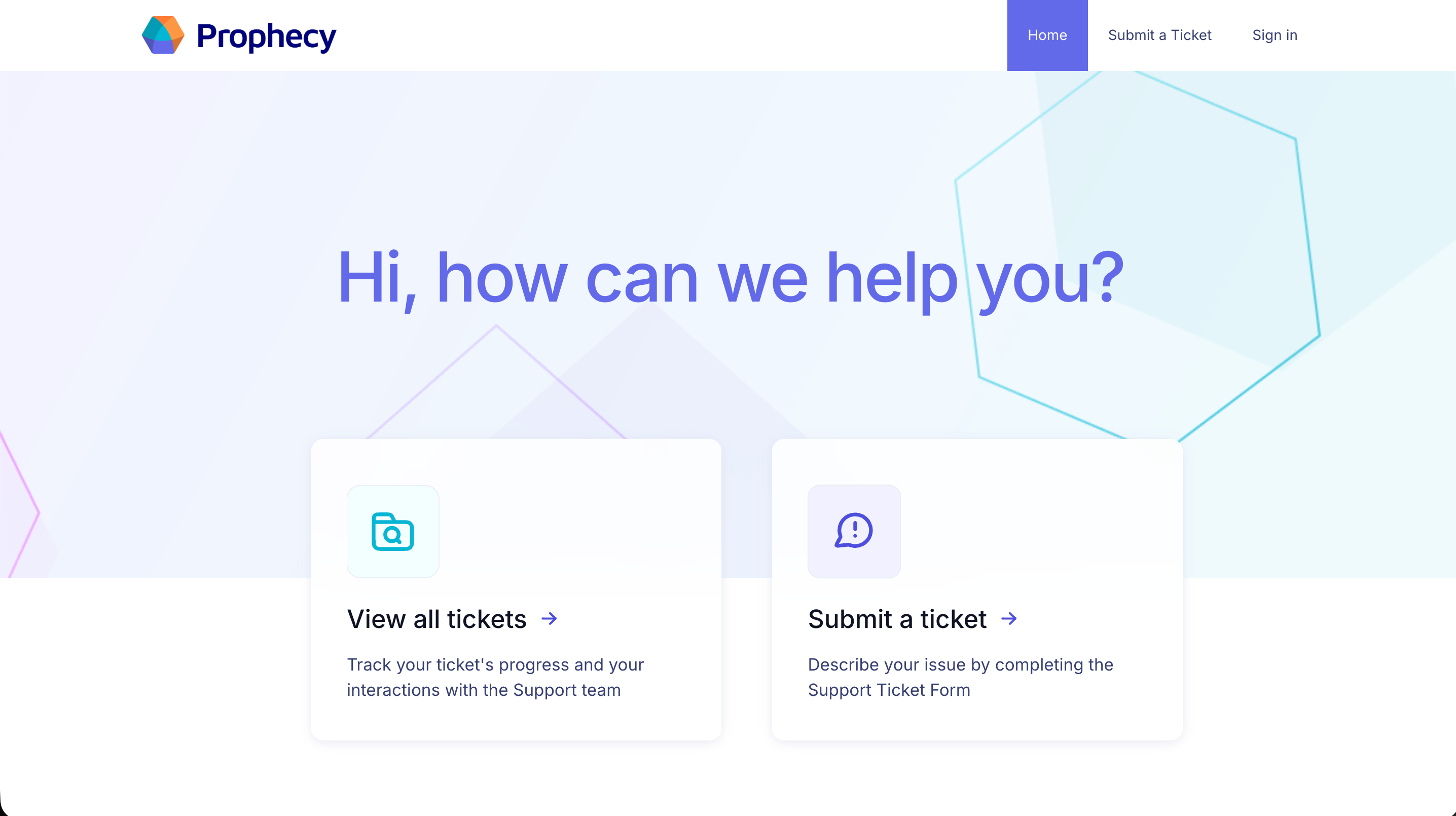
* Open the [Support Portal](https://prophecy.zendesk.com).
* Click **Submit a Ticket**.
 Complete the support request form with the information below.
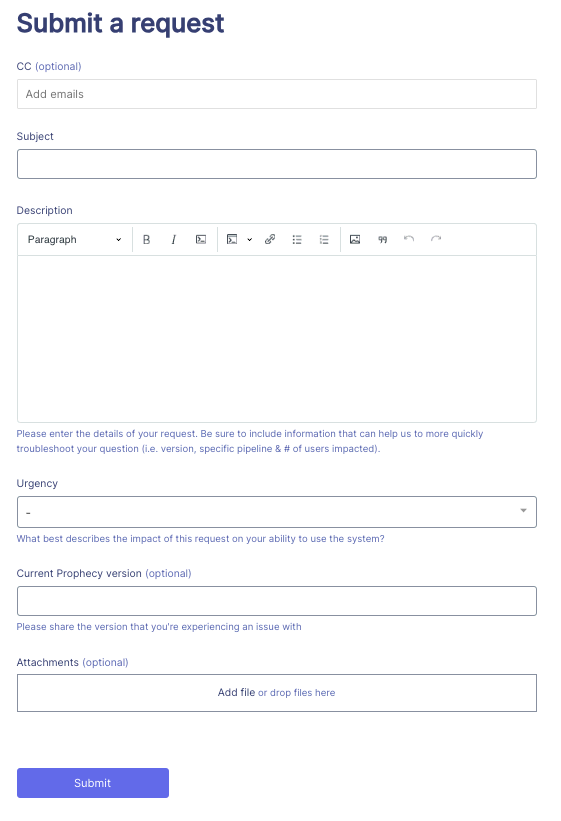 **Subject**: Enter a short summary of the issue.
**Description**: Provide detailed information about your issue. Include:
* A description of the issue, detailing expected vs. actual behavior.
* Any steps taken so far to troubleshoot the issue.
* The workspace URL where the issue occurred.
* The pipeline, dataset, or other resource involved.
**Urgency**: Select the option that best reflects the impact of the issue.
**CC (optional)**: Add team members to the ticket.
Users must exist in Zendesk to be added as CC.
**Current Prophecy Version (optional)**: Include your Prophecy version to help diagnose version-specific issues.
**Attachments**: Upload logs, screenshots, or other relevant files (up to 10 MB). For information on what to include, see the [Send logs to Support](/administration/getting-help/prophecy-details) page.
Allowed file types: PDF, PNG, JPEG, GIF, TXT, LOG, HAR, JAR.
Click **Submit** to create your support ticket.
## View your support tickets
* Open the [Support Portal](https://prophecy.zendesk.com).
* Click **View all tickets**.
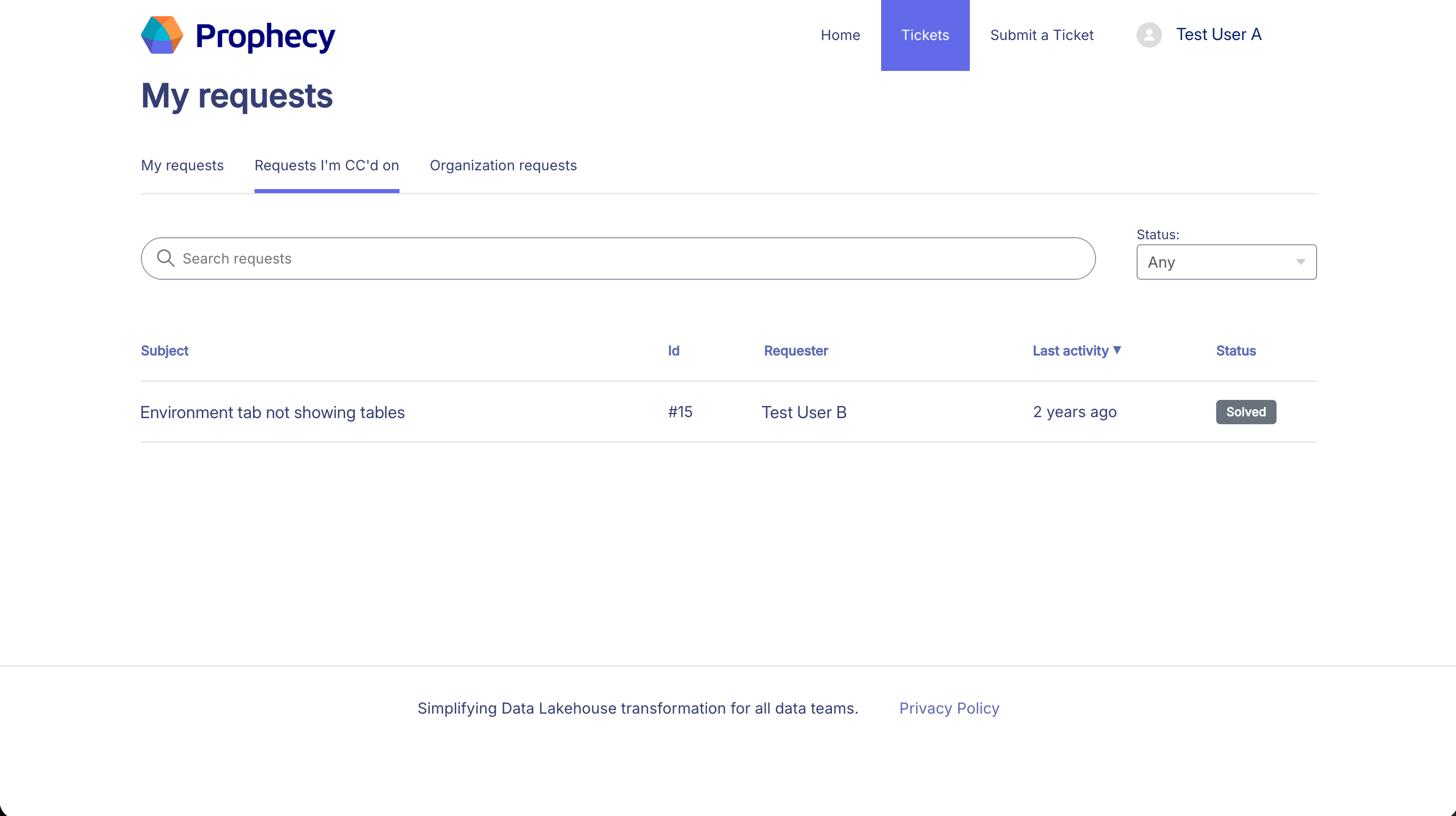
You can filter the requests by status, including:
* Any (shows all requests)
* Open
* Awaiting your reply
* Solved
In addition to your own requests, you can also view:
* Requests that you are CC'd on
* Organization requests (any ticket submitted by other users in your organization)
**Subject**: Enter a short summary of the issue.
**Description**: Provide detailed information about your issue. Include:
* A description of the issue, detailing expected vs. actual behavior.
* Any steps taken so far to troubleshoot the issue.
* The workspace URL where the issue occurred.
* The pipeline, dataset, or other resource involved.
**Urgency**: Select the option that best reflects the impact of the issue.
**CC (optional)**: Add team members to the ticket.
Users must exist in Zendesk to be added as CC.
**Current Prophecy Version (optional)**: Include your Prophecy version to help diagnose version-specific issues.
**Attachments**: Upload logs, screenshots, or other relevant files (up to 10 MB). For information on what to include, see the [Send logs to Support](/administration/getting-help/prophecy-details) page.
Allowed file types: PDF, PNG, JPEG, GIF, TXT, LOG, HAR, JAR.
Click **Submit** to create your support ticket.
## View your support tickets
* Open the [Support Portal](https://prophecy.zendesk.com).
* Click **View all tickets**.
You can filter the requests by status, including:
* Any (shows all requests)
* Open
* Awaiting your reply
* Solved
In addition to your own requests, you can also view:
* Requests that you are CC'd on
* Organization requests (any ticket submitted by other users in your organization)
 ## Case severity
Prophecy uses severity levels to prioritize issues based on business impact.
| Level | Description | Initial Response | Coverage |
| -------------------------- | ------------------------------------------------------------------------------------------------------------------------------------------------------------------------------------------------------------------------------ | ----------------- | ------------------------- |
| **Severity 1**
## Case severity
Prophecy uses severity levels to prioritize issues based on business impact.
| Level | Description | Initial Response | Coverage |
| -------------------------- | ------------------------------------------------------------------------------------------------------------------------------------------------------------------------------------------------------------------------------ | ----------------- | ------------------------- |
| **Severity 1**
Urgent | Production use is blocked/broken without a workaround.- Workspace unavailable
- Production pipelines failing
| \< 1 hour | 24/7 every day |
| **Severity 2**
High | Major functionality is impaired. System is functional but in a degraded or restricted state. - Significant performance degradation
- Repeated failures
- Blocking issues with possible workarounds
| \< 4 hours | 24/7 every day |
| **Severity 3**
Normal | Non-critical functionality is impacted or a development-only issue occurs. - Minor errors
- UI or workflow issues
- Questions about expected behavior
| \< 1 business day | 9 AM - 6 PM business days |
| **Severity 4**
Low | General questions or feature requests with no production impact.- How-to questions
- Documentation clarifications
- Enhancement ideas
| \< 1 business day | 9 AM - 6 PM business days |
If a ticket requires additional attention, you may escalate by:
* Updating the ticket with new details.
* Contacting your customer success manager.