> ## Documentation Index
> Fetch the complete documentation index at: https://docs.prophecy.ai/llms.txt
> Use this file to discover all available pages before exploring further.
# Inspect Agent results
> Review and verify how the Agent produces answers
When you build pipelines with the [agent](/data-analysis/ai/agent/agent), much of the structure and logic is generated for you. Your role shifts from manually assembling each step to **inspecting and verifying** that each transformation behaves as expected.
You can do this directly in the visual interface by opening gems and reviewing the data they produce.
## How inspection works
Inspecting a pipeline typically involves the following:
* Reviewing the pipeline as a whole.
* Reviewing the logic inside a gem.
* Reviewing the data output after that gem runs.
* (Optionally) Examining the SQL behind a gem.
 Prophecy provides a few tools to support this workflow:
* View [pipelines](/data-analysis/development/pipelines/data-analysis-pipelines) on the canvas to see how data is flowing.
* Open a [gem](/data-analysis/gems/gems) to inspect and modify its configuration.
* Use the [Data Explorer](/data-analysis/development/runs/data-explorer/data-explorer) to view the output after a step.
* Use the [Data Profile](data-analysis/development/runs/data-explorer/data-profile) to analyze distributions, nulls, and data quality.
* Use the [visual expression builder](data-analysis/gems/visual-expression-builder/visual-expression-builder) to review or refine a gem's expression logic.
* Inspect SQL using [code view](/data-analysis/gems/visual-expression-builder/visual-expression-builder#code-view).
## Inspect the overall pipeline
Begin by reviewing the pipeline as a whole to understand how data flows through each step.
On the pipeline canvas, look at:
* **The sequence of steps** — how data moves from sources to final outputs.
* **Joins and branching paths** — where datasets are combined or split.
* **Inputs and outputs** — what each gem receives and produces.
* **Key transformation points** — where filtering, aggregation, or enrichment occurs.
This high-level view helps you answer questions like:
* Does the pipeline follow the intended logic from start to finish?
* Are joins happening in the right place and in the right order?
* Are there unnecessary or missing steps?
* Does the final output reflect the transformations you expect?
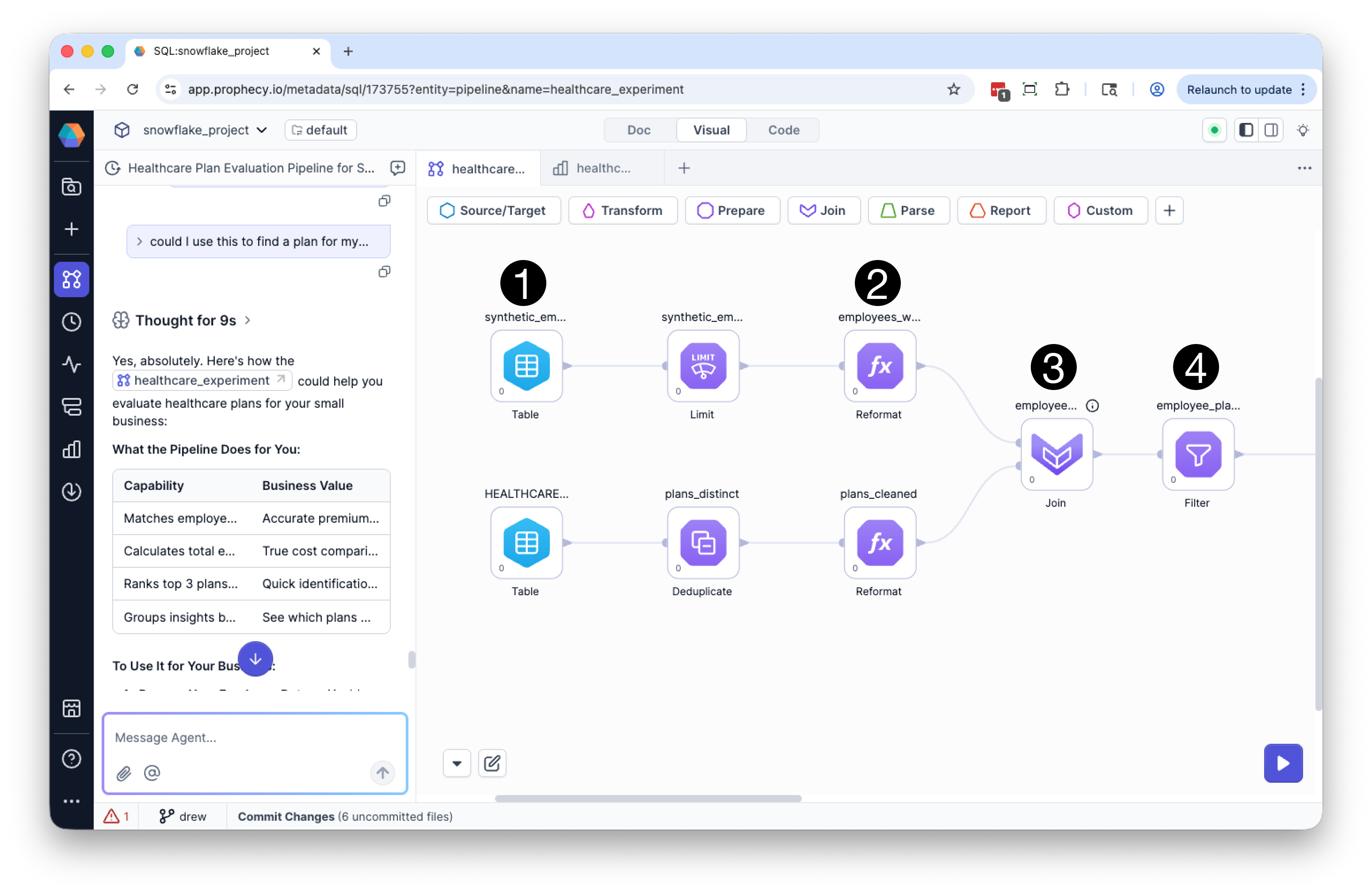
Here are some examples of gems featured in the screenshot below:
1. [Table gems](/data-analysis/gems/source-target/table/snowflake), which visualize your data sources.
2. [Reformat gems](/data-analysis/gems/prepare/reformat), which transforms one or more column names or values by using expressions and/or functions.
3. [Join gems](/data-analysis/gems/join-split/join), which combine data from two or more datasets based on a shared column value.
4. [Filter gems](/data-analysis/gems/prepare/filter), which filter output rows based on defined criteria.
Prophecy provides a few tools to support this workflow:
* View [pipelines](/data-analysis/development/pipelines/data-analysis-pipelines) on the canvas to see how data is flowing.
* Open a [gem](/data-analysis/gems/gems) to inspect and modify its configuration.
* Use the [Data Explorer](/data-analysis/development/runs/data-explorer/data-explorer) to view the output after a step.
* Use the [Data Profile](data-analysis/development/runs/data-explorer/data-profile) to analyze distributions, nulls, and data quality.
* Use the [visual expression builder](data-analysis/gems/visual-expression-builder/visual-expression-builder) to review or refine a gem's expression logic.
* Inspect SQL using [code view](/data-analysis/gems/visual-expression-builder/visual-expression-builder#code-view).
## Inspect the overall pipeline
Begin by reviewing the pipeline as a whole to understand how data flows through each step.
On the pipeline canvas, look at:
* **The sequence of steps** — how data moves from sources to final outputs.
* **Joins and branching paths** — where datasets are combined or split.
* **Inputs and outputs** — what each gem receives and produces.
* **Key transformation points** — where filtering, aggregation, or enrichment occurs.
This high-level view helps you answer questions like:
* Does the pipeline follow the intended logic from start to finish?
* Are joins happening in the right place and in the right order?
* Are there unnecessary or missing steps?
* Does the final output reflect the transformations you expect?
Here are some examples of gems featured in the screenshot below:
1. [Table gems](/data-analysis/gems/source-target/table/snowflake), which visualize your data sources.
2. [Reformat gems](/data-analysis/gems/prepare/reformat), which transforms one or more column names or values by using expressions and/or functions.
3. [Join gems](/data-analysis/gems/join-split/join), which combine data from two or more datasets based on a shared column value.
4. [Filter gems](/data-analysis/gems/prepare/filter), which filter output rows based on defined criteria.
 ## Inspect a pipeline step
To understand what a step is doing:
1. Identify the gem you want to inspect on the canvas.
2. Open the gem to review its configuration.
3. Check how inputs are transformed:
* joins and join conditions
* filters and conditions
* derived or reformatted columns
4. If the gem includes expressions, review them using the visual expression builder.
Opening a gem helps you understand how the transformation is defined.
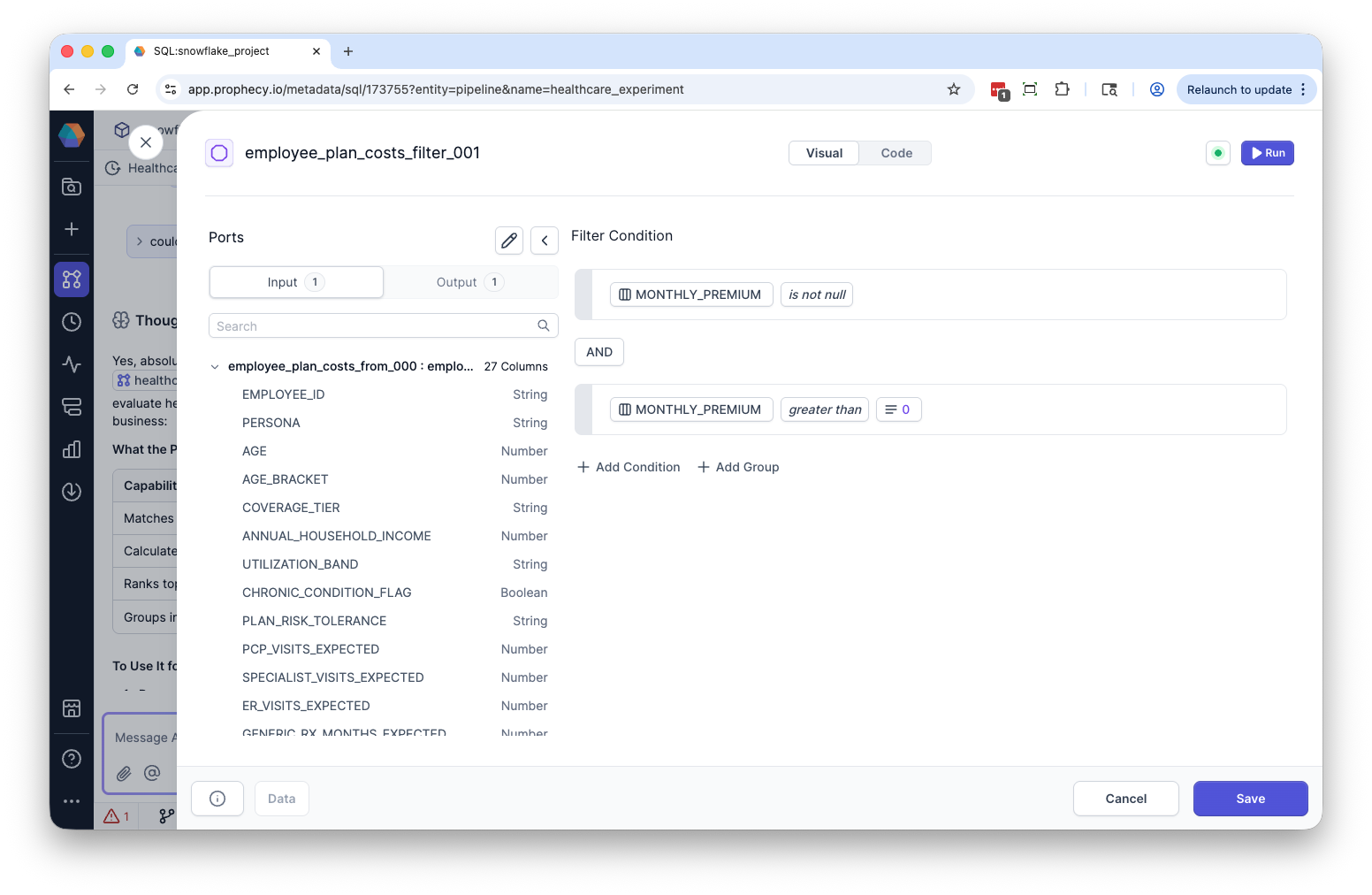
For example, the screenshot below depicts a Filter gem that filters out rows where `MONTHLY_PREMIUM` is null or zero.
## Inspect a pipeline step
To understand what a step is doing:
1. Identify the gem you want to inspect on the canvas.
2. Open the gem to review its configuration.
3. Check how inputs are transformed:
* joins and join conditions
* filters and conditions
* derived or reformatted columns
4. If the gem includes expressions, review them using the visual expression builder.
Opening a gem helps you understand how the transformation is defined.
For example, the screenshot below depicts a Filter gem that filters out rows where `MONTHLY_PREMIUM` is null or zero.
 ## Inspect results
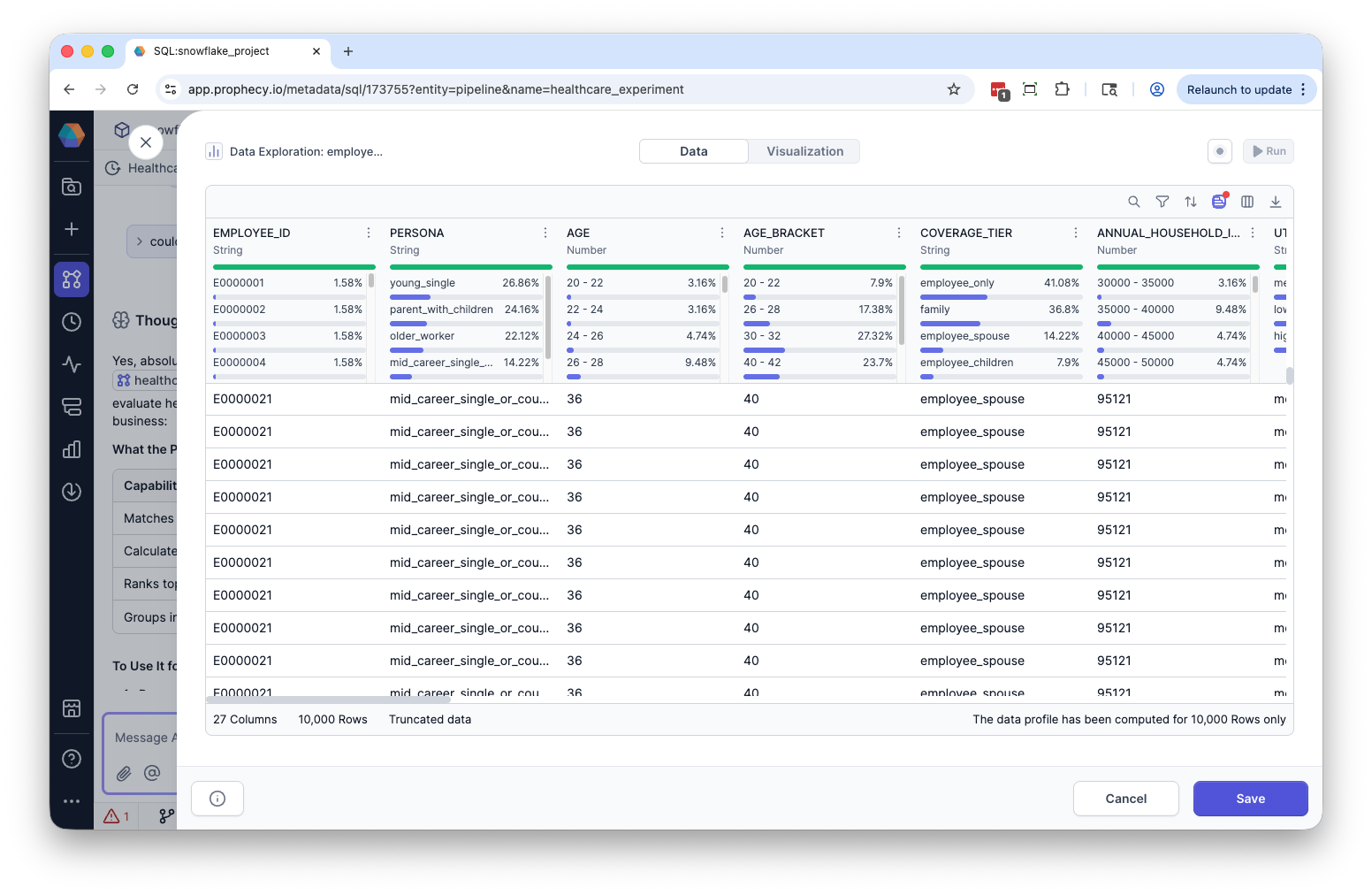
After reviewing the logic, validate the output:
1. Run the pipeline up to and including the gem.
2. Open the result in the [Data Explorer](/data-analysis/development/runs/data-explorer/data-explorer).
3. Review:
* rows and sample values
* column names and types
* schema changes from previous steps
If you need deeper insight into the data, use the [Data Profile](/data-analysis/development/runs/data-explorer/data-profile) to check distributions, null values, and outliers.
Inspecting results helps you confirm that the transformation behaves as expected.
## Inspect results
After reviewing the logic, validate the output:
1. Run the pipeline up to and including the gem.
2. Open the result in the [Data Explorer](/data-analysis/development/runs/data-explorer/data-explorer).
3. Review:
* rows and sample values
* column names and types
* schema changes from previous steps
If you need deeper insight into the data, use the [Data Profile](/data-analysis/development/runs/data-explorer/data-profile) to check distributions, null values, and outliers.
Inspecting results helps you confirm that the transformation behaves as expected.
 ## What to look for
When inspecting a pipeline step, focus on whether the output matches your expectations:
* Did the number of rows change in the way you expected?
* Were any rows unexpectedly dropped or duplicated?
* Did the schema change correctly (new columns, renamed fields, type changes)?
* Are there unexpected null values or missing data?
* Do derived columns contain the correct values?
* Do joins and filters behave as intended?
If something looks off, return to the gem, adjust the logic, and re-run the pipeline to verify the change.
## Inspect expressions
Some transformations rely on expressions defined inside a gem.
Use the [visual expression builder](/data-analysis/gems/visual-expression-builder/visual-expression-builder) to:
* Review comparison logic and conditions
* Combine conditions with logical operators like `AND` and `OR`
* Work with parameters and dynamic values
After updating an expression, run the pipeline and verify the output in Data Explorer to ensure the expression produces the expected results.
## Inspect generated SQL
All pipelines compile to SQL that runs in your warehouse. You can inspect this SQL to verify exactly how transformations are executed.
To do this:
1. Open a gem.
2. Switch to [code view](/data-analysis/gems/visual-expression-builder/visual-expression-builder#code-view).
3. Review the generated SQL.
Inspecting SQL is useful when you want to:
* Confirm how joins, filters, or aggregations are implemented
* Debug unexpected results at a lower level
* Validate performance or query structure
## Next steps
* Learn more about working with gems in the [gems overview](/data-analysis/gems/gems)
* Explore outputs using the [Data Explorer](/data-analysis/development/runs/data-explorer/data-explorer)
* Analyze data quality with the [Data Profile](/data-analysis/development/runs/data-explorer/data-profile)
* Build and refine logic using the [visual expression builder](/data-analysis/gems/visual-expression-builder/visual-expression-builder)
## What to look for
When inspecting a pipeline step, focus on whether the output matches your expectations:
* Did the number of rows change in the way you expected?
* Were any rows unexpectedly dropped or duplicated?
* Did the schema change correctly (new columns, renamed fields, type changes)?
* Are there unexpected null values or missing data?
* Do derived columns contain the correct values?
* Do joins and filters behave as intended?
If something looks off, return to the gem, adjust the logic, and re-run the pipeline to verify the change.
## Inspect expressions
Some transformations rely on expressions defined inside a gem.
Use the [visual expression builder](/data-analysis/gems/visual-expression-builder/visual-expression-builder) to:
* Review comparison logic and conditions
* Combine conditions with logical operators like `AND` and `OR`
* Work with parameters and dynamic values
After updating an expression, run the pipeline and verify the output in Data Explorer to ensure the expression produces the expected results.
## Inspect generated SQL
All pipelines compile to SQL that runs in your warehouse. You can inspect this SQL to verify exactly how transformations are executed.
To do this:
1. Open a gem.
2. Switch to [code view](/data-analysis/gems/visual-expression-builder/visual-expression-builder#code-view).
3. Review the generated SQL.
Inspecting SQL is useful when you want to:
* Confirm how joins, filters, or aggregations are implemented
* Debug unexpected results at a lower level
* Validate performance or query structure
## Next steps
* Learn more about working with gems in the [gems overview](/data-analysis/gems/gems)
* Explore outputs using the [Data Explorer](/data-analysis/development/runs/data-explorer/data-explorer)
* Analyze data quality with the [Data Profile](/data-analysis/development/runs/data-explorer/data-profile)
* Build and refine logic using the [visual expression builder](/data-analysis/gems/visual-expression-builder/visual-expression-builder)