> ## Documentation Index
> Fetch the complete documentation index at: https://docs.prophecy.ai/llms.txt
> Use this file to discover all available pages before exploring further.
# Add and use skills
> Contribute skills to Prophecy's AI Agent for specific tasks
Skills tell [Prophecy's AI Agent](/data-analysis/ai/agent/agent) how to handle a specific task: when to activate, what to read first, how to proceed, and what to hand off when done. This page covers how to add one or more skills.
Skills are an iterative artifact. The structure described here reflects patterns that work well in practice, but there is no single correct form. Expect to revise a skill as you learn how the Agent interprets it and how users actually phrase their requests.
## What a skill is
A skill is a named set of instructions the Agent loads when a user request matches its description. Skills conform to the [Agent Skills open specification](https://agentskills.io/specification), which defines a portable, interoperable format for agent instructions.
In Prophecy, skills live at `skills//SKILL.md` in your project.
Once created, skills appear in your project alongside other project entities. In Prophecy for Business, you can find them in the [Project Browser](/data-analysis/development/studio/studio#project-browser); in [Professional Edition](data-analysis/getting-started/professional-edition), they appear in the Browse Project panel on the right side of the workspace.
## How the agent loads skills
The [Agent](/data-analysis/ai/agent/agent) reads the name and description of every installed skill on every chat. It only loads the full skill body when it determines the skill is relevant to the current task. This means:
* You can maintain many skills without degrading agent output.
* The description is doing active routing work, not just documentation.
* A vague description means the skill may never load, or may load at the wrong time.
## Add a skill
### Add a single skill
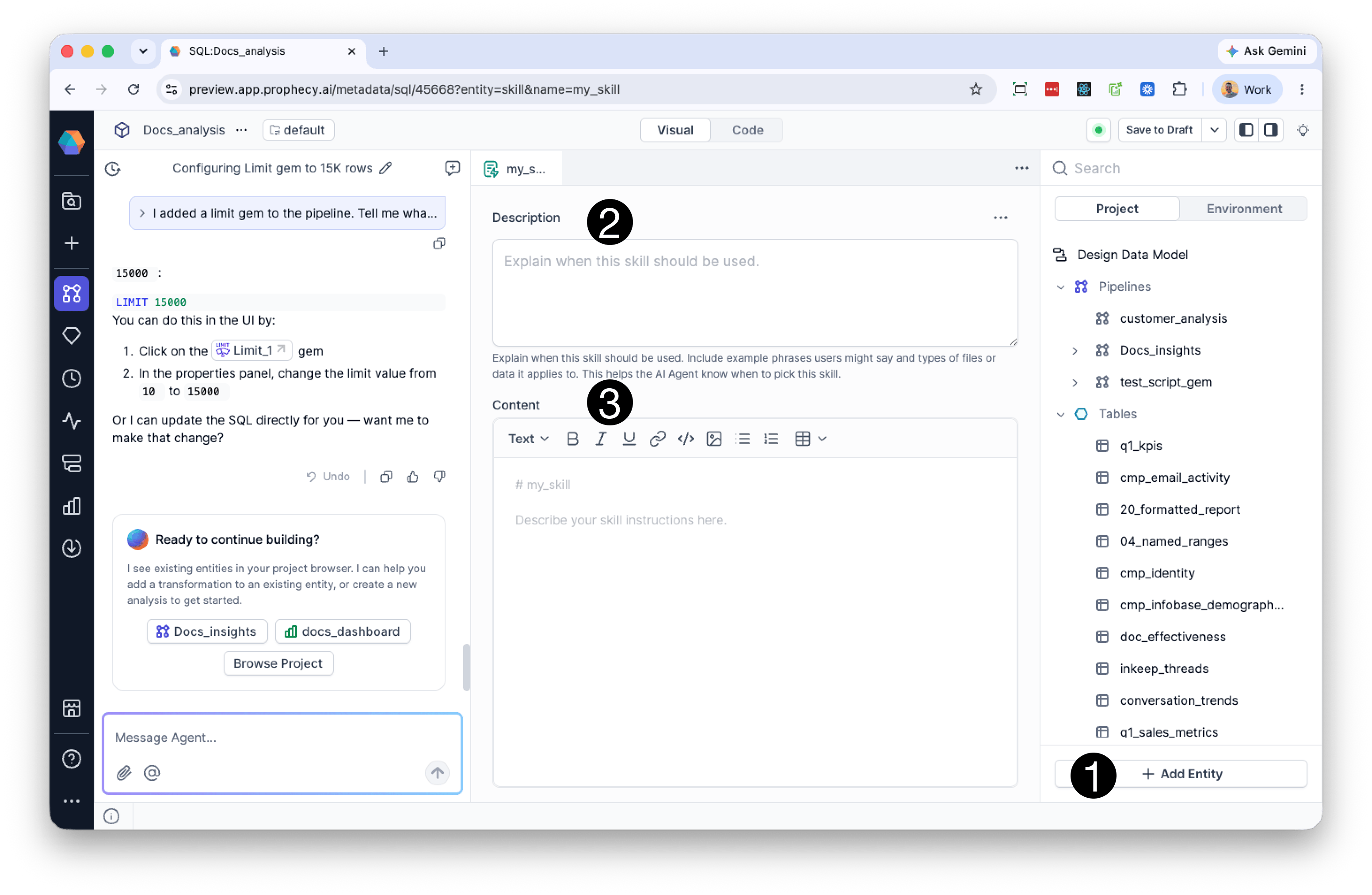
1. From the bottom of the Project Explorer, select **Add entity > Skill**.
2. In the **Add Skill** dialog, enter a skill name. By default the skill is created in the `/skills` folder.
3. Click **Create**. The skill editor opens.
4. Enter a [description](#description) and [body](#body), then save.
 ### Install skills from a zip file
You can bulk-install a set of skills by uploading a zip file directly to the Agent.
1. In the Agent chat, attach your zip file using **Attach** or by dragging it into the chat.
2. Enter the prompt: `Install the skills in this zip`.
3. The Agent installs all skills it finds and confirms which were added. Installed skills appear in the `/skills` directory in your project.
You can invoke any installed skill by name, for example `/strats` or `/validation`.
### Add a single skill
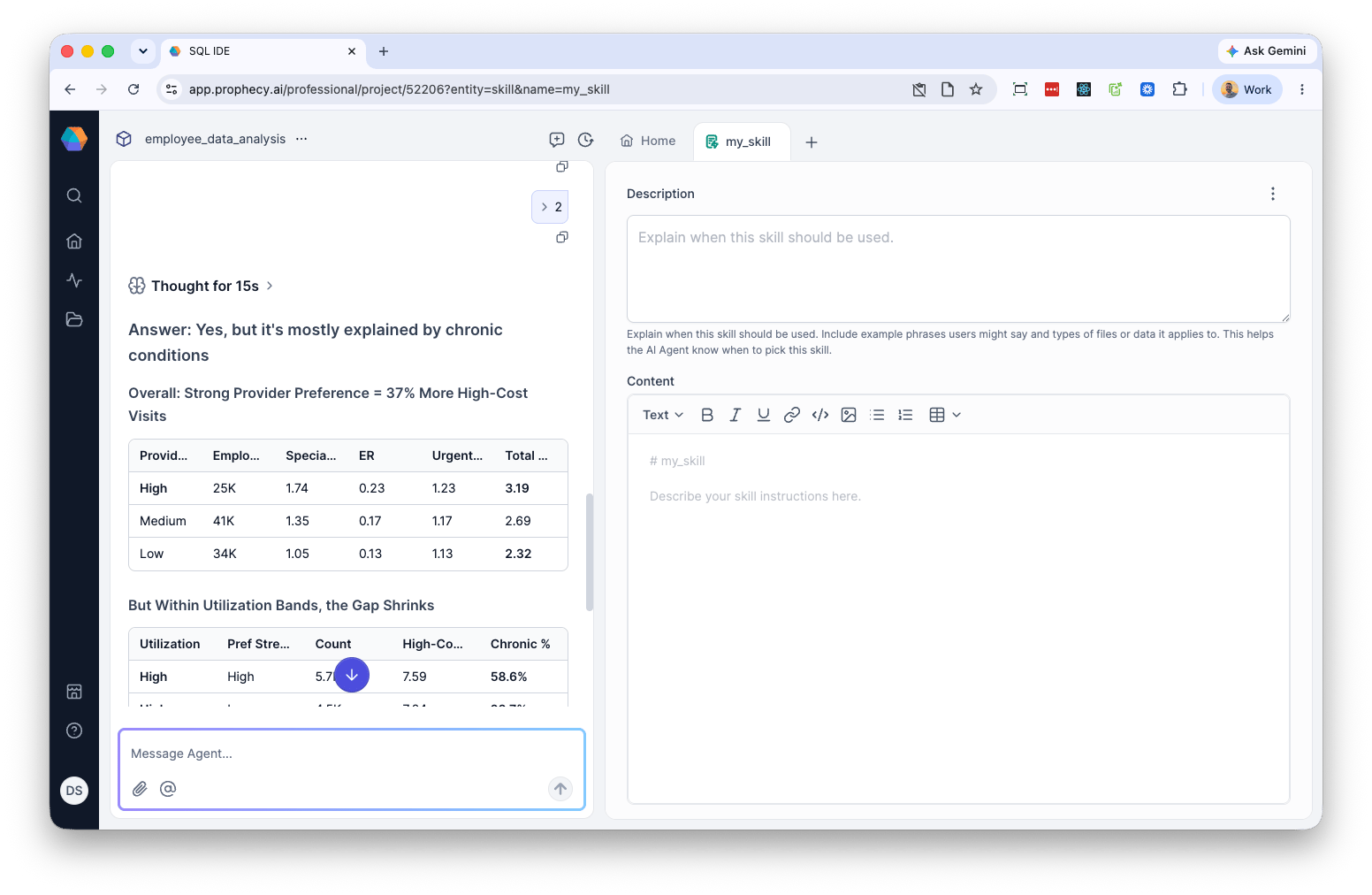
1. From the project panel, select **Add New > Skill**. Alternatively, select **+** at the top of the tab bar, then choose **New > Skill**.
2. In the **Add Skill** dialog, enter a skill name. By default the skill is created in the `/skills` folder.
3. Click **Create**. The skill editor opens.
4. Enter a [description](#description) and [body](#body), then save.
### Install skills from a zip file
You can bulk-install a set of skills by uploading a zip file directly to the Agent.
1. In the Agent chat, attach your zip file using **Attach** or by dragging it into the chat.
2. Enter the prompt: `Install the skills in this zip`.
3. The Agent installs all skills it finds and confirms which were added. Installed skills appear in the `/skills` directory in your project.
You can invoke any installed skill by name, for example `/strats` or `/validation`.
### Add a single skill
1. From the project panel, select **Add New > Skill**. Alternatively, select **+** at the top of the tab bar, then choose **New > Skill**.
2. In the **Add Skill** dialog, enter a skill name. By default the skill is created in the `/skills` folder.
3. Click **Create**. The skill editor opens.
4. Enter a [description](#description) and [body](#body), then save.
 Bulk install from a zip file is not supported in Professional Edition.
The following applies when adding a skill manually. If you installed skills from a zip file, the skill files are already written. You can edit these directly in the skill editor.
## Skill description and body
When the skill editor opens, you enter a description and body.
### Description
The description provides the routing signal that the Agent uses to decide when to load this skill. Start with "Use when..." and be as concrete as possible. Include the user intent it targets, specific trigger phrases in quotes, any file types or contextual signals that should activate it, and where relevant, what the skill does *not* cover. A vague description like "Helps with data mapping" gives the Agent little to work with. A scoped one like "Use when the user wants to map a raw data tape to the CDM. Triggers include: 'crack this tape', 'map to CDM', 'harmonize tape'" tells it exactly when to act.
### Body
Here, you enter the instructions the Agent follows once the skill loads. A skill body typically opens with a one-line statement of purpose and scope — what the skill does and, where useful, what it explicitly does not do.
From there, the body is organized around the operations the Agent needs to perform. Each operation defines a trigger condition (what the user said or did), a sequence of steps, and any output format or response pattern the Agent should follow. Operations can also specify constraints: things the Agent should not do at this stage, particularly when a skill is one step in a larger workflow and scope boundaries matter.
Skills often include a prerequisites section pointing to shared config or capability files the Agent should read before acting. They may also include response templates (example phrasing the Agent can adapt) and edge case handling for situations like multiple inputs or ambiguous requests.
There is no required structure. Use whatever sections suit the task, named and ordered to match the work. A skill that runs a multi-step pipeline might use numbered steps and prerequisite checks, whereas one that provides background context might be a few paragraphs of prose.
Skill body body stays in context for the entire session once loaded. Keep it concise — every line is a recurring token cost. Move large reference material to supporting files in the same skill directory and link to them from `SKILL.md`.
## Further reading
[Agent Skills specification](https://agentskills.io/specification) — the open standard this format conforms to
Bulk install from a zip file is not supported in Professional Edition.
The following applies when adding a skill manually. If you installed skills from a zip file, the skill files are already written. You can edit these directly in the skill editor.
## Skill description and body
When the skill editor opens, you enter a description and body.
### Description
The description provides the routing signal that the Agent uses to decide when to load this skill. Start with "Use when..." and be as concrete as possible. Include the user intent it targets, specific trigger phrases in quotes, any file types or contextual signals that should activate it, and where relevant, what the skill does *not* cover. A vague description like "Helps with data mapping" gives the Agent little to work with. A scoped one like "Use when the user wants to map a raw data tape to the CDM. Triggers include: 'crack this tape', 'map to CDM', 'harmonize tape'" tells it exactly when to act.
### Body
Here, you enter the instructions the Agent follows once the skill loads. A skill body typically opens with a one-line statement of purpose and scope — what the skill does and, where useful, what it explicitly does not do.
From there, the body is organized around the operations the Agent needs to perform. Each operation defines a trigger condition (what the user said or did), a sequence of steps, and any output format or response pattern the Agent should follow. Operations can also specify constraints: things the Agent should not do at this stage, particularly when a skill is one step in a larger workflow and scope boundaries matter.
Skills often include a prerequisites section pointing to shared config or capability files the Agent should read before acting. They may also include response templates (example phrasing the Agent can adapt) and edge case handling for situations like multiple inputs or ambiguous requests.
There is no required structure. Use whatever sections suit the task, named and ordered to match the work. A skill that runs a multi-step pipeline might use numbered steps and prerequisite checks, whereas one that provides background context might be a few paragraphs of prose.
Skill body body stays in context for the entire session once loaded. Keep it concise — every line is a recurring token cost. Move large reference material to supporting files in the same skill directory and link to them from `SKILL.md`.
## Further reading
[Agent Skills specification](https://agentskills.io/specification) — the open standard this format conforms to