> ## Documentation Index
> Fetch the complete documentation index at: https://docs.prophecy.ai/llms.txt
> Use this file to discover all available pages before exploring further.
# Consume analyses
> Run, configure, and schedule analyses
Analyses let you interact with data pipelines through a configurable runtime experience.
You can use analyses to:
* Enter runtime values through forms and interactive inputs.
* Run pipelines without editing pipeline logic.
* Review results in charts and tables.
* Save reusable configurations.
* Schedule recurring executions.
* Share operational workflows with other teams.
## Open an analysis
1. Open the **Analysis Browser** (the graph icon) in the left sidebar.
2. Select an analysis.
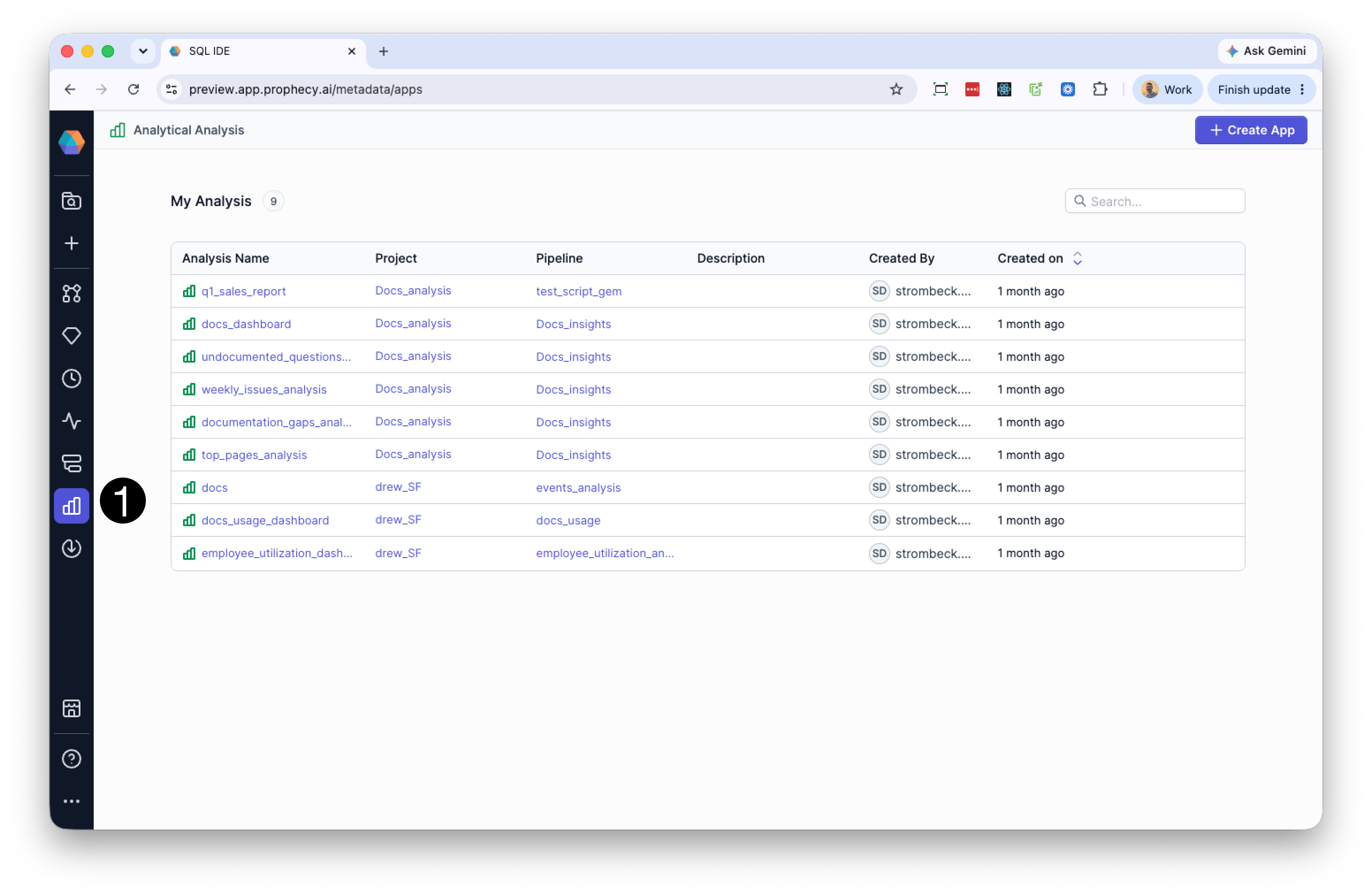 The analysis opens in **Preview** mode.
Preview mode lets you interact with the analysis as an end user would, including entering runtime values, executing the pipeline, and reviewing results.
## Understanding configurations
Analyses support multiple **configurations**.
A configuration is a named set of runtime values for an analysis. Configurations allow teams to create reusable presets for different workflows, environments, or operational scenarios.
For example, an analysis might include:
* A `production` configuration
* A `staging` configuration
* Configurations for different regions or business units
Configurations appear under the analysis in the Analysis Browser. Each analysis can contain multiple configurations, which you can select, rename, schedule, or run independently.
Runtime values entered in a configuration override the pipeline's default parameter values during execution.
## Create a configuration
1. In the **Analysis Browser**, hover over an analysis.
2. Click the **+** icon.
3. Enter a configuration name.
4. Click **Create**.
Configuration names must be unique within the analysis.
## Manage configurations
To manage a configuration:
1. Open the configuration menu.
2. Select an action:
* Rename
* Delete
You can switch between configurations by selecting them in the Analysis Browser.
## Run an analysis
When you run an analysis, Prophecy executes the underlying pipeline using the current configuration values.
Analysis results render in charts, tables, and other visualization components.
1. Open a configuration.
2. Enter or update runtime values.
3. Click **Run**.
4. Review the results.
For example, you might:
* Enter `West` in a **Region** field
* Run the analysis
* Review a chart showing sales by product category for the western region
Interactive components capture runtime input, while charts and tables display the resulting pipeline output.
Running an analysis always executes the full underlying pipeline. Any additional transformations or tables included in the pipeline will also run, even if they are not displayed in the analysis.
## Refresh analysis results
Analyses can become out of date if the underlying pipeline changes.
If the pipeline definition changes after the analysis was last executed, Prophecy displays a warning indicating that the analysis should be rerun.
To refresh the analysis:
1. Open the configuration.
2. Click **Run**.
## Schedule an analysis
You can schedule configurations to run automatically.
Schedules are attached to individual configurations, allowing the same analysis to run with different runtime values on different schedules.
For example:
* A `production` configuration might run hourly
* A `staging` configuration might run once per day
To create a schedule:
1. Open a configuration.
2. Click **Schedule**.
3. Configure:
* Cron expression
* Time zone
* Notification settings
4. Save the schedule.
## Share analyses
You can share published analyses with other teams for interactive consumption and execution.
Access to analyses is controlled by Prophecy's team-based permission model.
If your team owns a project, you can:
* Create analyses
* Edit analyses
* Delete analyses
* Manage configurations
If a project is shared with your team, you can:
* Run analyses
* Use existing configurations
* Review results
You cannot modify the analysis structure or underlying pipeline.
To learn more, see [team-based access](/data-analysis/administration/management/users/access/team-based-access).
## What's next
To learn how to build analyses, see [Create an analysis](/data-analysis/analysis/create-analysis).
To customize runtime behavior and visualizations, see [Analysis components](/data-analysis/analysis/analysis-components).
The analysis opens in **Preview** mode.
Preview mode lets you interact with the analysis as an end user would, including entering runtime values, executing the pipeline, and reviewing results.
## Understanding configurations
Analyses support multiple **configurations**.
A configuration is a named set of runtime values for an analysis. Configurations allow teams to create reusable presets for different workflows, environments, or operational scenarios.
For example, an analysis might include:
* A `production` configuration
* A `staging` configuration
* Configurations for different regions or business units
Configurations appear under the analysis in the Analysis Browser. Each analysis can contain multiple configurations, which you can select, rename, schedule, or run independently.
Runtime values entered in a configuration override the pipeline's default parameter values during execution.
## Create a configuration
1. In the **Analysis Browser**, hover over an analysis.
2. Click the **+** icon.
3. Enter a configuration name.
4. Click **Create**.
Configuration names must be unique within the analysis.
## Manage configurations
To manage a configuration:
1. Open the configuration menu.
2. Select an action:
* Rename
* Delete
You can switch between configurations by selecting them in the Analysis Browser.
## Run an analysis
When you run an analysis, Prophecy executes the underlying pipeline using the current configuration values.
Analysis results render in charts, tables, and other visualization components.
1. Open a configuration.
2. Enter or update runtime values.
3. Click **Run**.
4. Review the results.
For example, you might:
* Enter `West` in a **Region** field
* Run the analysis
* Review a chart showing sales by product category for the western region
Interactive components capture runtime input, while charts and tables display the resulting pipeline output.
Running an analysis always executes the full underlying pipeline. Any additional transformations or tables included in the pipeline will also run, even if they are not displayed in the analysis.
## Refresh analysis results
Analyses can become out of date if the underlying pipeline changes.
If the pipeline definition changes after the analysis was last executed, Prophecy displays a warning indicating that the analysis should be rerun.
To refresh the analysis:
1. Open the configuration.
2. Click **Run**.
## Schedule an analysis
You can schedule configurations to run automatically.
Schedules are attached to individual configurations, allowing the same analysis to run with different runtime values on different schedules.
For example:
* A `production` configuration might run hourly
* A `staging` configuration might run once per day
To create a schedule:
1. Open a configuration.
2. Click **Schedule**.
3. Configure:
* Cron expression
* Time zone
* Notification settings
4. Save the schedule.
## Share analyses
You can share published analyses with other teams for interactive consumption and execution.
Access to analyses is controlled by Prophecy's team-based permission model.
If your team owns a project, you can:
* Create analyses
* Edit analyses
* Delete analyses
* Manage configurations
If a project is shared with your team, you can:
* Run analyses
* Use existing configurations
* Review results
You cannot modify the analysis structure or underlying pipeline.
To learn more, see [team-based access](/data-analysis/administration/management/users/access/team-based-access).
## What's next
To learn how to build analyses, see [Create an analysis](/data-analysis/analysis/create-analysis).
To customize runtime behavior and visualizations, see [Analysis components](/data-analysis/analysis/analysis-components).