> ## Documentation Index
> Fetch the complete documentation index at: https://docs.prophecy.ai/llms.txt
> Use this file to discover all available pages before exploring further.
# Deploy parameter sets
> Choose which parameter values are used when pipelines and analyses run
A parameter set is a named collection of values for multiple parameters. You can create parameter sets at the project level or the pipeline level.
Parameter sets are useful when multiple values must change in sync, such as:
* Environment-specific settings (dev, staging, prod)
* Regional configurations (US, EU, APAC)
* Tenant- or customer-specific values
* Currency, locale, or compliance variations
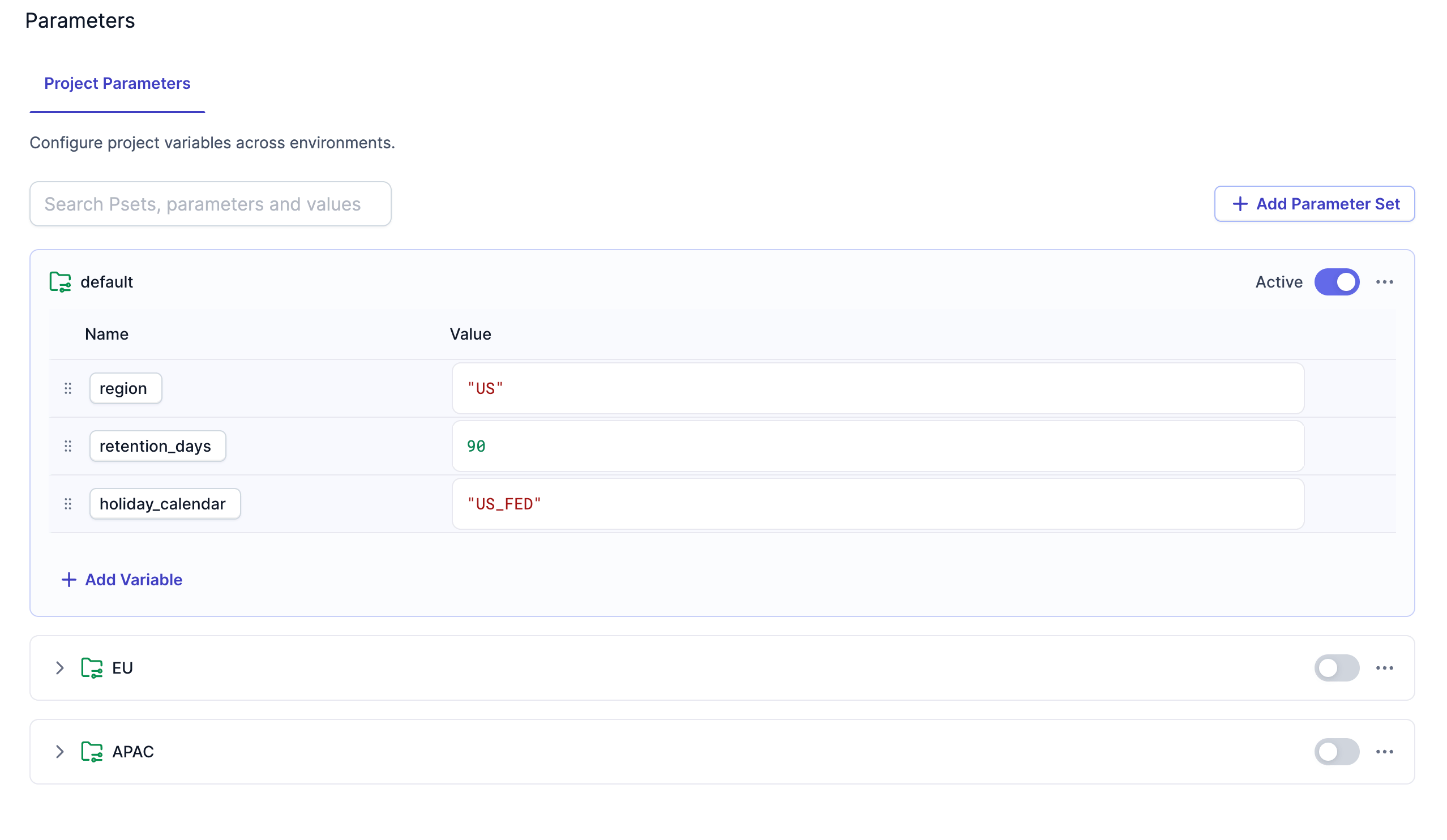 After you define parameters and group them into parameter sets, you must decide which set to use at execution time. The selected parameter set determines the values Prophecy injects when a pipeline or app runs.
## Set hierarchy
When you first open parameter settings, both project parameters and pipeline parameters include an empty default parameter set.
The default set serves two purposes:
* It defines the list of parameters that exist.
* It provides baseline values that other sets can inherit.
When you create additional parameter sets:
* All parameters from the default set appear automatically.
* You provide new values for any parameters you want to override.
* Any value you do not override is inherited from the default.
For interactive development, the default set is active unless you manually activate another set.
## Create parameter sets
Each project and pipeline has a default parameter set. Follow the steps below to create a new parameter set.
Open parameter settings from the default set or the pipeline menu.
After you define parameters and group them into parameter sets, you must decide which set to use at execution time. The selected parameter set determines the values Prophecy injects when a pipeline or app runs.
## Set hierarchy
When you first open parameter settings, both project parameters and pipeline parameters include an empty default parameter set.
The default set serves two purposes:
* It defines the list of parameters that exist.
* It provides baseline values that other sets can inherit.
When you create additional parameter sets:
* All parameters from the default set appear automatically.
* You provide new values for any parameters you want to override.
* Any value you do not override is inherited from the default.
For interactive development, the default set is active unless you manually activate another set.
## Create parameter sets
Each project and pipeline has a default parameter set. Follow the steps below to create a new parameter set.
Open parameter settings from the default set or the pipeline menu.
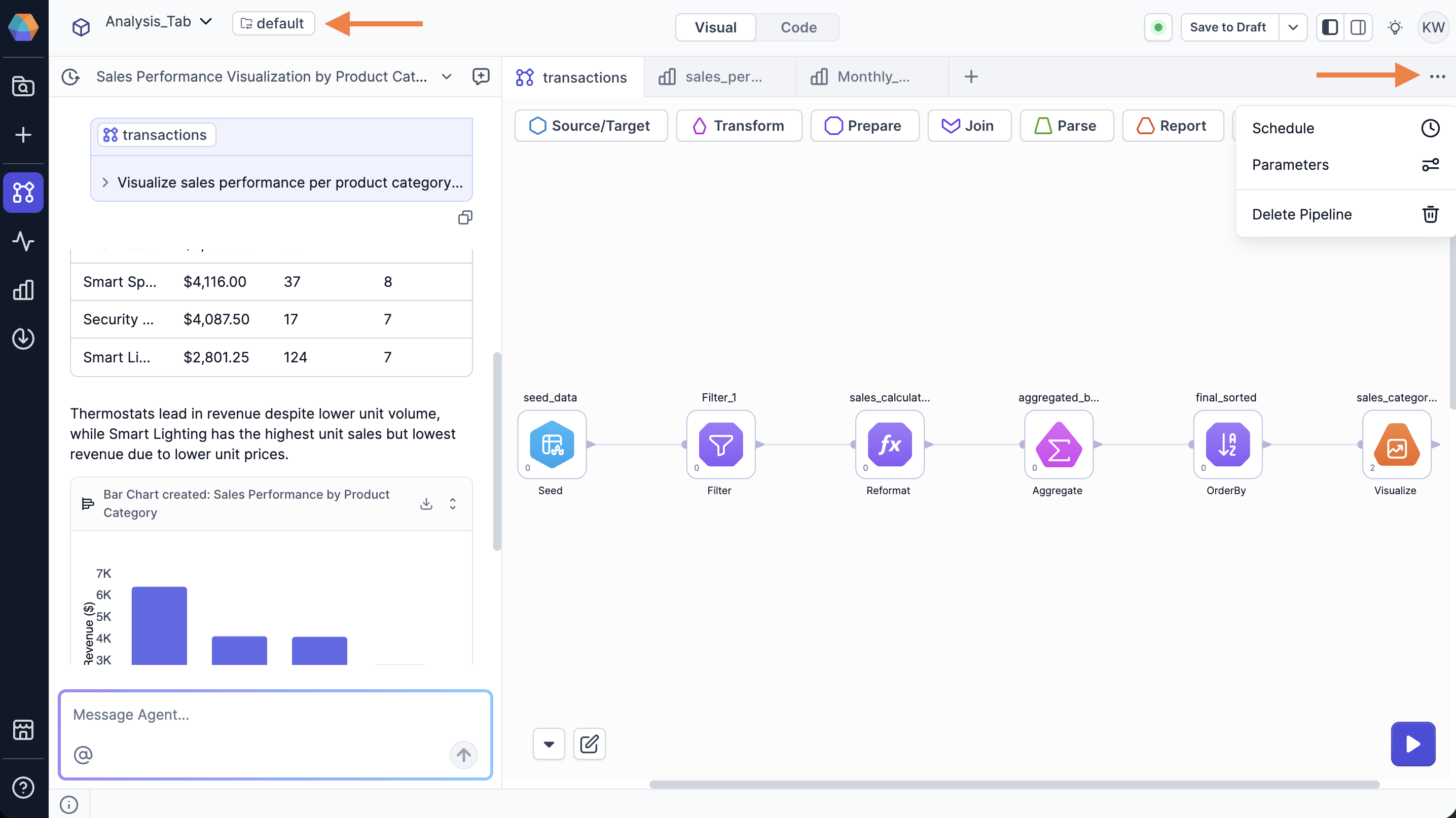 * Select either **Project Parameters** or **Pipeline Parameters**.
* Add variables to the set by clicking **+ Add Variable**.
* Enter values for each variable or choose to inherit from the default set.
* Click **Save**.
* Click **+ Add Parameter Set**.
* Enter a name for the parameter set.
* Assign values to the variables or leave them empty to inherit the default.
* Toggle **Active** to make this set the active configuration.
* Click **Save**.
## Example
There are many use cases where you may want to leverage multiple parameter sets. This example demonstrates how to use parameter sets to process sales data for different global regions.
When you switch regions, you often need to change more than one piece of information at a time. In this scenario, we use two parameters that must stay in sync:
* `currency`: Labels the final report (for example, **USD** or **EUR**).
* `fx_rate_table`: Tells the pipeline which database table contains the specific exchange rates for that region.
By grouping these into parameter sets, you ensure that when you switch sets, pipelines use both the correct label and the correct exchange rates.
### Define the default values (USA)
First, set up your standard operating values in the default set:
1. Open the parameter settings.
2. Click **+ Add Variable** and name it `currency`.
3. Set the value to `USD`.
4. Click **+ Add Variable** again and name it `fx_rate_table`.
5. Set the value to `fx_rates_usd`.
6. Click **Save**.
After saving the set of variables, you can reference `currency` and `fx_rate_table` in any pipeline in the project. By default, your pipeline will use these values for interactive runs.
### Create a regional override (Europe)
Next, create a set for your European operations:
1. Click **+ Add Parameter Set** and name it `Europe`.
2. In the `Europe` set, change the value of `currency` to `EUR`.
3. Set the value of `fx_rate_table` to `fx_rates_eur`.
4. Toggle **Active** to make this set the active configuration.
5. Click **Save**.
By switching the active set to `Europe`, you update your entire project to handle European data without manually changing every pipeline component.
## Select parameter sets at runtime
How you select a parameter set depends on how the pipeline or analysis is executed.
### On-demand pipeline runs
Interactive pipeline runs use the active parameter set for both project and pipeline parameters.
### On-demand analysis runs
You can select a parameter set when [creating an analysis dashboard](/data-analysis/analysis/create-analysis) or modify it afterward in [analysis settings](/data-analysis/analysis/analysis-settings). This determines which pipeline parameter values the analysis uses when it runs. On-demand analysis runs always use values from the active project parameter set.
### Pipeline schedules
When you [schedule](/data-analysis/production/scheduling/schedule-setup) a pipeline, you can choose which pipeline parameter set to use for that schedule. This lets you run the same pipeline with different configurations on different schedules.
### Analysis schedules
When you [schedule an analysis](/data-analysis/analysis/consume-analysis), you can choose which pipeline parameter set to use for that schedule. This lets you run the same analysis with different configurations on different schedules.
### Deployed pipelines
When you [publish](/data-analysis/production/publication) a project, you can choose which project-level parameter set to use. This allows you to publish different configurations to different environments without modifying the project.
The selected project parameter set applies to all deployed pipelines in the published project. Pipeline parameter sets selected for schedules also apply to those scheduled runs. If a pipeline parameter and a project parameter share the same name, the pipeline parameter value takes precedence. Deployment activates pipeline schedules so it's all wrapped up in this step.
* Select either **Project Parameters** or **Pipeline Parameters**.
* Add variables to the set by clicking **+ Add Variable**.
* Enter values for each variable or choose to inherit from the default set.
* Click **Save**.
* Click **+ Add Parameter Set**.
* Enter a name for the parameter set.
* Assign values to the variables or leave them empty to inherit the default.
* Toggle **Active** to make this set the active configuration.
* Click **Save**.
## Example
There are many use cases where you may want to leverage multiple parameter sets. This example demonstrates how to use parameter sets to process sales data for different global regions.
When you switch regions, you often need to change more than one piece of information at a time. In this scenario, we use two parameters that must stay in sync:
* `currency`: Labels the final report (for example, **USD** or **EUR**).
* `fx_rate_table`: Tells the pipeline which database table contains the specific exchange rates for that region.
By grouping these into parameter sets, you ensure that when you switch sets, pipelines use both the correct label and the correct exchange rates.
### Define the default values (USA)
First, set up your standard operating values in the default set:
1. Open the parameter settings.
2. Click **+ Add Variable** and name it `currency`.
3. Set the value to `USD`.
4. Click **+ Add Variable** again and name it `fx_rate_table`.
5. Set the value to `fx_rates_usd`.
6. Click **Save**.
After saving the set of variables, you can reference `currency` and `fx_rate_table` in any pipeline in the project. By default, your pipeline will use these values for interactive runs.
### Create a regional override (Europe)
Next, create a set for your European operations:
1. Click **+ Add Parameter Set** and name it `Europe`.
2. In the `Europe` set, change the value of `currency` to `EUR`.
3. Set the value of `fx_rate_table` to `fx_rates_eur`.
4. Toggle **Active** to make this set the active configuration.
5. Click **Save**.
By switching the active set to `Europe`, you update your entire project to handle European data without manually changing every pipeline component.
## Select parameter sets at runtime
How you select a parameter set depends on how the pipeline or analysis is executed.
### On-demand pipeline runs
Interactive pipeline runs use the active parameter set for both project and pipeline parameters.
### On-demand analysis runs
You can select a parameter set when [creating an analysis dashboard](/data-analysis/analysis/create-analysis) or modify it afterward in [analysis settings](/data-analysis/analysis/analysis-settings). This determines which pipeline parameter values the analysis uses when it runs. On-demand analysis runs always use values from the active project parameter set.
### Pipeline schedules
When you [schedule](/data-analysis/production/scheduling/schedule-setup) a pipeline, you can choose which pipeline parameter set to use for that schedule. This lets you run the same pipeline with different configurations on different schedules.
### Analysis schedules
When you [schedule an analysis](/data-analysis/analysis/consume-analysis), you can choose which pipeline parameter set to use for that schedule. This lets you run the same analysis with different configurations on different schedules.
### Deployed pipelines
When you [publish](/data-analysis/production/publication) a project, you can choose which project-level parameter set to use. This allows you to publish different configurations to different environments without modifying the project.
The selected project parameter set applies to all deployed pipelines in the published project. Pipeline parameter sets selected for schedules also apply to those scheduled runs. If a pipeline parameter and a project parameter share the same name, the pipeline parameter value takes precedence. Deployment activates pipeline schedules so it's all wrapped up in this step.