> ## Documentation Index
> Fetch the complete documentation index at: https://docs.prophecy.ai/llms.txt
> Use this file to discover all available pages before exploring further.
# Pipelines for Data Analysis
> Data preparation workflows for transforming warehouse data
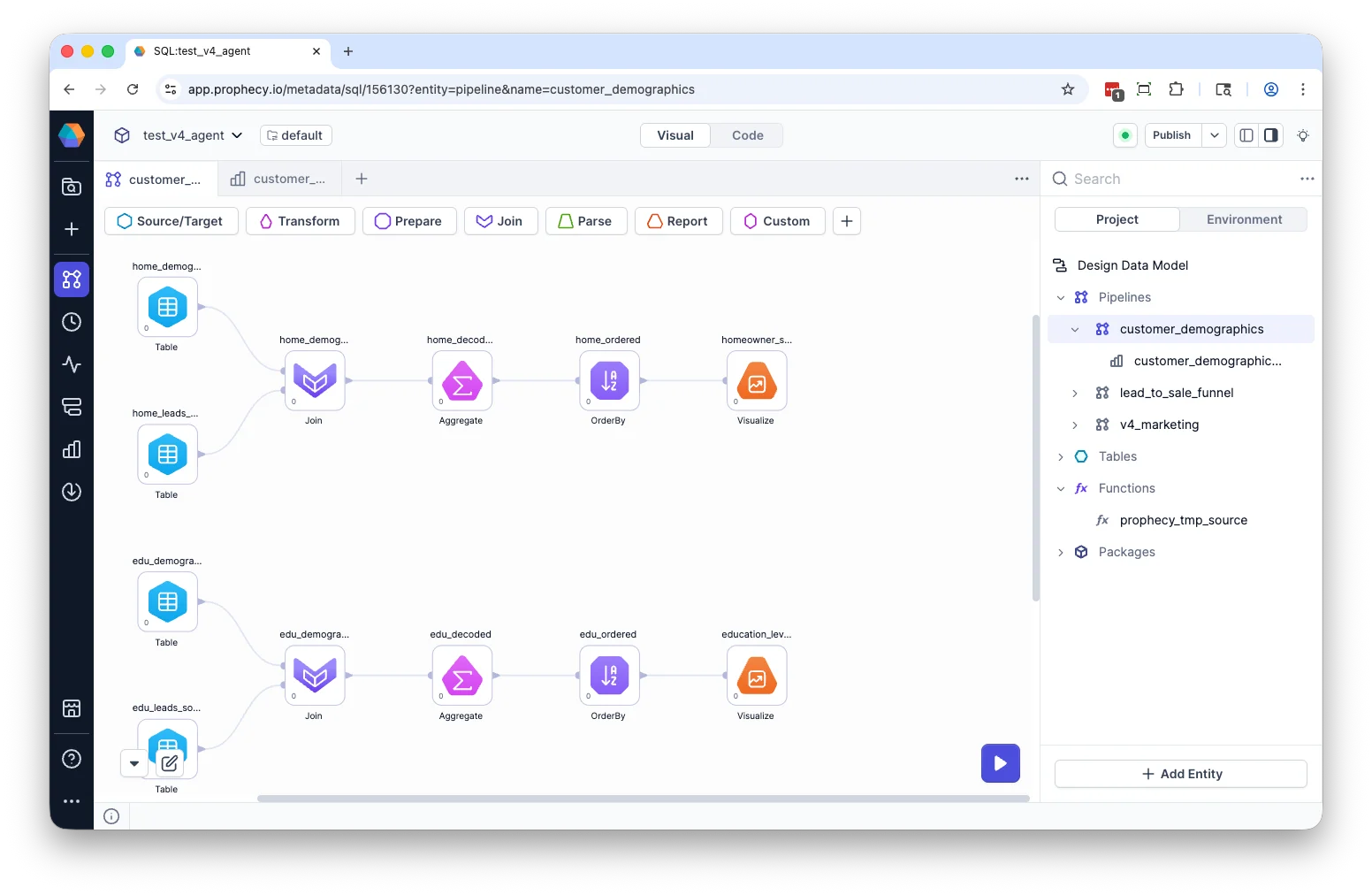
Pipelines are visual workflows that define how data is transformed inside a project. Pipelines consist of a sequence of gems that collect, transform, and move data from sources to storage or analytics systems.
For example, a pipeline might join orders and customer tables, standardize date formats, calculate revenue metrics, and materialize a curated reporting table.
Instead of writing isolated SQL queries, you define a transformation graph that:
* Encodes business logic in a visual workflow.
* Can be iteratively refined.
* Produces consistent, reusable outputs.
* Can be versioned.
Because pipelines compile to SQL, all execution happens in your warehouse under your existing credentials and access controls.
In Prophecy's **Data Prep and Analysis** model:
* **Pipelines** handle data preparation.
* [**Analyses**](/data-analysis/analysis/overview) handle exploration, visualization, and interpretation.
## Working with pipelines
A pipeline contains a connected sequence of gems that you can edit in [Prophecy's Studio](/data-analysis/development/studio/studio). See [Data analysis gems](/data-analysis/gems/gems) for more information on gems.
Pipelines appear in the project browser alongside other project artifacts.
 ## Build a pipeline
### Build a pipeline with the Transform Agent
The [Transform Agent](/data-analysis/ai/agent/transform) can generate or modify pipelines using natural language. The Agent accelerates development, but all transformations remain visible and editable.
When using the Agent, you:
* Describe the transformation you want.
* Review generated gems and connections.
* Inspect compiled SQL.
* Validate results before finalizing changes.
### Build a visually in the pipeline canvas
You can also create a pipeline from the project landing page or the [Project Browser](/data-analysis/development/studio/studio#project-browser).
When creating a pipeline, you provide:
* **Pipeline name** — A unique name within the project.
* **Directory path** — The location where the pipeline is stored in the project.
## Open pipeline
To open a pipeline, click its name in the Project Browser or on the project landing page.
## Modify pipeline
Once you have created a pipeline, you can:
* Drag gems onto the canvas and connect gems to define data flow.
* Configure gems to produce desired output.
* Preview results using the [Data Explorer](/data-analysis/development/runs/data-explorer/data-explorer).
* Inspect SQL in code view.
* Run the pipeline.
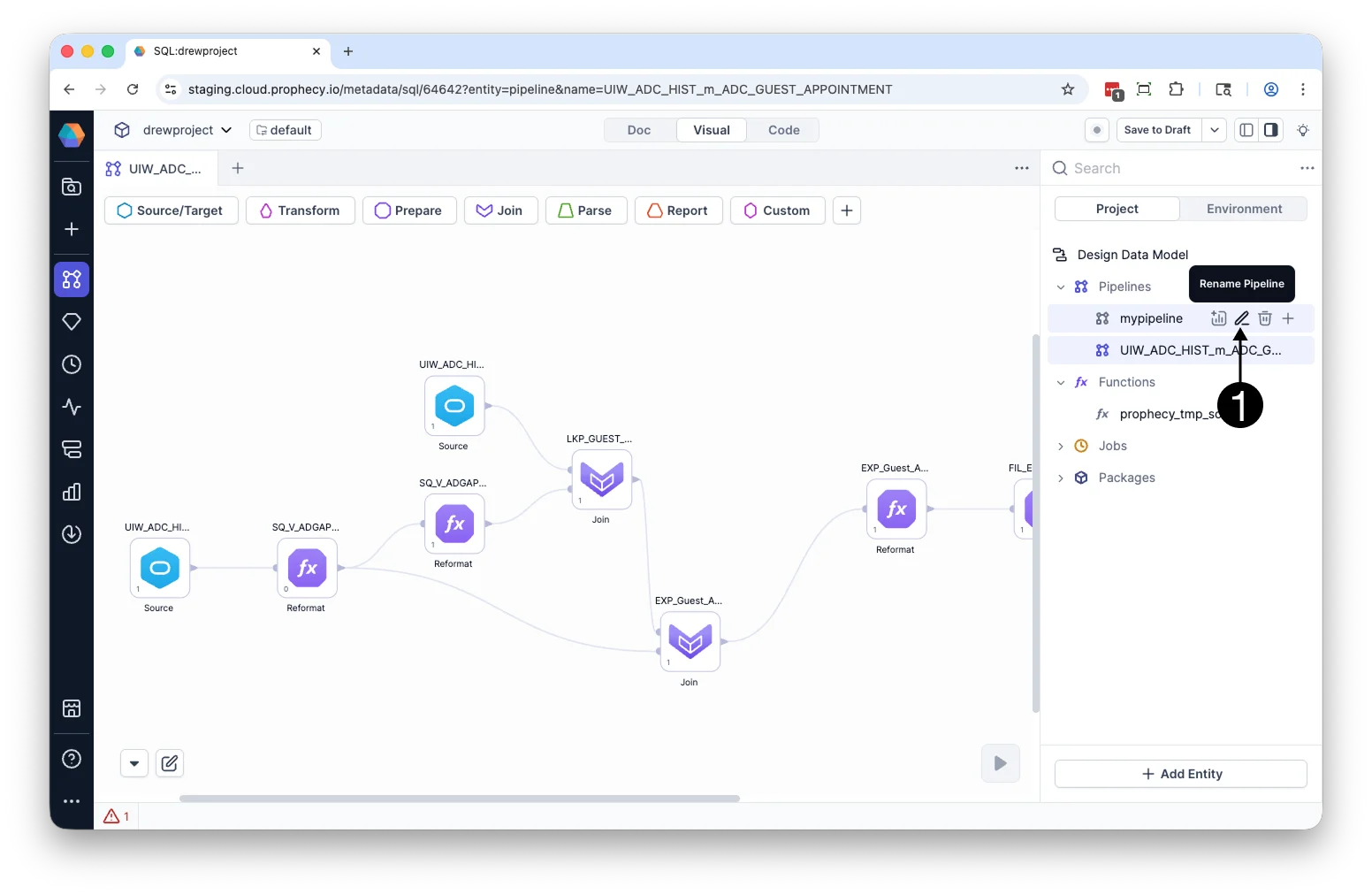
## Rename pipeline
To rename a pipeline:
1. Hover over the pipeline in the Project Browser.
2. Click the **Rename** icon.
3. Enter a new pipeline name and click **Rename**.
## Build a pipeline
### Build a pipeline with the Transform Agent
The [Transform Agent](/data-analysis/ai/agent/transform) can generate or modify pipelines using natural language. The Agent accelerates development, but all transformations remain visible and editable.
When using the Agent, you:
* Describe the transformation you want.
* Review generated gems and connections.
* Inspect compiled SQL.
* Validate results before finalizing changes.
### Build a visually in the pipeline canvas
You can also create a pipeline from the project landing page or the [Project Browser](/data-analysis/development/studio/studio#project-browser).
When creating a pipeline, you provide:
* **Pipeline name** — A unique name within the project.
* **Directory path** — The location where the pipeline is stored in the project.
## Open pipeline
To open a pipeline, click its name in the Project Browser or on the project landing page.
## Modify pipeline
Once you have created a pipeline, you can:
* Drag gems onto the canvas and connect gems to define data flow.
* Configure gems to produce desired output.
* Preview results using the [Data Explorer](/data-analysis/development/runs/data-explorer/data-explorer).
* Inspect SQL in code view.
* Run the pipeline.
## Rename pipeline
To rename a pipeline:
1. Hover over the pipeline in the Project Browser.
2. Click the **Rename** icon.
3. Enter a new pipeline name and click **Rename**.
 ## Duplicate pipeline
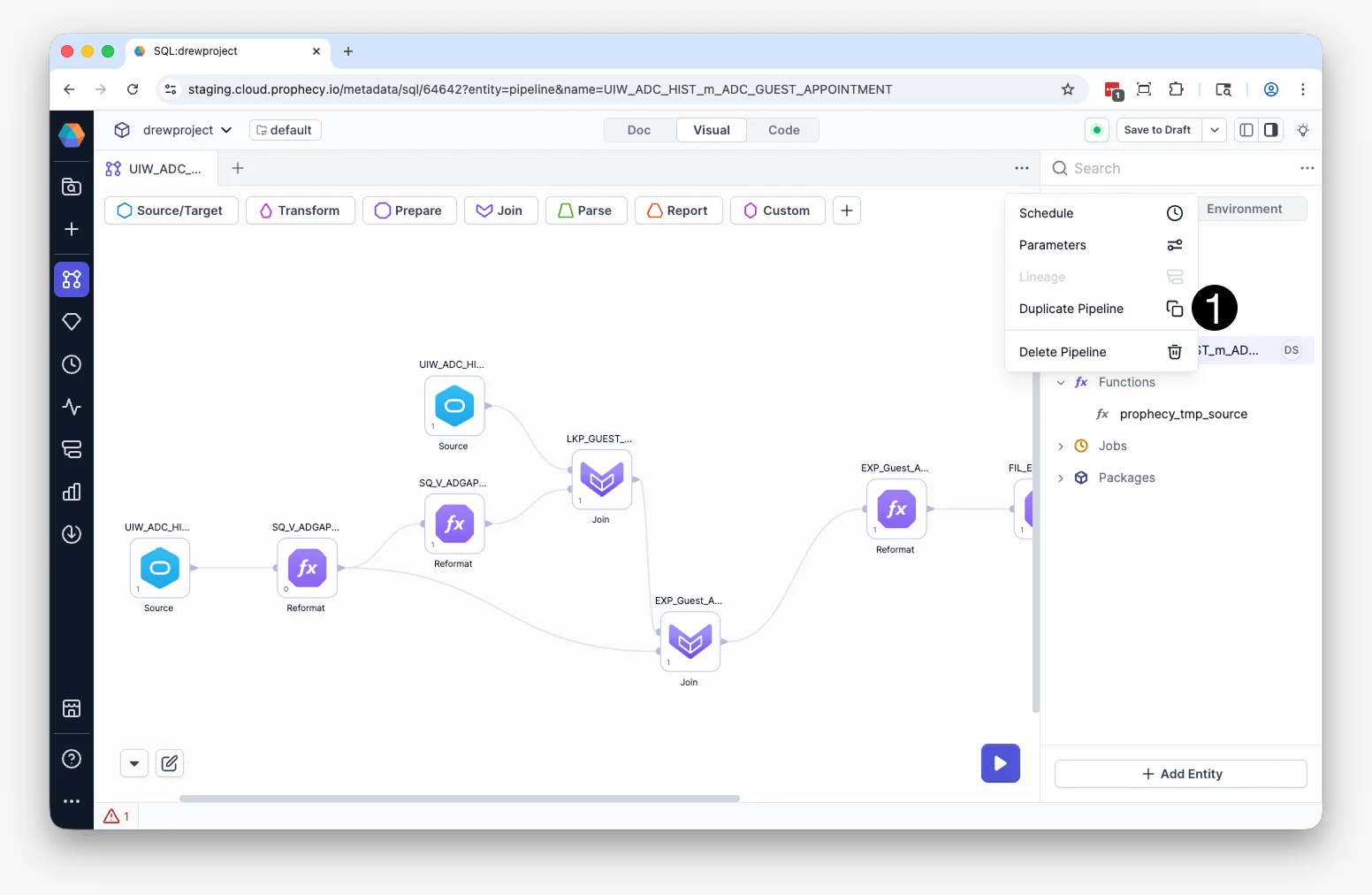
You can duplicate entire pipelines.
To duplicate a pipeline:
1. Open the Pipeline in Studio.
2. Click **...** menu in the upper-right corner of the [pipeline canvas](/data-analysis/development/studio/studio#pipeline-canvas).
3. Click **Duplicate** in the dialog box.
The duplicated pipeline opens in the pipeline canvas. By default, the pipeline is named `_copy`.
## Duplicate pipeline
You can duplicate entire pipelines.
To duplicate a pipeline:
1. Open the Pipeline in Studio.
2. Click **...** menu in the upper-right corner of the [pipeline canvas](/data-analysis/development/studio/studio#pipeline-canvas).
3. Click **Duplicate** in the dialog box.
The duplicated pipeline opens in the pipeline canvas. By default, the pipeline is named `_copy`.
 ## Execution and validation
Pipelines move through development, production, and reporting stages. You can [run them interactively in the canvas](/data-analysis/development/runs/execution), schedule automated runs, or trigger execution through analyses.
When you run a pipeline:
* Each transformation is translated into warehouse-native SQL that runs directly in your connected warehouse.
* Execution respects your existing permissions.
* Output datasets are updated based on the defined transformations.
You can re-run pipelines to validate changes or refresh prepared datasets before analysis. You can also run individual gems to validate intermediate outputs.
## Human in the loop
Whether you build pipelines manually or generate them with the Transform Agent, pipelines remain under your control.
You can:
* Inspect every transformation.
* Modify generated logic.
* Validate schema changes.
* Re-run transformations as needed.
## Export code
You can export the SQL for a single pipeline or all the pipelines in a project. See [Export compiled code](/data-analysis/development/projects/export-code) for more details.
## Execution and validation
Pipelines move through development, production, and reporting stages. You can [run them interactively in the canvas](/data-analysis/development/runs/execution), schedule automated runs, or trigger execution through analyses.
When you run a pipeline:
* Each transformation is translated into warehouse-native SQL that runs directly in your connected warehouse.
* Execution respects your existing permissions.
* Output datasets are updated based on the defined transformations.
You can re-run pipelines to validate changes or refresh prepared datasets before analysis. You can also run individual gems to validate intermediate outputs.
## Human in the loop
Whether you build pipelines manually or generate them with the Transform Agent, pipelines remain under your control.
You can:
* Inspect every transformation.
* Modify generated logic.
* Validate schema changes.
* Re-run transformations as needed.
## Export code
You can export the SQL for a single pipeline or all the pipelines in a project. See [Export compiled code](/data-analysis/development/projects/export-code) for more details.