> ## Documentation Index
> Fetch the complete documentation index at: https://docs.prophecy.ai/llms.txt
> Use this file to discover all available pages before exploring further.
# FlattenSchema gem for Data Analysis
> Flatten nested columns
export const gemName_0 = "FlattenSchema"
export const execution_engine_0 = "the SQL warehouse"
This gem runs in {execution_engine_0}.
## Overview
Flattening a dataset schema helps you simplify complex, hierarchical data. Use the FlattenSchema gem to convert arrays or other nested data types into flat or lateral columns.
This page describes how to use this gem according to your SQL warehouse provider.
The {gemName_0} gem has a corresponding interactive gem example. See [Interactive gem
examples](/data-analysis/gems/gems#interactive-gem-examples) to learn how to run sample pipelines
for this and other gems.
## Variant data
When you import tables with variant data into Prophecy, you'll see one or more nested columns in your dataset schema. These will appear as a [variant data type](/data-analysis/gems/visual-expression-builder/variant-schema), which is an array of values with more than one data type. Variant types can be flattened. This data type is specific to Databricks and Snowflake.
## Parameters
Configure the following parameters for the FlattenSchema gem.
| Parameter | Description | Required |
| ----------- | ---------------------------------------------------------------------- | -------- |
| Flatten | Select the columns that include the arrays you want to flatten. | True |
| Expressions | Define the output columns that you want to appear in the output table. | True |
## Example
Assume you have the following JSON file that includes data you would like to flatten. The data includes information about multiple businesses with nested contact information for each business.
Databricks accepts JSON files with a top-level array of JSON objects.
```json theme={null}
[
{
"first_name": "Remmington",
"last_name": "Smith",
"age": "68",
"business": [
{
"address": [
{
"manager": "Liara Andrew",
"name": "RS Enterprises",
"contact": [
{ "content": "rsmith@example.com", "type": "email" },
{ "content": "1234-345-56", "type": "phone" }
],
"is_still_active": false
}
]
}
]
},
{
"first_name": "Penny",
"last_name": "John",
"age": "57",
"business": [
{
"address": [
{
"manager": "Bobby Frank",
"name": "PJ Enterprises",
"contact": [
{ "content": "pjohn@example.com", "type": "email" },
{ "content": "8203-512-49", "type": "phone" }
],
"is_still_active": true
}
]
}
]
}
]
```
Snowflake accepts JSON files with a top-level array of JSON objects.
```json theme={null}
[
{
"first_name": "Remmington",
"last_name": "Smith",
"age": "68",
"business": [
{
"address": [
{
"manager": "Liara Andrew",
"name": "RS Enterprises",
"contact": [
{ "content": "rsmith@example.com", "type": "email" },
{ "content": "1234-345-56", "type": "phone" }
],
"is_still_active": false
}
]
}
]
},
{
"first_name": "Penny",
"last_name": "John",
"age": "57",
"business": [
{
"address": [
{
"manager": "Bobby Frank",
"name": "PJ Enterprises",
"contact": [
{ "content": "pjohn@example.com", "type": "email" },
{ "content": "8203-512-49", "type": "phone" }
],
"is_still_active": true
}
]
}
]
}
]
```
BigQuery expects newline-delimited JSON format. This means it expects one JSON object per line, without a surrounding array.
```json theme={null}
{"first_name":"Remmington","last_name":"Smith","age":"68","business":[{"address":[{"manager":"Liara Andrew","name":"RS Enterprises","contact":[{"content":"rsmith@example.com","type":"email"},{"content":"1234-345-56","type":"phone"}],"is_still_active":false}]}]}
{"first_name":"Penny","last_name":"John","age":"57","business":[{"address":[{"manager":"Bobby Frank","name":"PJ Enterprises","contact":[{"content":"pjohn@example.com","type":"email"},{"content":"8203-512-49","type":"phone"}],"is_still_active":true}]}]}
```
### Expressions
The FlattenSchema gem allows you to extract variant data into a flattened schema.
For example, to flatten your variant data:
1. In the **Input** tab, hover over the `in0` field and click the **Add 12 Columns** button.
Now, all the nested lowest-level values of your object are visible as columns in the `Expressions` section.
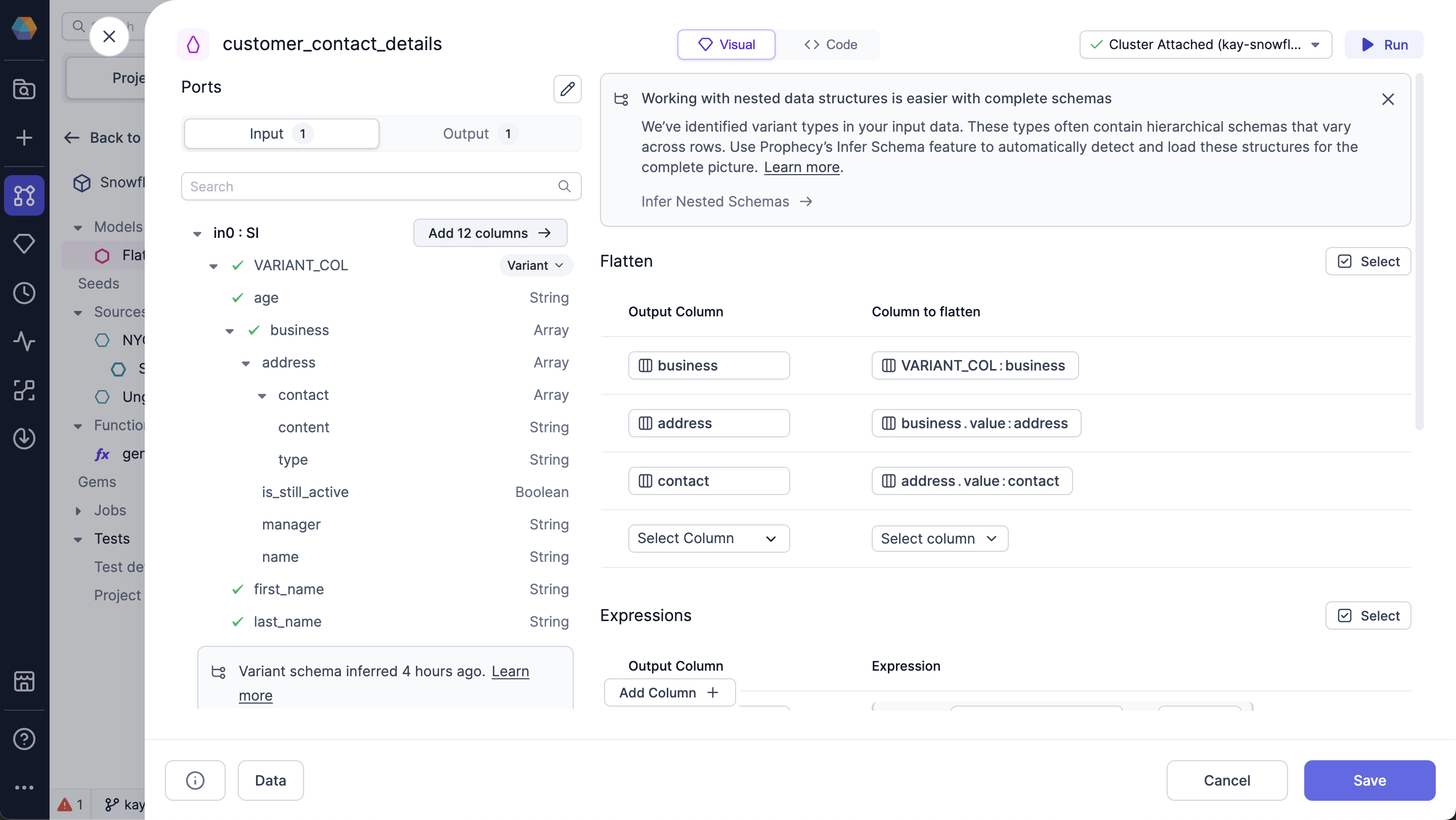 2. (Optional) To change the name of the column in the output, change the value in the `Output Column` for the row.
3. Click **Run**.
### Output
After you run the FlattenSchema gem, click the **Data** button to see your schema based on the selected columns:
2. (Optional) To change the name of the column in the output, change the value in the `Output Column` for the row.
3. Click **Run**.
### Output
After you run the FlattenSchema gem, click the **Data** button to see your schema based on the selected columns:
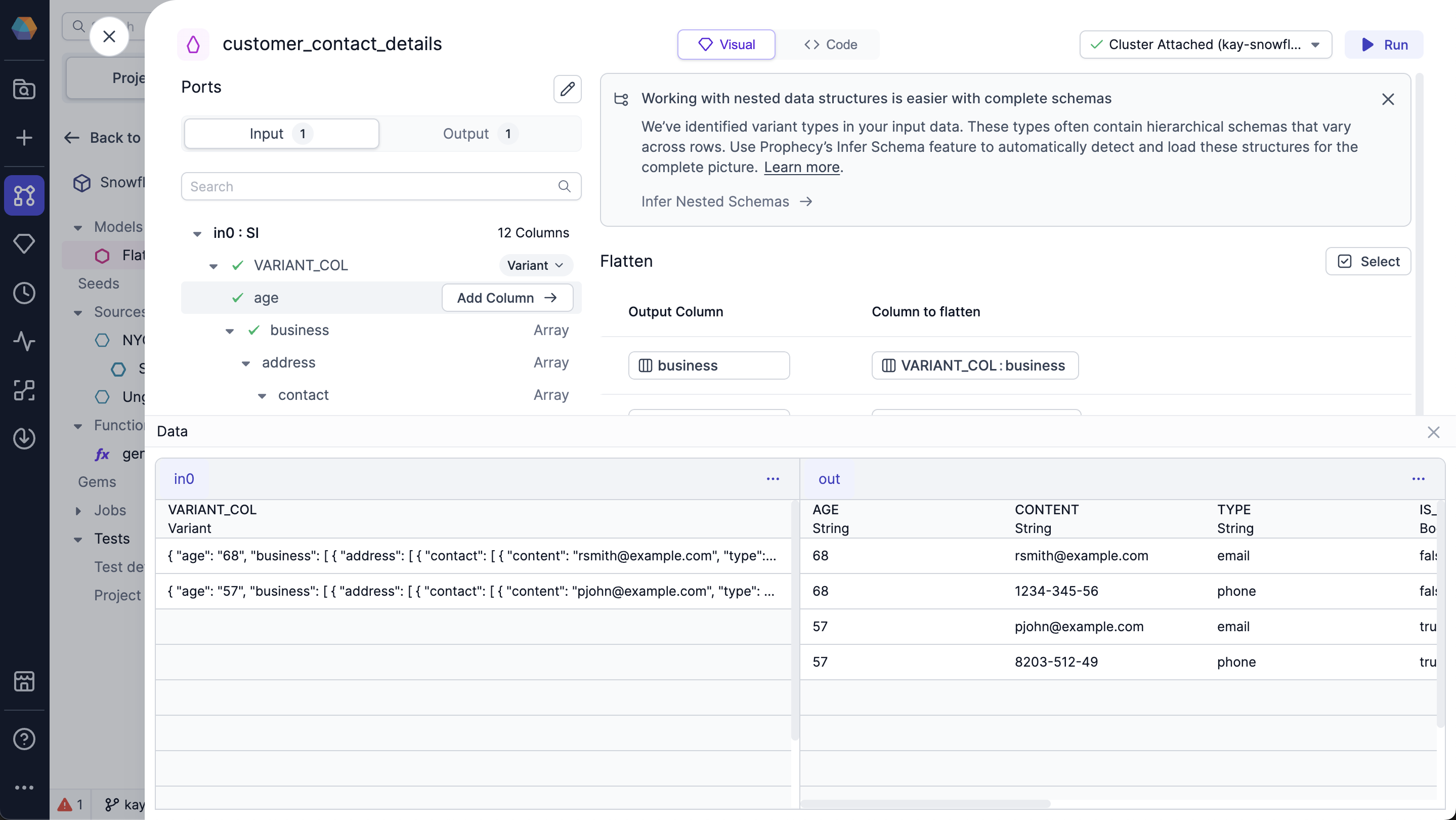 The FlattenSchema gem flattened all your variant data, which gives you individual rows for each one.
## Snowflake advanced settings
You can use advanced settings with your Snowflake source to customize the optional column arguments.
To use the advanced settings:
1. Hover over the column you want to flatten.
2. Click the dropdown arrow.
You can customize the following options:
| Option | Description | Default |
| ----------------------------------- | ------------------------------------------------------------------------------------------- | ------- |
| Path to the element | Path to the element within the variant data structure that you want to flatten. | None |
| Flatten all elements recursively | Whether to expand all sub-elements recursively. | `false` |
| Preserve rows with missing field | Whether to include rows with missing fields as `null` in the key, index, and value columns. | `false` |
| Datatype that needs to be flattened | Data type that you want to flatten. Possible values are: `Object`, `Array`, or `Both`. | `Both` |
The FlattenSchema gem flattened all your variant data, which gives you individual rows for each one.
## Snowflake advanced settings
You can use advanced settings with your Snowflake source to customize the optional column arguments.
To use the advanced settings:
1. Hover over the column you want to flatten.
2. Click the dropdown arrow.
You can customize the following options:
| Option | Description | Default |
| ----------------------------------- | ------------------------------------------------------------------------------------------- | ------- |
| Path to the element | Path to the element within the variant data structure that you want to flatten. | None |
| Flatten all elements recursively | Whether to expand all sub-elements recursively. | `false` |
| Preserve rows with missing field | Whether to include rows with missing fields as `null` in the key, index, and value columns. | `false` |
| Datatype that needs to be flattened | Data type that you want to flatten. Possible values are: `Object`, `Array`, or `Both`. | `Both` |