> ## Documentation Index
> Fetch the complete documentation index at: https://docs.prophecy.ai/llms.txt
> Use this file to discover all available pages before exploring further.
# Tape cracking
> Attach a tape, select a CDM, and let the Agent map source fields to the target schema
Tape cracking is the process of harmonizing a raw loan or lease tape against a Common Data Model (CDM).
## Start harmonization
Attach the loan tape (CSV or XML) and tell the Agent to begin. For a new tape, you can enter `let's crack this tape`. Click **Get Started**.
Prophecy creates a new project and identifies the schema of the source file.
Prophecy organizes work into [projects](data-analysis/development/projects/create-project). You can return to this project later by clicking the **Projects** icon in the side bar.
## Review the source data
Before mapping, you should review row profiles and distributions to understand the tape's data. Click **Data Profile** to see detailed column-level information, including value distributions (such as the percentage breakdown across vehicle types).
See [Data Profiling](/data-analysis/development/runs/data-explorer/data-profile) for a full reference on distributions and profile metrics.
Click **Continue** once you've reviewed the profile.
## Select a CDM
Choose a Common Data Model (CDM), such as `auto_ABS_CDM`. You can click a CDM to view its full definition.
The CDM you select is part of a domain pack. A *domain pack* bundles the CDM together with the domain-specific knowledge needed to interpret it correctly. auto\_ABS\_CDM is bundled with US auto loan structures, which is why fields like `obligorEmploymentVerificationCode` or `vehicleModelYear` map correctly out of the box.
Click **Map Data** to continue.
At this point the file is uploaded to a [fabric](/data-analysis/environment/fabrics/prophecy-fabrics). A fabric is a Prophecy entity that contains the connection information needed to connect to external compute and data storage. You don't need to configure one here; it's used automatically as part of this step.
## Agent-driven mapping
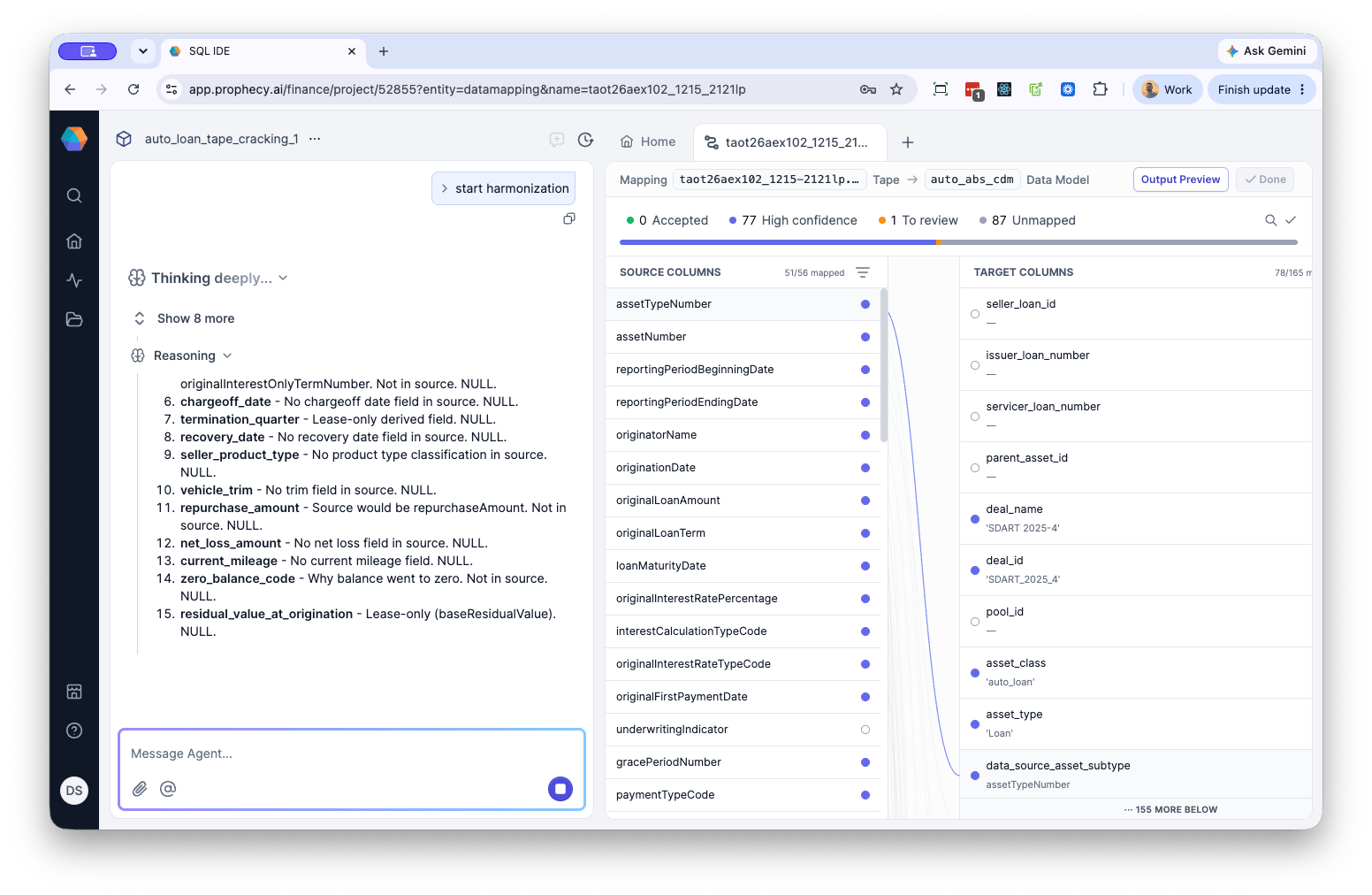
Prophecy begins harmonization, starting with deterministic mapping. The agent narrates its reasoning as it works through the tape:
```
Mapping employment & obligor fields...
- Mapping obligorEmploymentVerificationCode → code 1 = "Not stated/not verified", code 2 = "Stated/not verified"... continuing to next code
- Mapping employment_status → code 3 = "Stated/verified", defaulting NULL values to this mapping
- Checking seller_subvented_flag → contains '1', '2', or '98'? Evaluating condition
- Calculating numberOfObligors → setting to 2 when coObligorIndicator is true, else 1
- Casting seller_loan_id and issuer_loan_number → target type VARCHAR
- Computing vehicle_age_months → diffing vehicleModelYear against originationDate
- ⚠️ Flagging for review: vehicleModelYear looks like a raw year value (e.g. 2020) — verifying calculation formula before finalizing
```
Each line is a discrete action stated in plain terms. When the Agent hits something ambiguous — like an unexpected date format — it flags the item for review rather than guessing silently.
 ## View summary of harmonization
When the Agent finishes, it returns a summary of how columns were mapped:
| Category | Columns |
| ---------------------------------- | ------- |
| Deterministic — historical | 66 |
| Deterministic — direct passthrough | 10 |
| AI-mapped (non-NULL) | 12 |
| NULL mappings | 77 |
**Deterministic — historical** mappings match a pattern the system has mapped before.
**Deterministic — direct passthrough** mappings are unambiguous one-to-one field matches.
**AI-mapped** mappings required inference. **NULL mappings** are target fields with no corresponding source data.
The agent also returns **DQ check results**, such as:
* 37 checks passed (including 1 fixed)
* 0 checks failing
* 0 SQL errors
Where a check fails and the Agent can resolve it automatically, it does so — for example, normalizing `obligor_credit_score_type` from `'FICO Score 8 Auto'` to `'FICO Auto'`.
Finally, the Agent summarizes **key mappings applied**: how source fields were mapped to the standardized target schema, grouped by category (Identifiers, Dates, etc.).
* **Source** — the original field name from the input data
* **Target** — the corresponding field name in the harmonized schema
Where a mapping includes a format change (such as reformatting a date) the Agent displays the transformation alongside the field names, so you can verify both the mapping and the conversion in one place.
Once harmonization completes, review each mapping before accepting the tape. This step is foundational — a poorly reviewed tape undermines every downstream analysis built on it. The goal is to get every mapping to an approved status.
## View review panel
The right panel shows mapping review status. Click any mapping to see:
* The transformation applied.
* An AI explanation of the confidence level.
* Any DQ tests passed.
* AI Memory — previously approved mappings inform future mapping accuracy. The more mappings you approve, the more deterministic future mappings on similar tapes become
## View summary of harmonization
When the Agent finishes, it returns a summary of how columns were mapped:
| Category | Columns |
| ---------------------------------- | ------- |
| Deterministic — historical | 66 |
| Deterministic — direct passthrough | 10 |
| AI-mapped (non-NULL) | 12 |
| NULL mappings | 77 |
**Deterministic — historical** mappings match a pattern the system has mapped before.
**Deterministic — direct passthrough** mappings are unambiguous one-to-one field matches.
**AI-mapped** mappings required inference. **NULL mappings** are target fields with no corresponding source data.
The agent also returns **DQ check results**, such as:
* 37 checks passed (including 1 fixed)
* 0 checks failing
* 0 SQL errors
Where a check fails and the Agent can resolve it automatically, it does so — for example, normalizing `obligor_credit_score_type` from `'FICO Score 8 Auto'` to `'FICO Auto'`.
Finally, the Agent summarizes **key mappings applied**: how source fields were mapped to the standardized target schema, grouped by category (Identifiers, Dates, etc.).
* **Source** — the original field name from the input data
* **Target** — the corresponding field name in the harmonized schema
Where a mapping includes a format change (such as reformatting a date) the Agent displays the transformation alongside the field names, so you can verify both the mapping and the conversion in one place.
Once harmonization completes, review each mapping before accepting the tape. This step is foundational — a poorly reviewed tape undermines every downstream analysis built on it. The goal is to get every mapping to an approved status.
## View review panel
The right panel shows mapping review status. Click any mapping to see:
* The transformation applied.
* An AI explanation of the confidence level.
* Any DQ tests passed.
* AI Memory — previously approved mappings inform future mapping accuracy. The more mappings you approve, the more deterministic future mappings on similar tapes become
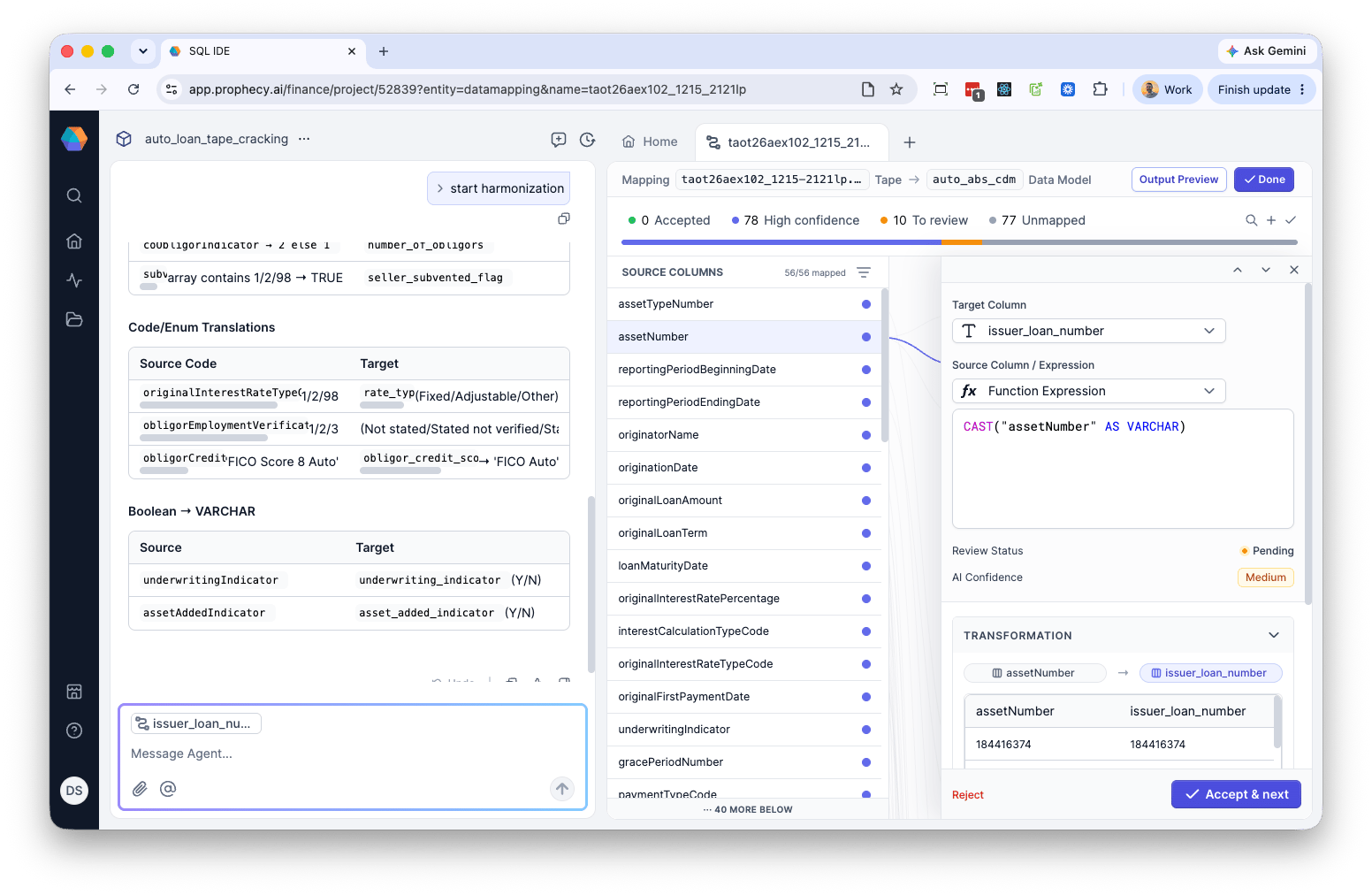 You can change a mapping by clicking the **Source Column/Expression** drop-down menu, which offers the following options:
* **No value (null)** — leave the target column unmapped.
* **Function Expression** — write a custom expression manually
* **Use AI to generate expression** — have AI generate a transformation instead of a direct field mapping
* **Columns** — map directly from an available source field
A **Sample Values** panel shows real data from the selected source column, so you can confirm the mapping is correct before accepting it.
### Review mapping results
Review the overall breakdown, for example:
* 62 deterministic (historical)
* 15 deterministic (direct pass-through)
* 17 AI-mapped
* 78 null
* 72 high-confidence
Click **View More** for the full count table.
For each mapping, **Accept**, **override**, or **reject** it, then use **Accept & Next** to move through the list.
### Filter and sort mappings
Use the Filter icon (top right) to isolate mappings that need review.
You can filter by:
* **AI confidence** — High, Medium, Low, None, Overridden
* **Data quality** — Passed, Failed, No DQ checks
* **Error status** — Has error, No error
You can sort by:
* Default order
* Name (A → Z)
* Name (Z → A)
* Confidence (low → high) — surface what needs the most review
* Data quality (worst first)
* Status (unmapped → accepted)
You can change a mapping by clicking the **Source Column/Expression** drop-down menu, which offers the following options:
* **No value (null)** — leave the target column unmapped.
* **Function Expression** — write a custom expression manually
* **Use AI to generate expression** — have AI generate a transformation instead of a direct field mapping
* **Columns** — map directly from an available source field
A **Sample Values** panel shows real data from the selected source column, so you can confirm the mapping is correct before accepting it.
### Review mapping results
Review the overall breakdown, for example:
* 62 deterministic (historical)
* 15 deterministic (direct pass-through)
* 17 AI-mapped
* 78 null
* 72 high-confidence
Click **View More** for the full count table.
For each mapping, **Accept**, **override**, or **reject** it, then use **Accept & Next** to move through the list.
### Filter and sort mappings
Use the Filter icon (top right) to isolate mappings that need review.
You can filter by:
* **AI confidence** — High, Medium, Low, None, Overridden
* **Data quality** — Passed, Failed, No DQ checks
* **Error status** — Has error, No error
You can sort by:
* Default order
* Name (A → Z)
* Name (Z → A)
* Confidence (low → high) — surface what needs the most review
* Data quality (worst first)
* Status (unmapped → accepted)
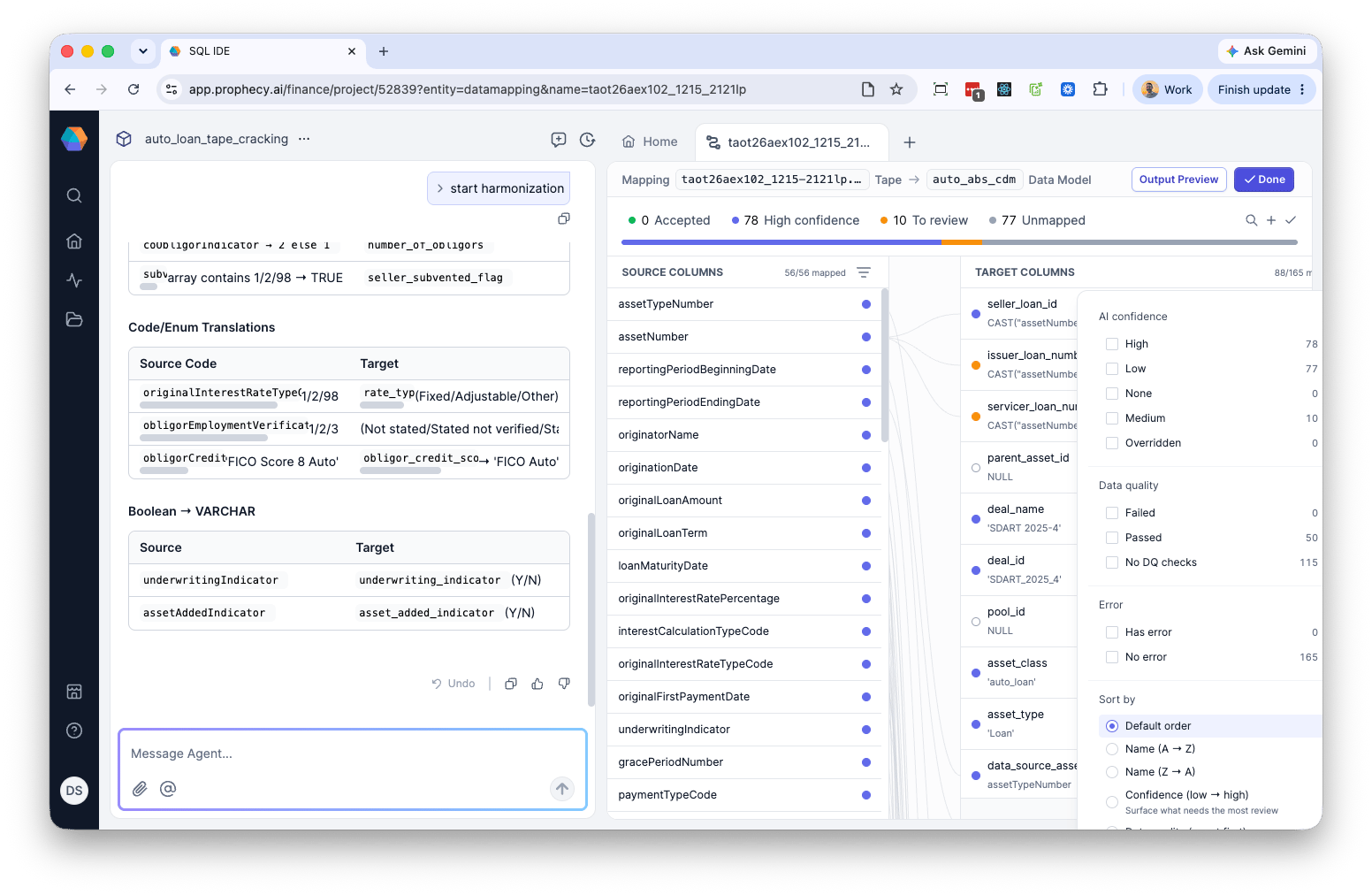 Sorting by confidence (low → high) or data quality (worst first) prioritizes manual verification on the mappings most likely to need it.
## Correct a mapping via chat
To fix an incorrect mapping, describe the issue and the correct value directly in chat — for example, correcting a `deal_id` mapping.
```
Updated `deal_id` to `'TAOT_2026_1'`. DQ passed.
```
The agent overwrites the mapping; you then accept it.
## Meta-questions during review
You can ask the Agent questions about the review state at any point — for example, "how many source columns were there in total and how many were mapped?"
## Add DQ tests
The agent can suggest data quality tests to add. Adding these improves the Agent's mapping performance on future tapes, not just the current one.
## Add a new CDM
To add a new CDM:
1. Click the **+** at the top of the review panel, then select **CDMs**.
2. In the dialog, enter a name for the common data model and click **Create**.
3. In the new CDM, choose **Add Table** or **Upload Schema**.
4. If you choose **Add Table**, enter names, types, descriptions, and DQ checks for each column.
## Complete the tape
1. Continue reviewing remaining confidence tiers (medium, low, etc.). If you're certain of a mapping, you can specify it directly and check sample values in the window.
2. Once every mapping is accepted, click **Output Preview** to preview the harmonized result.
3. Once satisfied, click **Done**.
4. The tape is marked ready. Download it as Excel or CSV, or add it as a table to your SQL Warehouse.
Continue to [Stratifications & Pool Selection](/data-analysis/getting-started/structured-finance/stratifications-pool-selection) to run analyses on the harmonized tape.
Sorting by confidence (low → high) or data quality (worst first) prioritizes manual verification on the mappings most likely to need it.
## Correct a mapping via chat
To fix an incorrect mapping, describe the issue and the correct value directly in chat — for example, correcting a `deal_id` mapping.
```
Updated `deal_id` to `'TAOT_2026_1'`. DQ passed.
```
The agent overwrites the mapping; you then accept it.
## Meta-questions during review
You can ask the Agent questions about the review state at any point — for example, "how many source columns were there in total and how many were mapped?"
## Add DQ tests
The agent can suggest data quality tests to add. Adding these improves the Agent's mapping performance on future tapes, not just the current one.
## Add a new CDM
To add a new CDM:
1. Click the **+** at the top of the review panel, then select **CDMs**.
2. In the dialog, enter a name for the common data model and click **Create**.
3. In the new CDM, choose **Add Table** or **Upload Schema**.
4. If you choose **Add Table**, enter names, types, descriptions, and DQ checks for each column.
## Complete the tape
1. Continue reviewing remaining confidence tiers (medium, low, etc.). If you're certain of a mapping, you can specify it directly and check sample values in the window.
2. Once every mapping is accepted, click **Output Preview** to preview the harmonized result.
3. Once satisfied, click **Done**.
4. The tape is marked ready. Download it as Excel or CSV, or add it as a table to your SQL Warehouse.
Continue to [Stratifications & Pool Selection](/data-analysis/getting-started/structured-finance/stratifications-pool-selection) to run analyses on the harmonized tape.