> ## Documentation Index
> Fetch the complete documentation index at: https://docs.prophecy.ai/llms.txt
> Use this file to discover all available pages before exploring further.
# Publish and deploy projects
> Publish SQL projects and deploy them to fabrics
Use publication controls in Prophecy Studio to save drafts, create versioned releases, and deploy those releases to fabrics.
For an overview of drafts, published versions, deployments, and fabrics, see [Publication concepts](/data-analysis/production/publication/publication-concepts).
Publishing consists of two independent actions:
* **Release**: Create a versioned project release.
* **Deployment**: Deploy that release to one or more fabrics.
You can release a project without deploying it, or release and deploy in the same action. You can also choose the [fabrics](/data-analysis/environment/fabrics/prophecy-fabrics) where you will deploy the project:
```mermaid theme={null}
flowchart LR
A[Save Draft] --> B[Publish Release]
B --> C{Select fabrics?}
C -->|No| D[Release Only]
C -->|Yes| E[Deploy to Fabric A]
C -->|Yes| F[Deploy to Fabric B]
```
A release represents a versioned snapshot of your project. Deployments determine where that release runs.
## Publication controls
The publication controls in the SQL IDE change based on the current project state.
### Button labels
| Button label | Meaning |
| ------------- | --------------------------------------------------------------------------- |
| Save to Draft | The project contains unsaved changes that must be saved before publication. |
| Publish | The project is ready to publish. |
| Share | Professional Edition sharing flow. |
Prophecy hides publication controls when:
* The project is a template or example project
* The project is in shared project mode
* The project is in replay mode
* The project is in historical mode
* Simple Version Control is not enabled for the project
Under certain conditions, publication controls are disabled.
| Condition | Tooltip |
| ------------------------------ | --------------------------------------------- |
| Viewing version history | "Publish is disabled in version history view" |
| Code generation in progress | "Please wait for code generation to finish" |
| Project is read-only or locked | "Publish is disabled in read-only view" |
| Agent is in read-only mode | No tooltip |
## Save draft changes
If your project contains unsaved changes, the publication control displays **Save to Draft**.
To save draft changes:
1. Click **Save to Draft**.
2. Review the draft changes.
3. Save the draft.
Saving a draft stores the latest project changes without publishing or deploying the project.
## Publish and deploy a project
After you save your latest draft changes, the publication control displays **Publish**.
To publish a project version:
1. Click **Publish**.
2. Review the version details.
3. Review the changes included in the version.
4. Enter or edit the version number.
5. Add a version description.
6. Optional: Select one or more fabrics for deployment.
7. Optional: Select a project parameter set.
8. Click **Publish**.
Fabric selection determines whether or not the project is deployed. If you publish without selecting a fabric, Prophecy creates the published version but does not deploy it to an environment.
When you select one or more fabrics during publication, Prophecy creates or updates deployments for those fabrics using the published version.
You can only deploy to fabrics your team can access.
To deploy a project to a fabric, your team must have access to that fabric.
For example:
* Development fabrics may allow broader access for testing and iteration
* Production fabrics may restrict deployment access to approved users
If your production fabric uses Databricks connections, consider using a service principal for authentication. This helps scheduled pipelines run reliably in production environments.
During deployment, Prophecy:
* Builds the project in the selected fabric.
* Applies the selected project parameter set.
* Creates or updates the deployment for that environment.
Each deployment represents a specific project version running in a specific fabric. The same project version can be deployed to multiple fabrics, and each deployment is tracked independently.
After deployment, you can [schedule pipelines](/data-analysis/production/scheduling/scheduling) independently for each fabric. Pipeline schedules are environment-specific. When you deploy a project to multiple fabrics, each fabric can have its own schedule configuration.
Prophecy validates the project before publication.
| Validation issue | Message |
| ---------------------- | --------------------------------------------------------- |
| Compilation errors | "Cannot publish: Please fix all compilation errors first" |
| Invalid version number | "Please enter a valid version number" |
| Missing description | "Please add a description to publish the version" |
| No fabric selected | "Please select at least one fabric to publish" |
| No deployment changes | "Please update fabric(s) or parameter set to publish" |
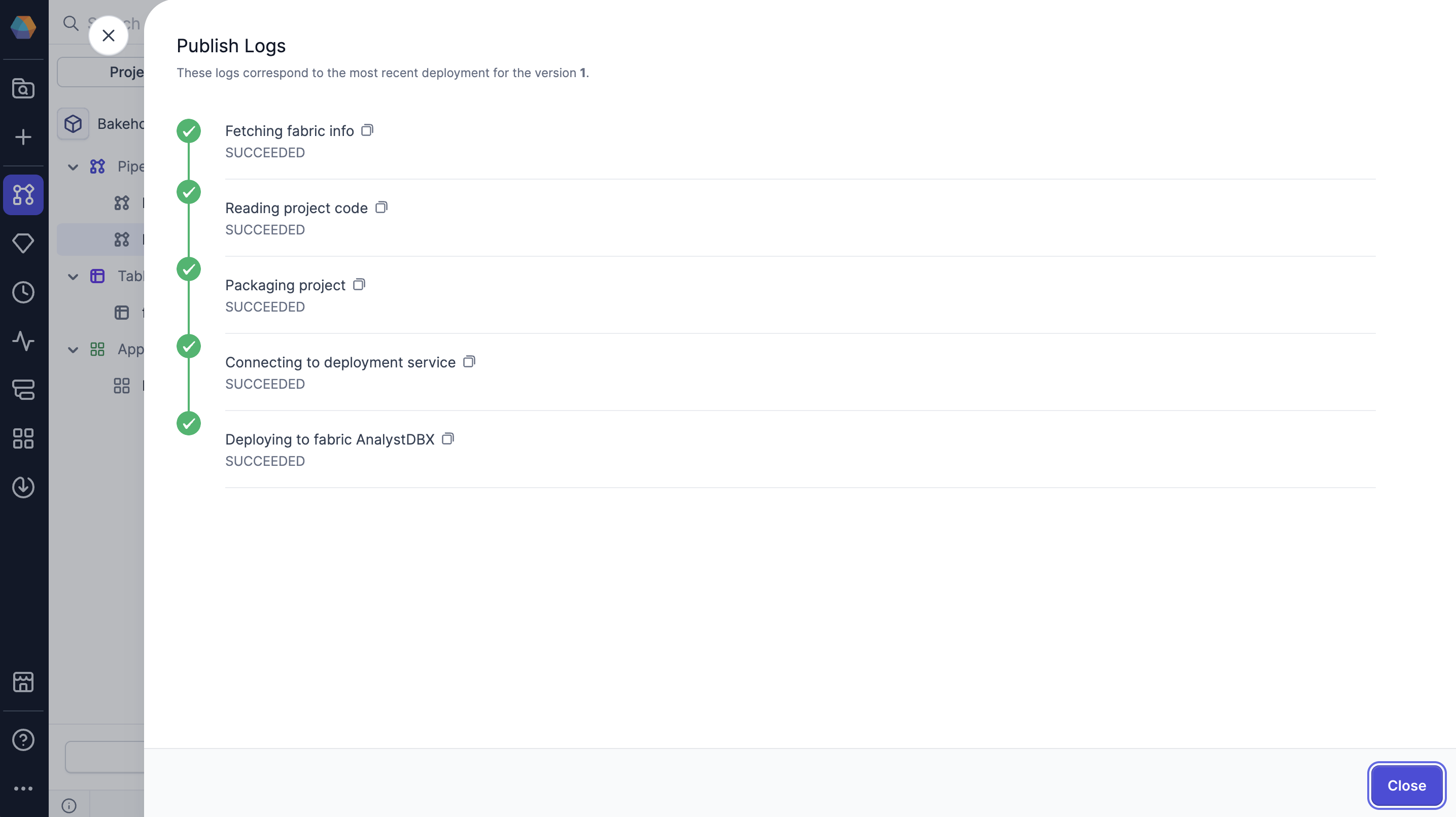
Prophecy generates logs for each publication step. If deployment fails, publication logs show the exact step where the process stopped.
The logs help you troubleshoot failed publications and identify where publication stopped.
The publication process includes these steps:
1. **Fetching fabric info**: Retrieve information about the selected fabric
2. **Reading project code**: Review project code elements
3. **Packaging project**: Bundle project components together
4. **Connecting to deployment service**: Connect to the deployment service
5. **Deploying to fabric**: Deploy the project to the selected fabric
 ## Request to publish
Prophecy allows multiple users to work on the same project simultaneously. In collaborative projects, publishing often requires coordination with other users.
If another user currently holds a peer lock on the project, Prophecy opens a **Request to Publish** dialog instead of publishing immediately.
Collaborators can review, approve, or reject the publication request before the new version is released.
## Share a project
Available for [Free and Professional Editions](/data-analysis/administration/platform/editions)
only.
Professional Edition users can share SQL projects with:
* Existing Prophecy users.
* External users who are not yet registered with Prophecy.
Shared projects open in a read-only view.
External users can:
* review the project,
* interact with Agent in limited mode,
* and sign up for Prophecy.
Users cannot modify shared projects directly. To make changes, users must clone the project after signing in to Prophecy.
To share a project:
1. Click the arrow next to **Save to Draft** or **Publish**.
2. Select **Share project**.
3. Share the project by:
* entering an email address,
* or copying the share link.
Guest users can ask a limited number of Agent questions in shared projects. Guest Agent chats are not persisted and disappear after the browser refreshes.
## Request to publish
Prophecy allows multiple users to work on the same project simultaneously. In collaborative projects, publishing often requires coordination with other users.
If another user currently holds a peer lock on the project, Prophecy opens a **Request to Publish** dialog instead of publishing immediately.
Collaborators can review, approve, or reject the publication request before the new version is released.
## Share a project
Available for [Free and Professional Editions](/data-analysis/administration/platform/editions)
only.
Professional Edition users can share SQL projects with:
* Existing Prophecy users.
* External users who are not yet registered with Prophecy.
Shared projects open in a read-only view.
External users can:
* review the project,
* interact with Agent in limited mode,
* and sign up for Prophecy.
Users cannot modify shared projects directly. To make changes, users must clone the project after signing in to Prophecy.
To share a project:
1. Click the arrow next to **Save to Draft** or **Publish**.
2. Select **Share project**.
3. Share the project by:
* entering an email address,
* or copying the share link.
Guest users can ask a limited number of Agent questions in shared projects. Guest Agent chats are not persisted and disappear after the browser refreshes.