> ## Documentation Index
> Fetch the complete documentation index at: https://docs.prophecy.ai/llms.txt
> Use this file to discover all available pages before exploring further.
# Google Cloud Dataproc
> Set up a Google Cloud Dataproc fabric
Available for [Enterprise Edition](/data-engineering/administration/platform/editions) only.
In the context of Spark execution engines, users have the flexibility to opt for Google Cloud Dataproc. This guide offers step-by-step instructions on creating a fabric that enables seamless connectivity to the Dataproc environment.
## Requirements
Livy must be installed on your cluster. Prophecy provides a script required to deploy a Dataproc cluster.
## Create a Dataproc Cluster
1. If you don't already have a private key, create a private key for the service account that you're using.
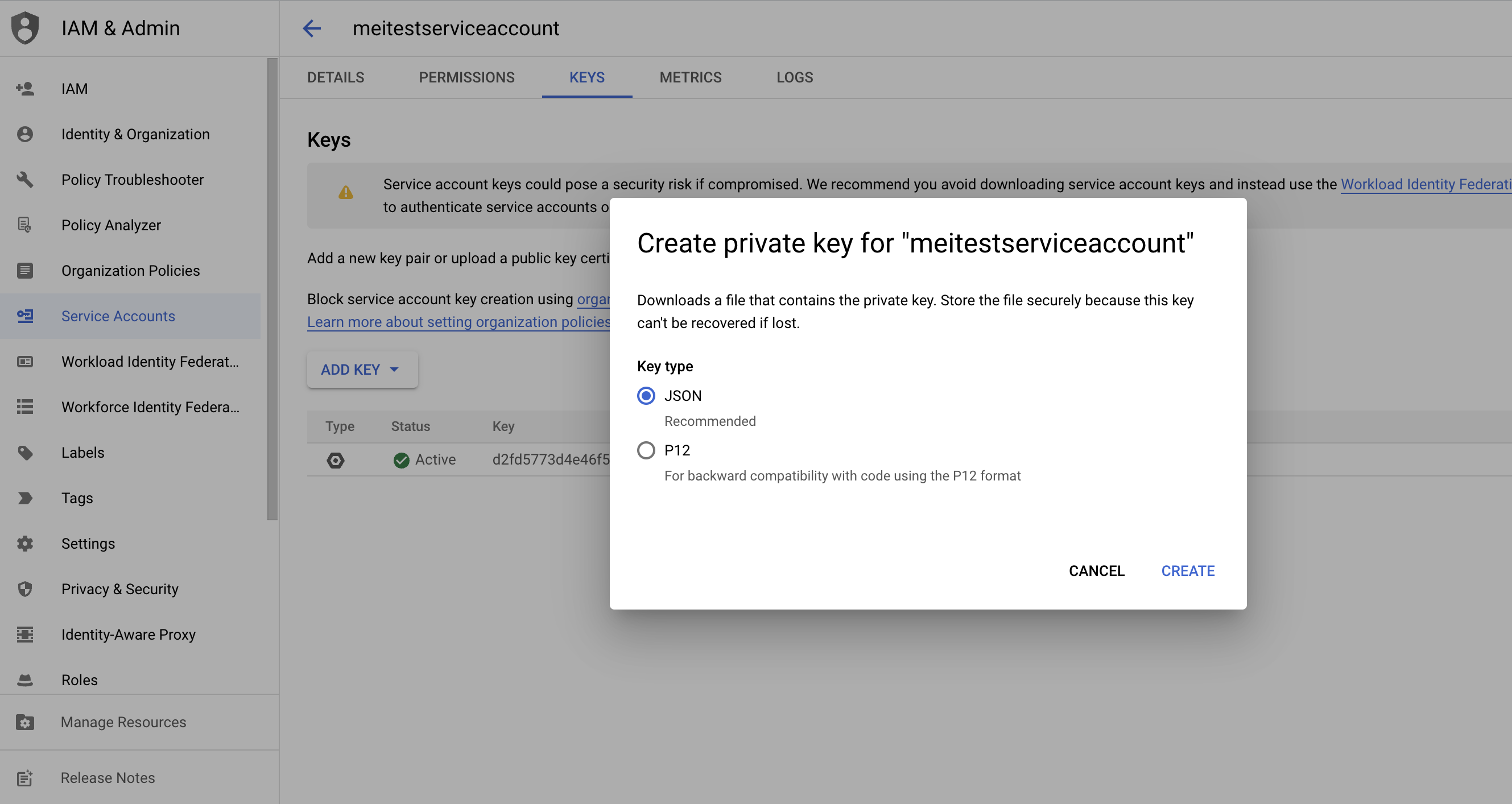 2. Ensure you have the following permissions configured.
```
gcloud projects add-iam-policy-binding \
--member "" \
--role "roles/serviceusage.serviceUsageViewer"
gcloud projects add-iam-policy-binding \
--member "" \
--role "roles/dataproc.worker"
gcloud projects add-iam-policy-binding core-shard-398601 \
--member "" \
--role "storage.objects.get"
gcloud storage buckets add-iam-policy-binding gs:// \
--member="" --role=roles/storage.admin --project
```
3. Associate secret key to service account.
```
gcloud config set account meitestserviceaccount@core-shard-398601.iam.gserviceaccount.com \
--key-file=
```
4. Start a Dataproc cluster using `install-livy.sh`.
```
gcloud dataproc clusters create \
--scopes \
--region \
--initialization-actions 'gs://prophecy-public-gcp/livy-installer-script/install-livy.sh' \
--properties "hive:hive.metastore.warehouse.dir=" \
--metadata "enable-cloud-sql-proxy-on-workers=false" \
--bucket \
--region \
--zone \
--single-node \
--master-machine-type n2-standard-4 \
--master-boot-disk-size 500 \
--image-version 2.0-debian10 \
--project \
--service-account="" \
--dataproc-metastore=projects//locations//services/
```
## Create a Dataproc fabric
1. Create a fabric and select **Dataproc**.
2. Ensure you have the following permissions configured.
```
gcloud projects add-iam-policy-binding \
--member "" \
--role "roles/serviceusage.serviceUsageViewer"
gcloud projects add-iam-policy-binding \
--member "" \
--role "roles/dataproc.worker"
gcloud projects add-iam-policy-binding core-shard-398601 \
--member "" \
--role "storage.objects.get"
gcloud storage buckets add-iam-policy-binding gs:// \
--member="" --role=roles/storage.admin --project
```
3. Associate secret key to service account.
```
gcloud config set account meitestserviceaccount@core-shard-398601.iam.gserviceaccount.com \
--key-file=
```
4. Start a Dataproc cluster using `install-livy.sh`.
```
gcloud dataproc clusters create \
--scopes \
--region \
--initialization-actions 'gs://prophecy-public-gcp/livy-installer-script/install-livy.sh' \
--properties "hive:hive.metastore.warehouse.dir=" \
--metadata "enable-cloud-sql-proxy-on-workers=false" \
--bucket \
--region \
--zone \
--single-node \
--master-machine-type n2-standard-4 \
--master-boot-disk-size 500 \
--image-version 2.0-debian10 \
--project \
--service-account="" \
--dataproc-metastore=projects//locations//services/
```
## Create a Dataproc fabric
1. Create a fabric and select **Dataproc**.
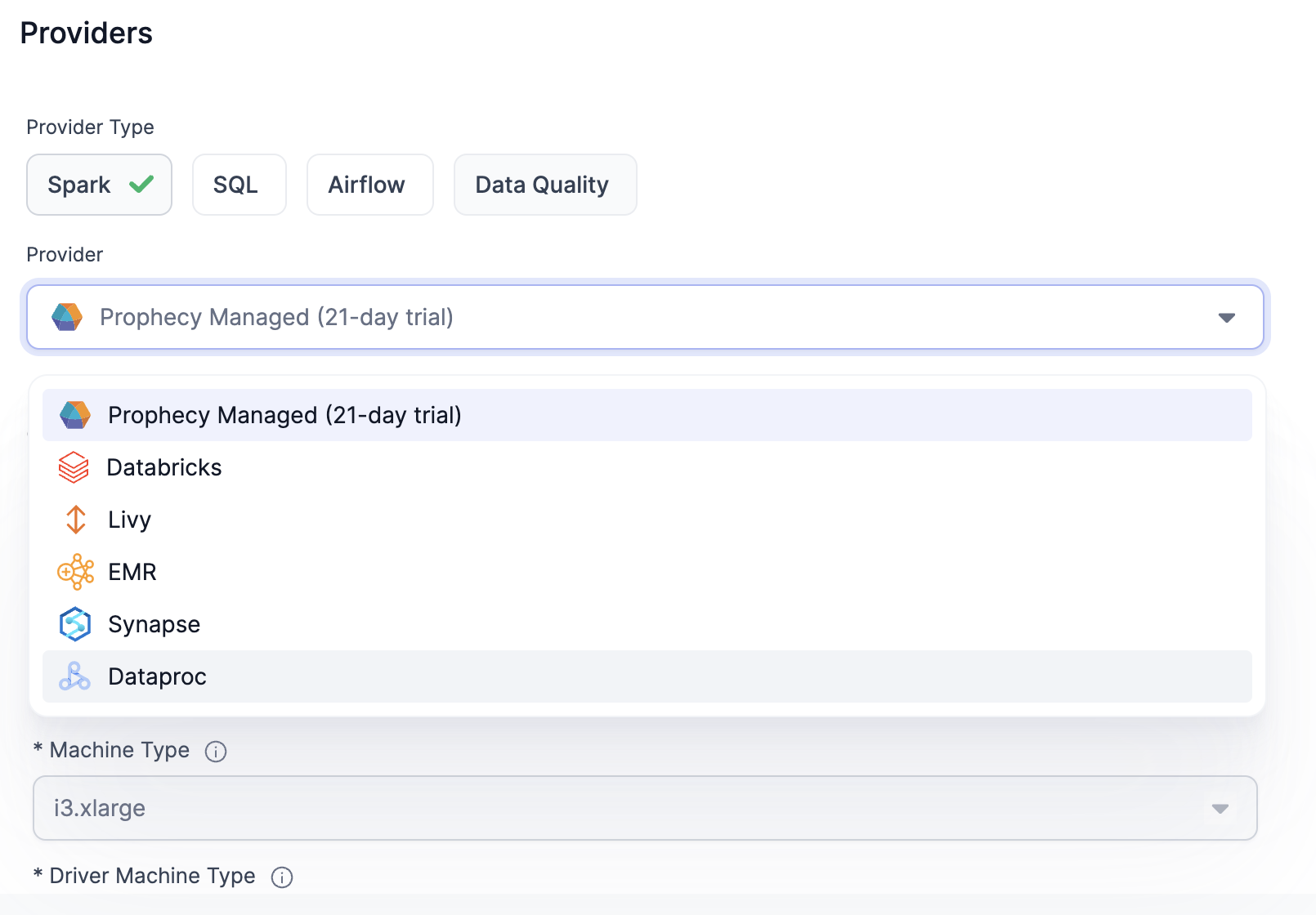 2. Fill out your **Project Name** and **Region**, and upload the **Private Key**.
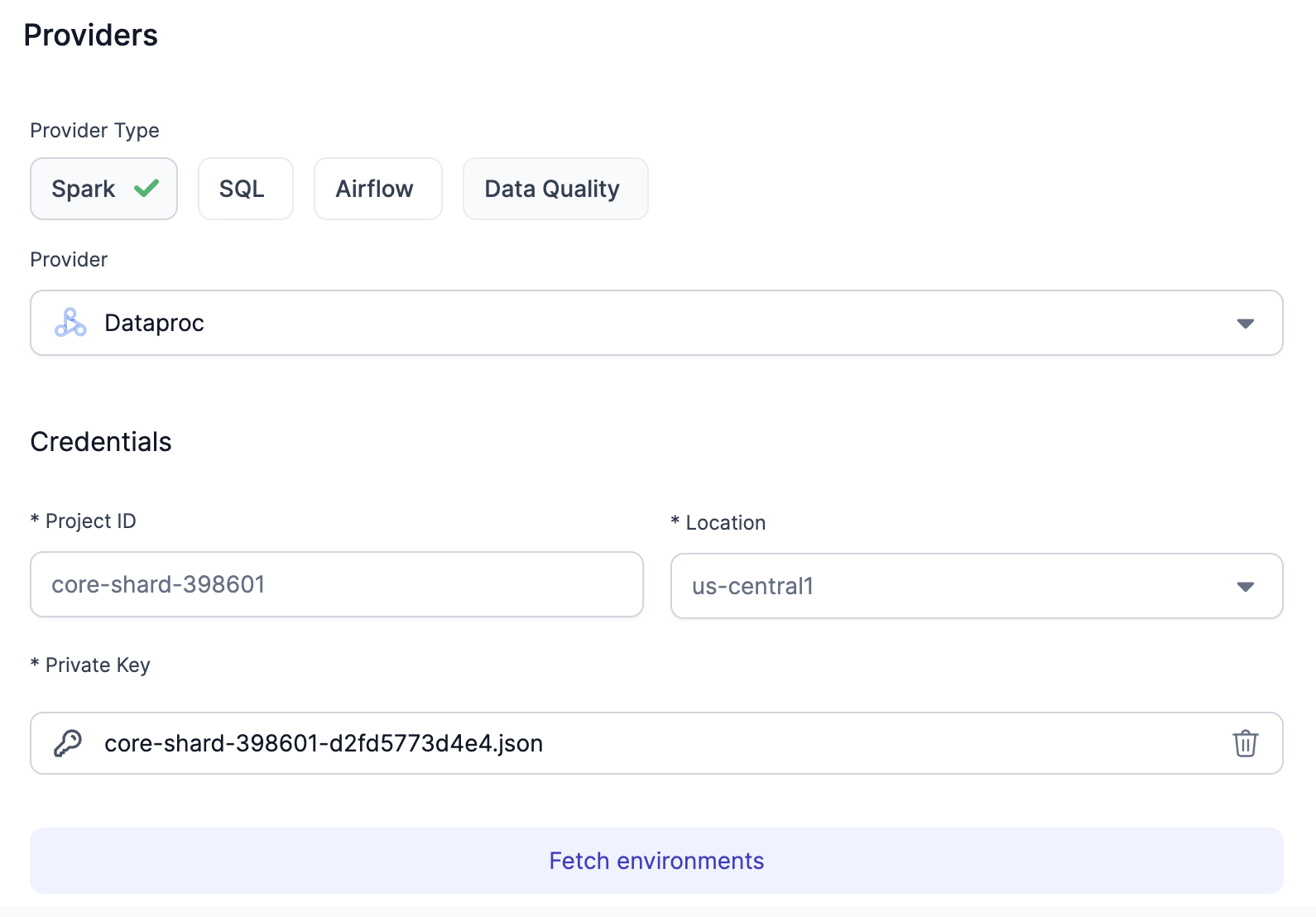 3. Click on **Fetch environments** and select the Dataproc **cluster** that you created earlier.
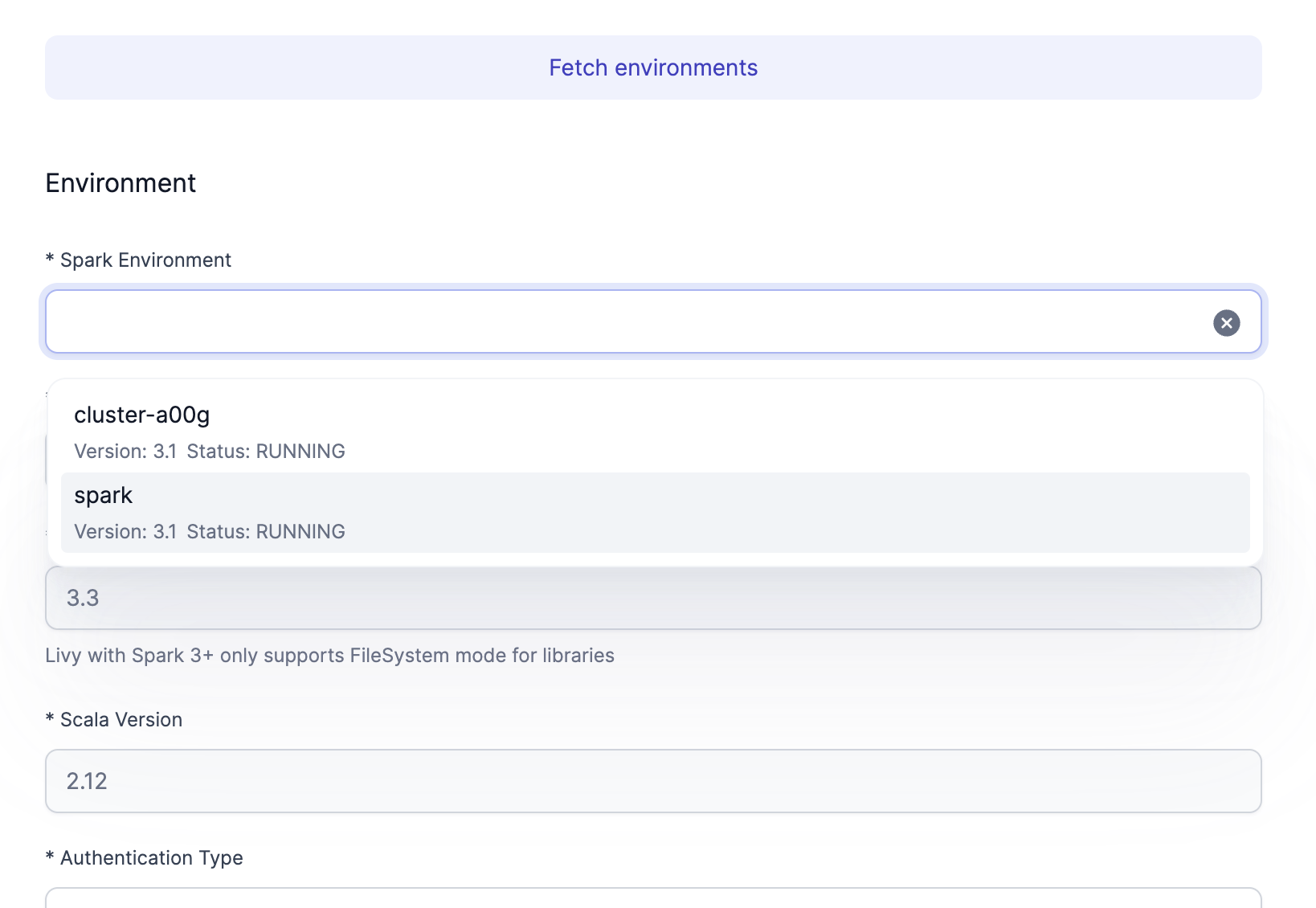 4. Leave everything as default and provide the **Livy URL**. Locate the **External IP** of your cluster instance. Optionally, you may configure the DNS instead of using the IP. The URL is `http://:8998`.
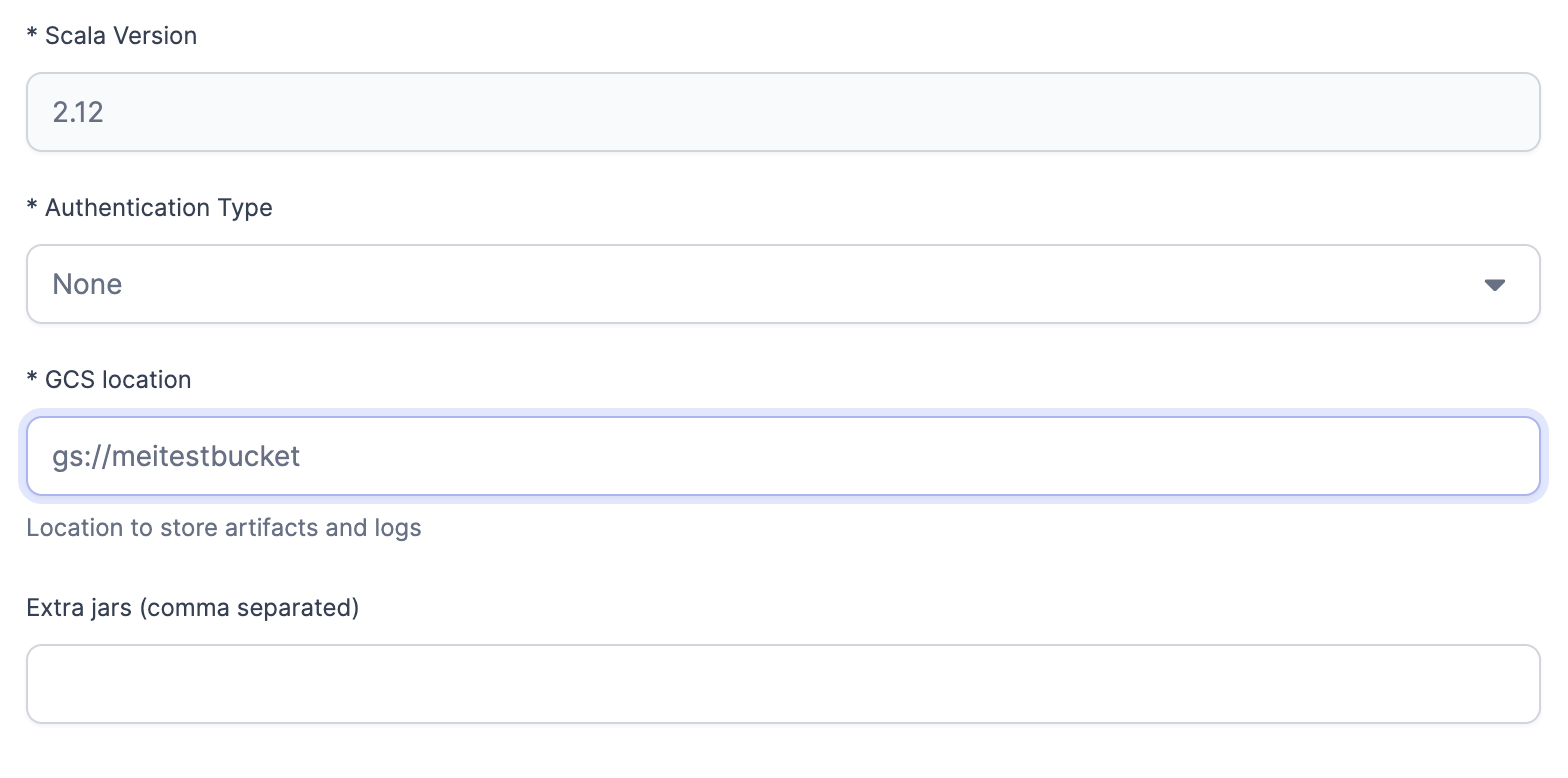
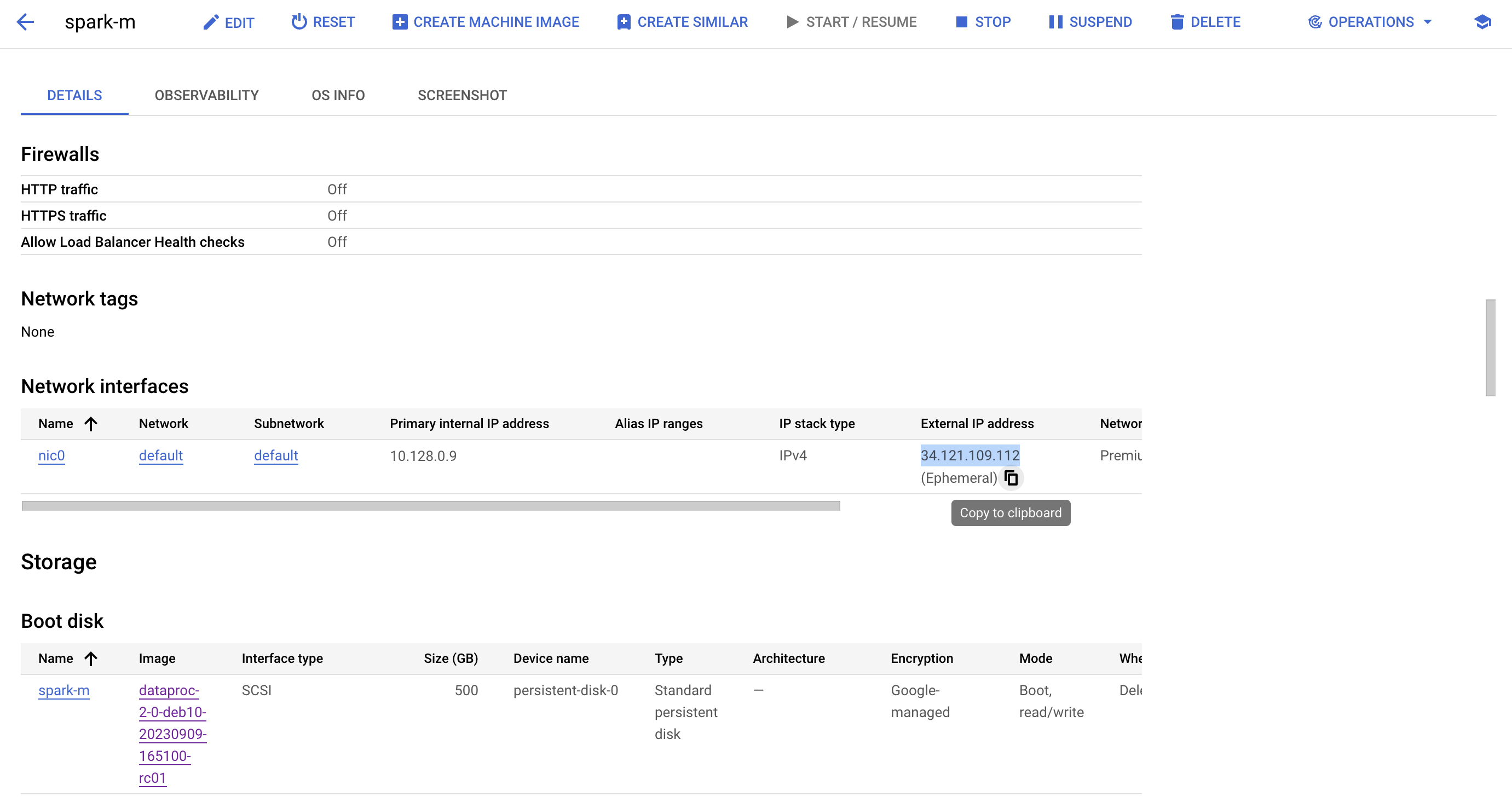 5. Configure the bucket associated with your cluster.
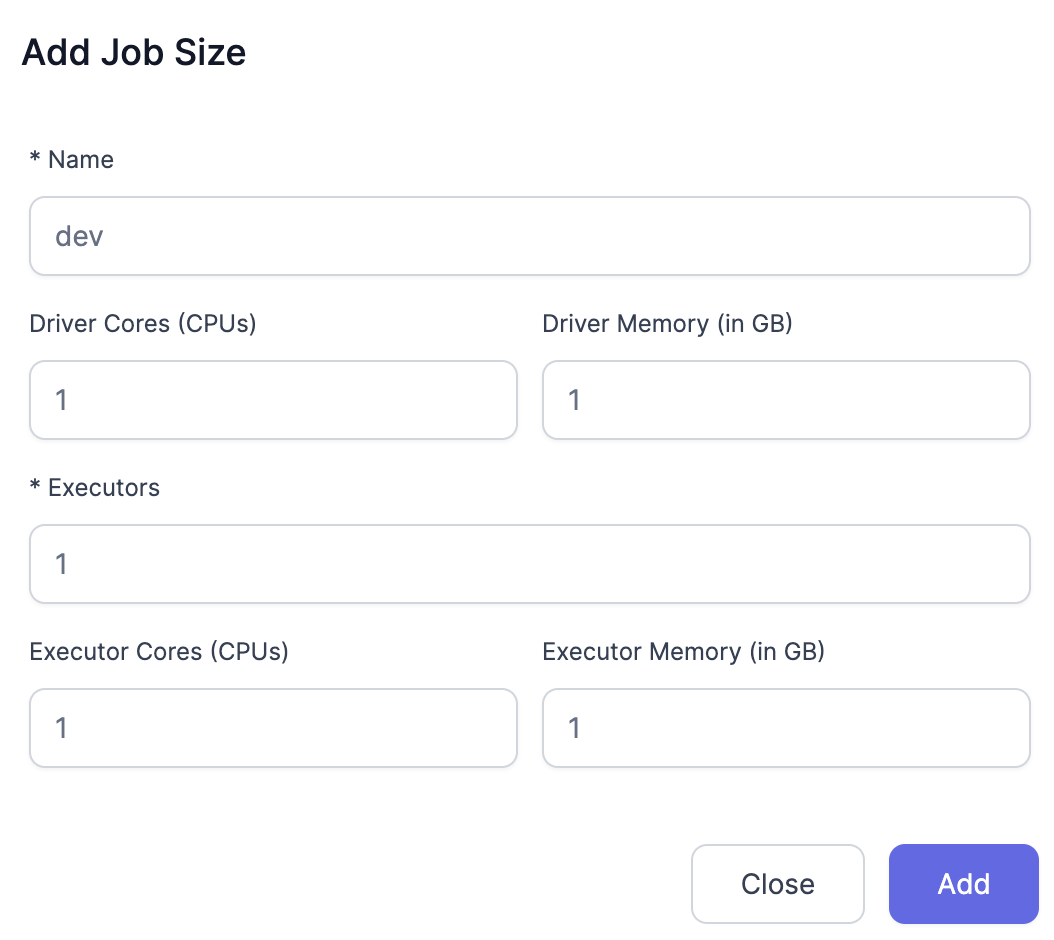
 6. Add the **Job Size**.
 7. Configure Scala Library Path.
`gs://prophecy-public-gcp/prophecy-scala-libs/`.
8. Configure Python Library Path.
`gs://prophecy-public-gcp/prophecy-python-libs/`.
7. Configure Scala Library Path.
`gs://prophecy-public-gcp/prophecy-scala-libs/`.
8. Configure Python Library Path.
`gs://prophecy-public-gcp/prophecy-python-libs/`.
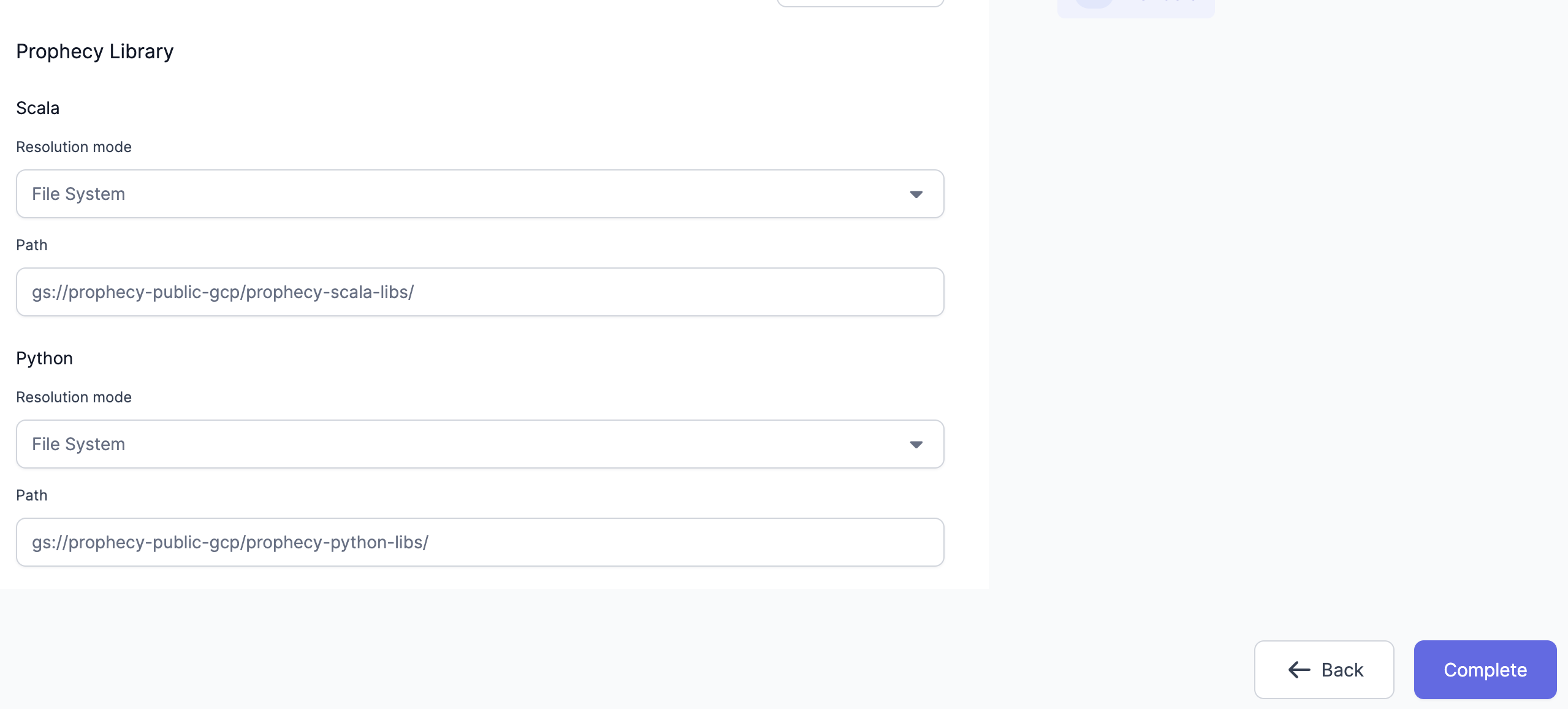 9. Click on **Complete**.
## Troubleshooting
### Livy Cluster Cannot Access Scala or Python Libraries
It is possible to encounter the following error message when using a Dataproc fabric.
```
Creating new Livy Session...
Using prophecy libs path...repo1.maven.org...
Using python libraries...files.pythonhosted.org...
...
org.apache.spark.deploy.SparkSubmit.main(SparkSubmit.scala)\n\nYARN Diagnostics: ","level":"error"
```
Here are some ways to resolve the issue and allow successful Livy session creation.
* **Adjust Network Settings**: Ensure the Livy Cluster allows outbound traffic to:
* Scala Library URL: `repo1.maven.org`
* Python Library URL: `files.pythonhosted.org`
* **Configure Library Paths**: Manually set the library paths:
* Scala Library Path: `gs://prophecy-public-gcp/prophecy-scala-libs/`
* Python Library Path: `gs://prophecy-public-gcp/prophecy-python-libs/`
* **Use an Internal GCS Bucket**: Host the required libraries internally by creating two folders in a GCS bucket and placing `prophecy-scala-libs` and `prophecy-python-libs` inside.
9. Click on **Complete**.
## Troubleshooting
### Livy Cluster Cannot Access Scala or Python Libraries
It is possible to encounter the following error message when using a Dataproc fabric.
```
Creating new Livy Session...
Using prophecy libs path...repo1.maven.org...
Using python libraries...files.pythonhosted.org...
...
org.apache.spark.deploy.SparkSubmit.main(SparkSubmit.scala)\n\nYARN Diagnostics: ","level":"error"
```
Here are some ways to resolve the issue and allow successful Livy session creation.
* **Adjust Network Settings**: Ensure the Livy Cluster allows outbound traffic to:
* Scala Library URL: `repo1.maven.org`
* Python Library URL: `files.pythonhosted.org`
* **Configure Library Paths**: Manually set the library paths:
* Scala Library Path: `gs://prophecy-public-gcp/prophecy-scala-libs/`
* Python Library Path: `gs://prophecy-public-gcp/prophecy-python-libs/`
* **Use an Internal GCS Bucket**: Host the required libraries internally by creating two folders in a GCS bucket and placing `prophecy-scala-libs` and `prophecy-python-libs` inside.