> ## Documentation Index
> Fetch the complete documentation index at: https://docs.prophecy.ai/llms.txt
> Use this file to discover all available pages before exploring further.
# Upload files gem for Data Engineering
> Learn how to upload files to your Spark pipeline
You can upload the following file types to your file store:
* CSV, and other character separated types such as TSV.
* JSON, with a single row per line, objects spanning many lines, or arrays with objects.
* Text, formatted with one line per row.
* XLSX, and the older XLS format.
* XML, with a row tag selector.
## Upload a file
To upload a file and incorporate it into your Spark pipeline, use a Source gem.
Use one of the following methods to upload your file:
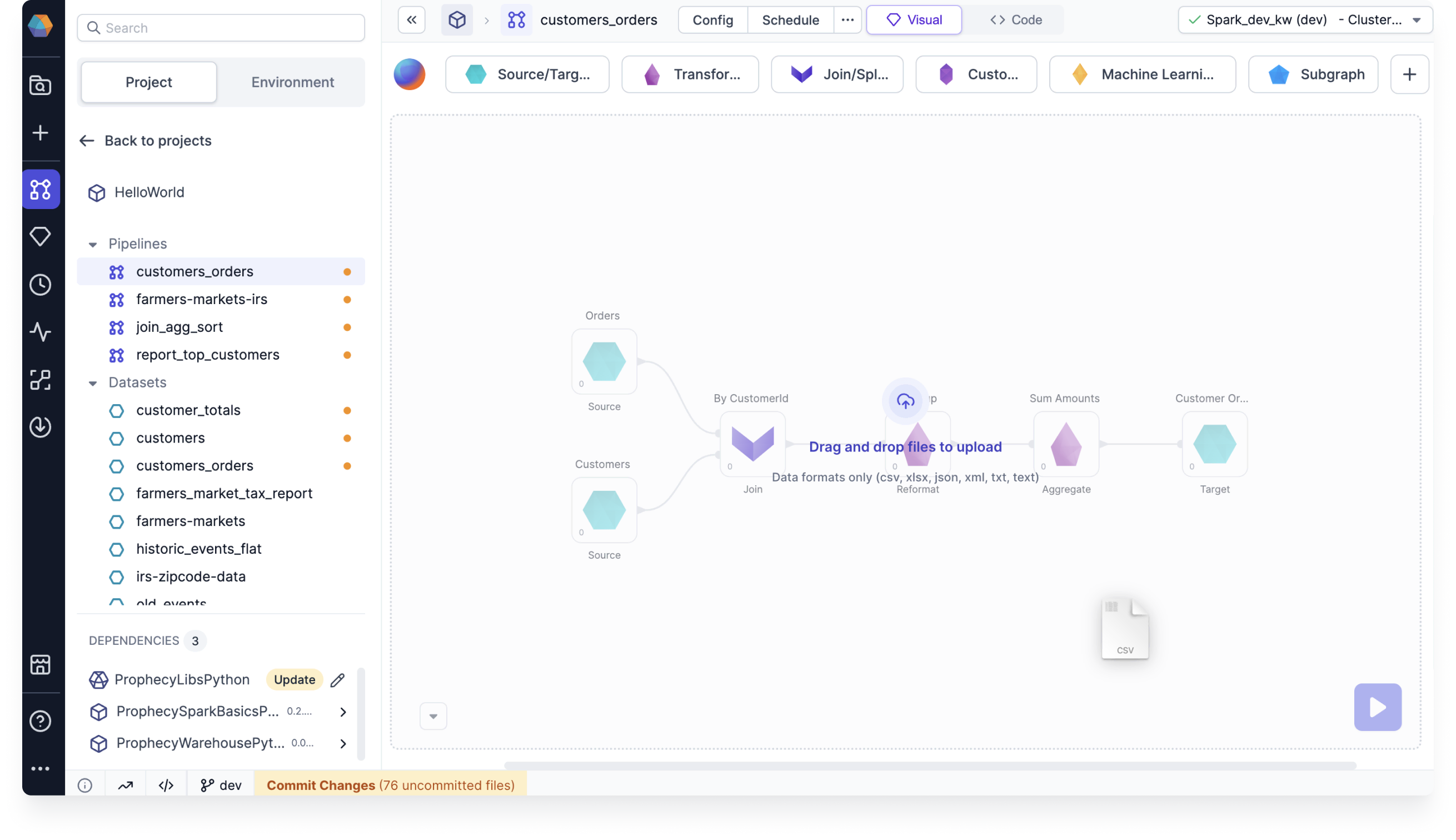
* Drag and drop the file directly to your pipeline canvas.
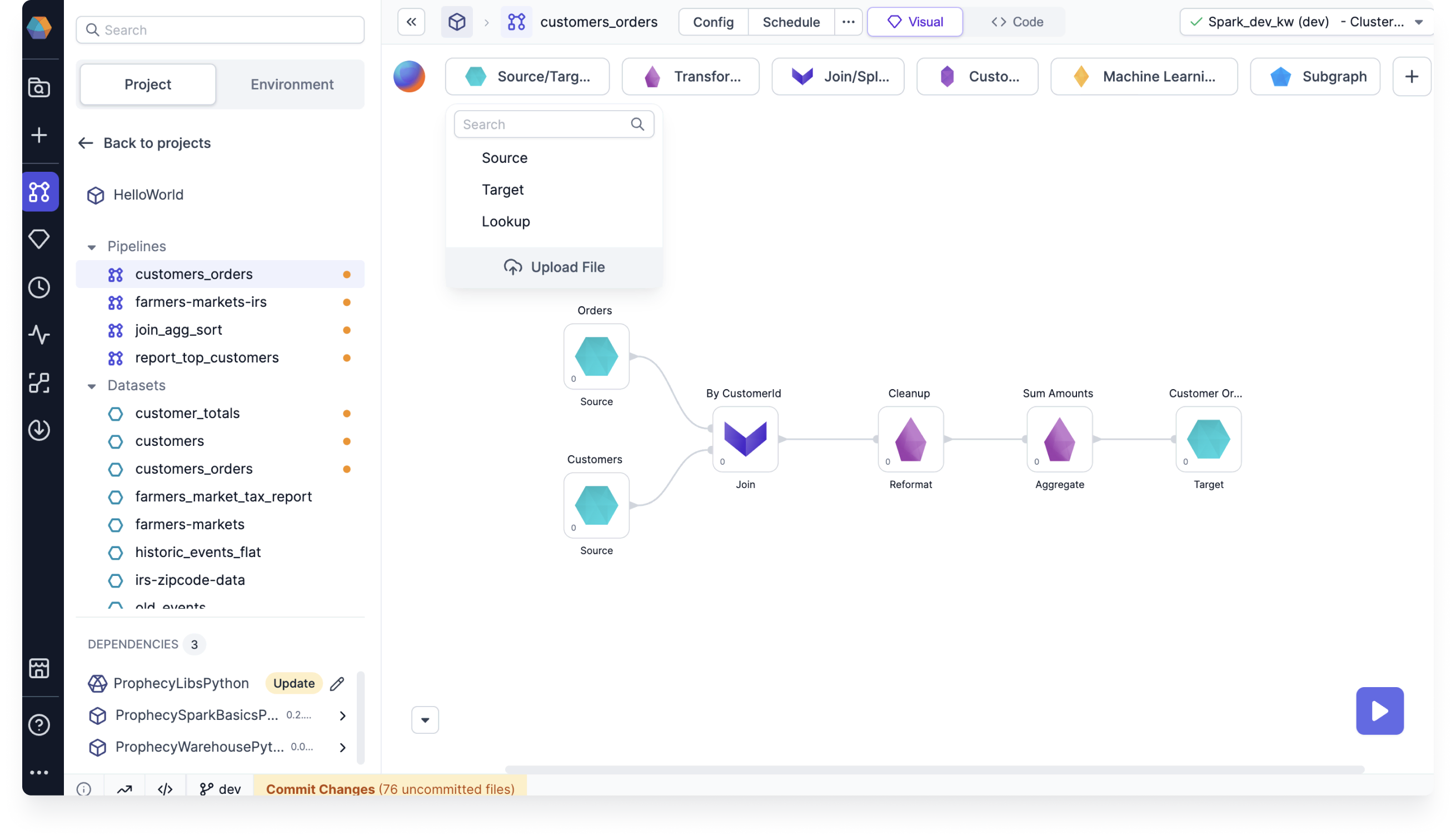
 * Open the `Source/Target` gem drawer and click **Upload file**.
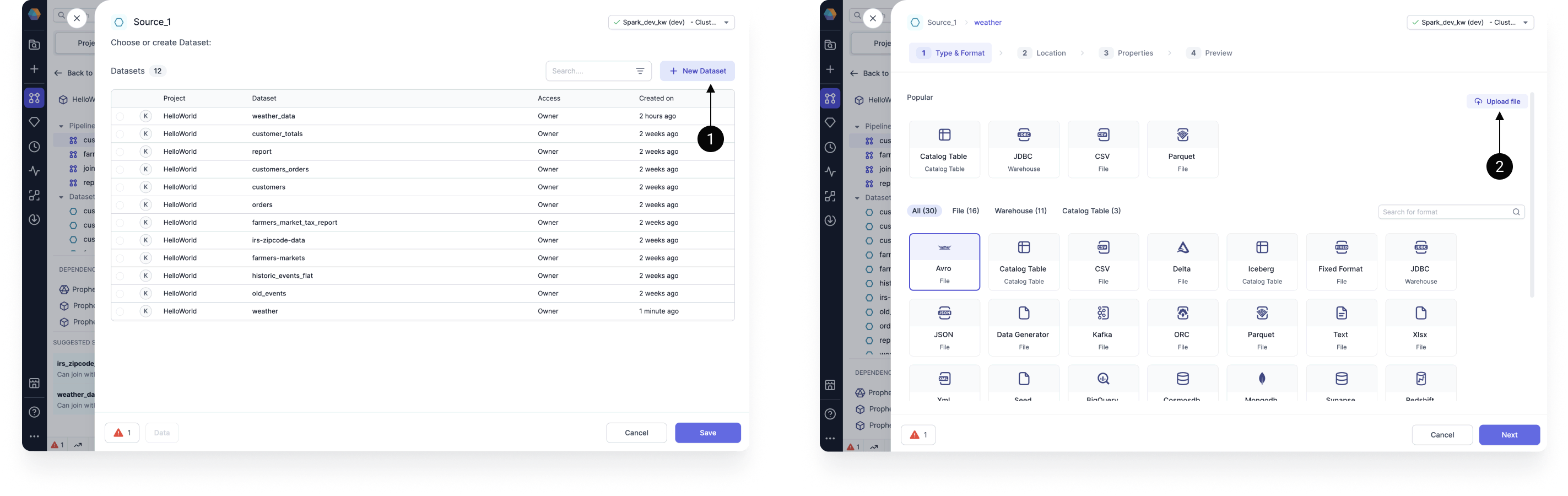
 * Create a new Source gem, click **+ New Dataset**, and select **Upload file**.
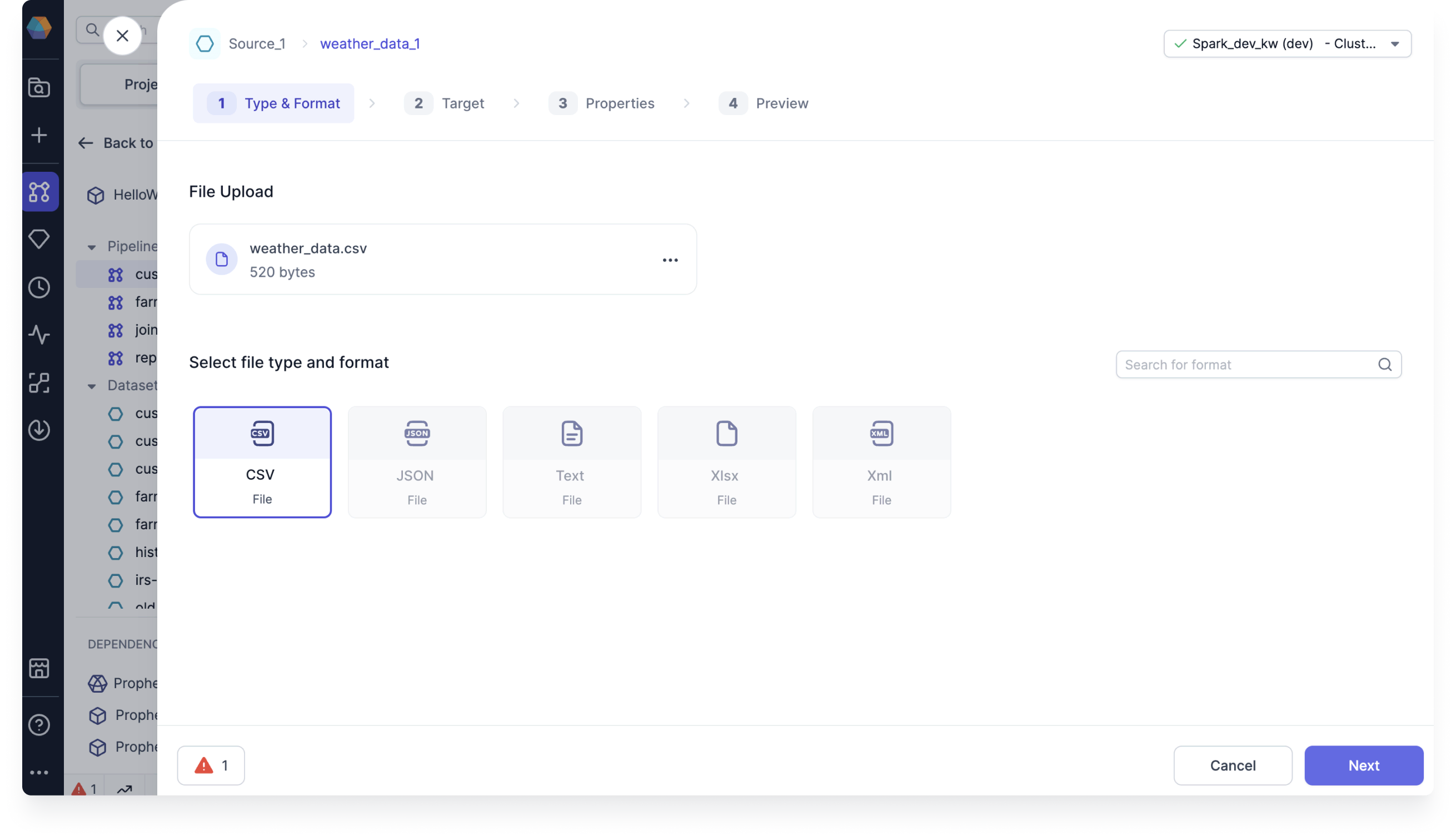
 If your file successfully uploads, you see the **Type & Format** page for your file.
 ## File configuration
To configure your file:
1. Confirm or update the file type, and click **Next**.
2. Upload the file to a known file store location, or create a new table in your file store with the **Upload and create a table** option. Then, click **Next**.
## File configuration
To configure your file:
1. Confirm or update the file type, and click **Next**.
2. Upload the file to a known file store location, or create a new table in your file store with the **Upload and create a table** option. Then, click **Next**.
 After you define the target location and click **Next**, Prophecy uploads the file to the file
path, regardless if you complete the gem configuration.
3. Add each property you want to configure.
To see a full list of properties of each file type, click the page corresponding to your file type in the left hand navigation.
1. Click **Infer Schema**.
2. Confirm or update the schema and click **Next**.
3. If you want to preview the table, click **Load**.
4. Click **Create Dataset**.
This action creates the dataset and also creates the table if using the **Upload and create a table** option.
Now, you can use your Source gem that contains all your data in your pipeline.
After you define the target location and click **Next**, Prophecy uploads the file to the file
path, regardless if you complete the gem configuration.
3. Add each property you want to configure.
To see a full list of properties of each file type, click the page corresponding to your file type in the left hand navigation.
1. Click **Infer Schema**.
2. Confirm or update the schema and click **Next**.
3. If you want to preview the table, click **Load**.
4. Click **Create Dataset**.
This action creates the dataset and also creates the table if using the **Upload and create a table** option.
Now, you can use your Source gem that contains all your data in your pipeline.