> ## Documentation Index
> Fetch the complete documentation index at: https://docs.prophecy.ai/llms.txt
> Use this file to discover all available pages before exploring further.
# SchemaTransform
> Add, Edit, Rename or Drop Columns
Dependencies:
* ProphecySparkBasicsPython 0.0.1+
* ProphecySparkBasicsScala 0.0.1+
Cluster requirements:
* UC dedicated clusters 14.3+ supported
* UC standard clusters 14.3+ supported
* Livy clusters 3.0.1+ supported
Use the SchemaTransform gem to apply transformations to columns from the incoming DataFrame. This page describes the different transformations—or *operations*—that you can use in this gem.
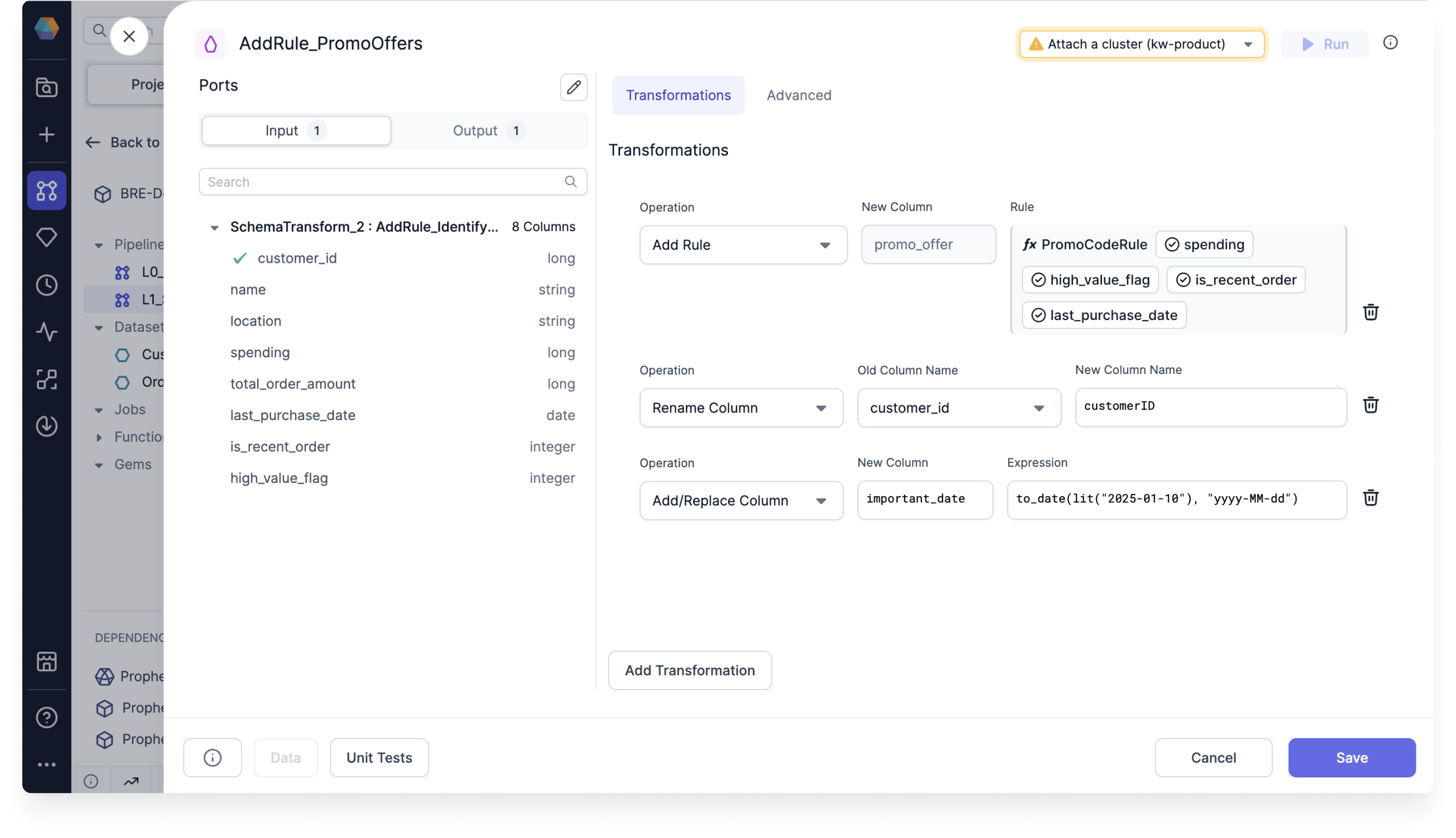 Unlike Reformat which is a set operation where all the transforms are applied in parallel, transformations here are applied *in order*.
Reformat is a SQL `select` and is preferable when making many changes.
## Operations
### Add/Replace Expression
Add a new column or replace an existing one based on an expression.
| Parameter | Description |
| ---------- | --------------------------------------------------- |
| New Column | Output column name |
| Expression | SQL expression to generate values in the new column |
### Drop Column
Remove a column from next stage of the Pipeline.
| Parameter | Description |
| -------------- | -------------------- |
| Column to drop | Column to be dropped |
### Rename Column
Rename an existing column downstream in the Pipeline.
| Parameter | Description |
| --------------- | -------------------- |
| Old Column Name | Column to be renamed |
| New Column Name | Output column name |
### Add If Missing
Provide a default value for a column if it is missing from the source.
| Parameter | Description |
| -------------------------- | ------------------------------------------ |
| Source Column Name | Column that contains missing values |
| Default Value (if missing) | The value that will replace missing values |
### Add Rule
Use a business rule in your Pipeline. Visit the [Business rules engine](/data-engineering/development/functions/business-rules-engine/business-rules-engine) page to learn about business rules.
| Parameter | Description |
| ---------- | ---------------------------------------------------------------------------------- |
| New Column | The column that the business rule will apply to |
| Rule | The business rule that contains the logic that will populate the new column values |
## Spark Code
```python example.py theme={null}
def transform(spark: SparkSession, in0: DataFrame) -> DataFrame:
return in0\
.withColumn("business_date", to_date(lit("2022-05-05"), "yyyy-MM-dd"))\
.withColumnRenamed("bonus_rate", "bonus")\
.drop("slug")
```
```scala example.scala theme={null}
object transform {
def apply(spark: SparkSession, in: DataFrame): DataFrame =
in.withColumn("business_date", to_date(lit("2022-05-05"), "yyyy-MM-dd"))
.withColumnRenamed("bonus_rate", "bonus")
.drop("slug")
}
```
## Advanced Import
The Advanced Import feature allows you to bulk import statements that are structured similarly to CSV/TSV files. This can be useful if you have your expressions/transformation logic in another format and just want to quickly configure a SchemaTransform gem based on existing logic.
### Using Advanced Import
1. Click the **Advanced** tab in the SchemaTransform gem.
2. Enter the expressions into the text area.
Unlike Reformat which is a set operation where all the transforms are applied in parallel, transformations here are applied *in order*.
Reformat is a SQL `select` and is preferable when making many changes.
## Operations
### Add/Replace Expression
Add a new column or replace an existing one based on an expression.
| Parameter | Description |
| ---------- | --------------------------------------------------- |
| New Column | Output column name |
| Expression | SQL expression to generate values in the new column |
### Drop Column
Remove a column from next stage of the Pipeline.
| Parameter | Description |
| -------------- | -------------------- |
| Column to drop | Column to be dropped |
### Rename Column
Rename an existing column downstream in the Pipeline.
| Parameter | Description |
| --------------- | -------------------- |
| Old Column Name | Column to be renamed |
| New Column Name | Output column name |
### Add If Missing
Provide a default value for a column if it is missing from the source.
| Parameter | Description |
| -------------------------- | ------------------------------------------ |
| Source Column Name | Column that contains missing values |
| Default Value (if missing) | The value that will replace missing values |
### Add Rule
Use a business rule in your Pipeline. Visit the [Business rules engine](/data-engineering/development/functions/business-rules-engine/business-rules-engine) page to learn about business rules.
| Parameter | Description |
| ---------- | ---------------------------------------------------------------------------------- |
| New Column | The column that the business rule will apply to |
| Rule | The business rule that contains the logic that will populate the new column values |
## Spark Code
```python example.py theme={null}
def transform(spark: SparkSession, in0: DataFrame) -> DataFrame:
return in0\
.withColumn("business_date", to_date(lit("2022-05-05"), "yyyy-MM-dd"))\
.withColumnRenamed("bonus_rate", "bonus")\
.drop("slug")
```
```scala example.scala theme={null}
object transform {
def apply(spark: SparkSession, in: DataFrame): DataFrame =
in.withColumn("business_date", to_date(lit("2022-05-05"), "yyyy-MM-dd"))
.withColumnRenamed("bonus_rate", "bonus")
.drop("slug")
}
```
## Advanced Import
The Advanced Import feature allows you to bulk import statements that are structured similarly to CSV/TSV files. This can be useful if you have your expressions/transformation logic in another format and just want to quickly configure a SchemaTransform gem based on existing logic.
### Using Advanced Import
1. Click the **Advanced** tab in the SchemaTransform gem.
2. Enter the expressions into the text area.
 ### Format
The format of these expressions is `op_type,target_name,target_expr`, where `op_type` is the type of operation (see below); `target_name` is the desired new column name and `target_expr` is the Spark expression that will be used to generate the new column. Each `op_type` has a different number of extra columns that have to be provided, see below for more details.
For `target_expr` values that contain a comma `,` or span multiple lines, you must surround them by ` `` ` on either side. For example:
```
addrep,customer_id,customer_id
addrep,full_name,``concat(first_name, ' ', last_name)``
```
### Advanced Import Operation types
| Operation Type | Advanced Import name | :Arguments: | Example |
| -------------- | -------------------- | ----------- | --------------------------------- |
| Add/Replace | `addrep` | 2 | `addrep,foo,CAST(NULL as int)` |
| Drop | `drop` | 1 | `drop bar` |
| Rename | `rename` | 2 | `rename,foo,bar` |
| Add if missing | `missing` | 2 | `missing,foo,current_timestamp()` |
| Add rule | `addrule` | 1 | `addrule, PromoCodeRule()` |
### Format
The format of these expressions is `op_type,target_name,target_expr`, where `op_type` is the type of operation (see below); `target_name` is the desired new column name and `target_expr` is the Spark expression that will be used to generate the new column. Each `op_type` has a different number of extra columns that have to be provided, see below for more details.
For `target_expr` values that contain a comma `,` or span multiple lines, you must surround them by ` `` ` on either side. For example:
```
addrep,customer_id,customer_id
addrep,full_name,``concat(first_name, ' ', last_name)``
```
### Advanced Import Operation types
| Operation Type | Advanced Import name | :Arguments: | Example |
| -------------- | -------------------- | ----------- | --------------------------------- |
| Add/Replace | `addrep` | 2 | `addrep,foo,CAST(NULL as int)` |
| Drop | `drop` | 1 | `drop bar` |
| Rename | `rename` | 2 | `rename,foo,bar` |
| Add if missing | `missing` | 2 | `missing,foo,current_timestamp()` |
| Add rule | `addrule` | 1 | `addrule, PromoCodeRule()` |