> ## Documentation Index
> Fetch the complete documentation index at: https://docs.prophecy.ai/llms.txt
> Use this file to discover all available pages before exploring further.
# Lineage extractor
> Prophecy lineage extractor on GitHub Actions
Available for [Enterprise Edition](/data-engineering/administration/platform/editions) only.
The Prophecy lineage extractor is a Python tool that retrieves and exports lineage information from Prophecy projects and pipelines. It supports project, pipeline, and branch-level lineage extraction, with optional features like emailing reports.
You can run the lineage extractor manually or integrate it into a CI workflow to automate report generation. This page covers how to run the extractor via command line and how to automate it using GitHub Actions or GitLab CI.
## Prerequisites
To use the lineage extractor:
* Install the Python tool. [Here's the PyPI package](https://pypi.org/project/prophecy-lineage-extractor/).
* (SQL only): `knowledge-graph` must be enabled in your Prophecy deployment.
## Command
Use the lineage extractor Python command to export the lineage of a specific pipeline.
```bash theme={null}
python -m prophecy_lineage_extractor \
--project-id 6493 \
--reader knowledge-graph \
--branch test1234 \
--output-dir ./test \
--run-for-all \
--fmt openlineage
```
```bash theme={null}
python -m prophecy_lineage_extractor \
--project-id 9900 \
--reader lineage \
--pipeline-id 9900/my_pipeline \
--output-dir ./test \
--branch test1234 \
--send-email \
--run-for-all
```
### Parameters
Prophecy project ID. You can find it in the project URL. Example:
`https://app.prophecy.io/metadata/entity/projects/57040` where 57040 is the project ID.
Directory path where the extractor writes the lineage report.
Reader to use. Set to `lineage` for Spark projects or `knowledge-graph` for SQL projects.
One or more comma-separated pipeline IDs. The pipeline ID is equivalent to the name of the
pipeline. Required for the `lineage` reader; optional for the `knowledge-graph` reader.
One or more comma-separated model IDs. The model ID is equivalent to the name of the model. Only
applicable when `--reader` is set to `knowledge-graph`. When defined, retrieves lineage for the
specified models.
Output format. Use `excel` or `openlineage` (JSON in OpenLineage format).
Branch to extract lineage from.
Sends the report by email. Requires SMTP configuration. See [Environment
variables](#environment-variables).
Generates lineage for all pipelines in the project, rather than just one pipeline.
### Environment variables
To use the command, set up the following environment variables:
[Personal Access Token](/api-reference/introduction#access-tokens) used to authenticate with
Prophecy.
Prophecy instance URL. Example: `https://app.prophecy.io`.
Required if using `--send-email`. SMTP server hostname for sending email reports. Example:
`smtp.gmail.com`.
Required if using `--send-email`. SMTP server port number. Example: `587`.
Required if using `--send-email`. Username for the email account used to send reports.
Required if using `--send-email`. Password needed for the email account.
Duration of the monitoring window in minutes.
Set to `1` to enable committing generated output to Git.
URL for sending OpenLineage events. If not set, and format is `openlineage`, events are written as JSON files in `OUTPUT_DIR//`.
## Integration with GitHub Actions or GitLab CI
This section walks you through automating the extraction of lineage reports from your Prophecy pipelines using a CI workflow in GitHub Actions or GitLab CI. You'll set up a script that pulls lineage data, generates an Excel report, and optionally sends it by email or commits it back to your repository.
### Prerequisites
* A Prophecy project hosted in an external GitHub or GitLab repository.
* Access to the repository and permissions to set up CI/CD pipelines.
* A Prophecy [Personal Access Token](/api-reference/introduction) (PAT).
* (Optional) To enable email reports, you must have SMTP credentials.
### Set environment variables and secrets
To configure lineage extraction behavior related to authentication, email delivery, and output settings, you'll need to provide several inputs. While you can hardcode these values directly into your CI workflow YAML, it's strongly recommended to store them as environment variables or secrets. This approach keeps sensitive data like access tokens and SMTP credentials secure, avoids leaking secrets into version control, and makes it easier to update values across environments without modifying the workflow file.
1. Go to your repository's **Settings > Secrets and variables > Actions**.
2. Add the [required variables](#environment-variables) under **Secrets** and **Variables** tabs.
1. Go to your repository's **Settings > CI/CD > Variables**.
2. Add the [required variables](#environment-variables) and mark secrets appropriately.
### Set up workflow configuration
To automate lineage extraction and optionally email or commit the resulting reports, you'll need to set up a CI workflow in your repository. The configuration below provides templates for both GitHub Actions and GitLab CI, which install the extractor, run it with your parameters, and optionally commit the results. These templates assume you've already configured the required environment variables and secrets. Customize them with your specific project and pipeline details before running.
In your GitHub repository:
1. Select **Add file > Create new file**.
2. Name the file `.github/workflows/prophecy_lineage_extractor.yml`.
3. Paste the following YAML into the file.
```yaml theme={null}
name: Run Prophecy Lineage extractor on main
on:
push:
branches:
- main
paths:
- 'datasets/**'
- 'pipelines/**'
- 'pbt_project.yml'
- '.github/workflows/prophecy_lineage_extractor.yml'
permissions:
contents: write
jobs:
extract-and-mail-prophecy-lineage:
runs-on: ubuntu-latest
env:
OUTPUT_DIR: 'output'
steps:
- uses: actions/checkout@v3
- name: Set up Python
uses: actions/setup-python@v4
with:
python-version: '3.9'
- name: Install Package
run: |
pip install --no-cache-dir prophecy-lineage-extractor
- name: Extract and Send Prophecy Lineage
env:
PROPHECY_URL: 'https://.prophecy.io'
MONITOR_TIME_ENV: ${{ vars.MONITOR_TIME_ENV }}
PROPHECY_PAT: ${{ secrets.PROPHECY_PAT }}
SMTP_HOST: 'smtp.gmail.com'
SMTP_PORT: '587'
SMTP_USERNAME: ${{ secrets.SMTP_USERNAME }}
SMTP_PASSWORD: ${{ secrets.SMTP_PASSWORD }}
RECEIVER_EMAIL: ''
run: |
python -m prophecy_lineage_extractor --project-id --pipeline-id /pipelines/ --send-email --output-dir $OUTPUT_DIR --branch main
- name: Commit file to output directory
env:
GIT_COMMIT: ${{ vars.GIT_COMMIT }}
run: |
if [[ $GIT_COMMIT == "1" ]]; then
git config --global user.name ''
git config --global user.email ''
git add $OUTPUT_DIR/*
git commit -m "[Github Action: main]: Adding Excel lineage report"
git push
else
echo "Committing to Git is not enabled"
```
In your GitLab repository:
1. Create a file named `.gitlab-ci.yml` at the root level.
2. Paste the following YAML.
```yaml theme={null}
stages:
- extract
variables:
GIT_COMMIT: '1'
OUTPUT_DIR: 'output_dev'
extract_and_mail:
stage: extract
image: python:3.9
script:
- pip install --no-cache-dir prophecy-lineage-extractor
- |
export PROPHECY_URL="$PROPHECY_URL"
export PROPHECY_PAT="$PROPHECY_PAT"
export SMTP_USERNAME="$SMTP_USERNAME"
export SMTP_PASSWORD="$SMTP_PASSWORD"
export SMTP_HOST="smtp.gmail.com"
export SMTP_PORT="587"
export RECEIVER_EMAIL=""
export MONITOR_TIME_ENV="50"
- |
BRANCH="dev"
python -m prophecy_lineage_extractor \
--project-id \
--pipeline-id /pipelines/ \
--send-email \
--output-dir $OUTPUT_DIR \
--branch $BRANCH
- |
if [ "$GIT_COMMIT" == "1" ]; then
git config --global user.name ''
git config --global user.email ''
git add $OUTPUT_DIR/*
git commit -m "[GitLab CI - $BRANCH] Adding Excel lineage report"
git remote add gitlab_origin https://oauth2:$ACCESS_TOKEN@gitlab.com/your-repo-path.git
git push gitlab_origin HEAD:$BRANCH -o ci.skip
else
echo "Committing to Git is not enabled"
only:
refs:
- dev
```
Make sure you modify the template with your own details:
* Replace `PROPHECY_URL` with your Prophecy URL.
* Update with your ProjectID and PipelineID.
* Modify the receiver email.
* Set your global Git username and email.
### Verify lineage file creation
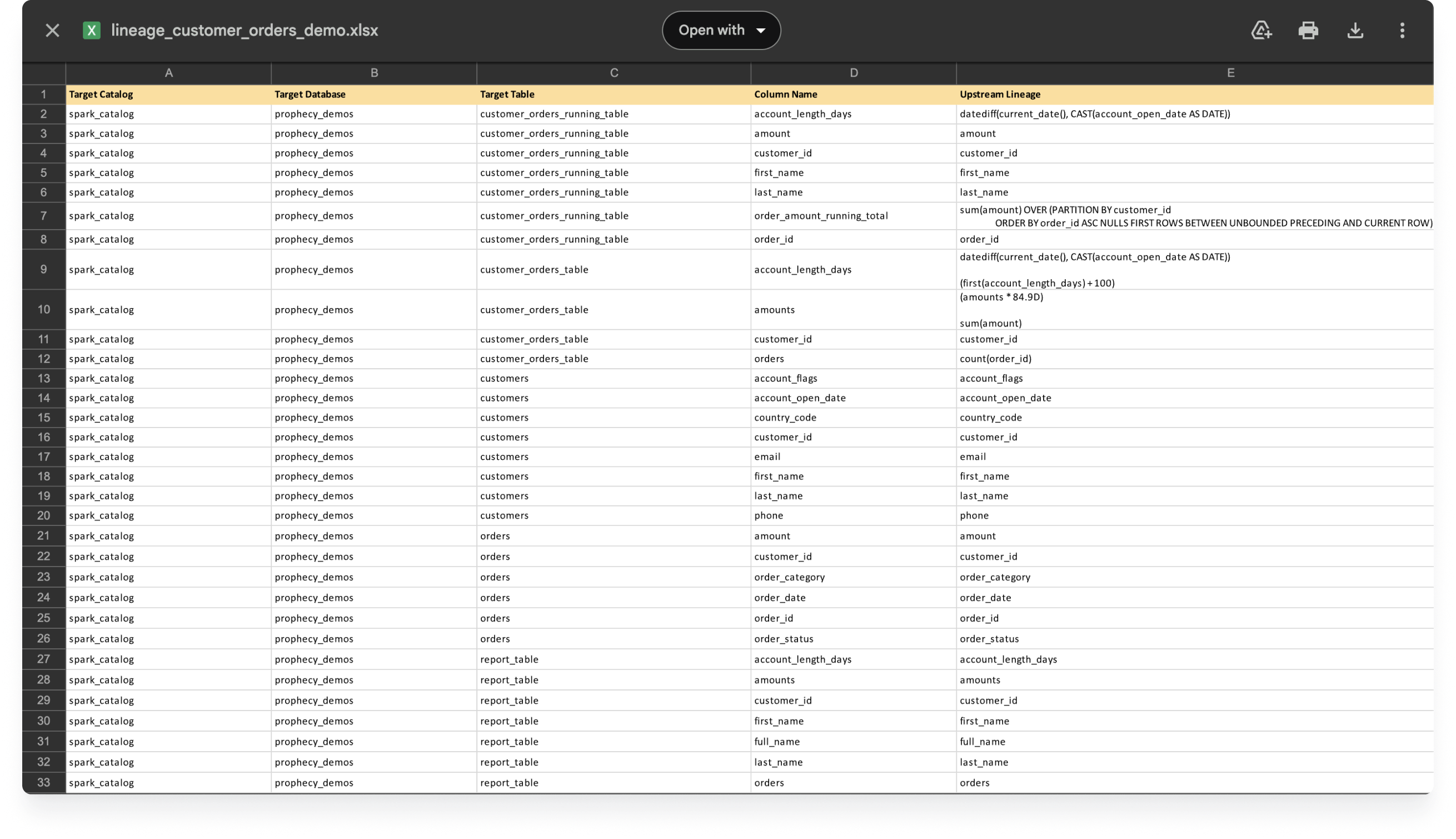
After a successful run, you should see a directory matching `OUTPUT_DIR` in your repo containing Excel lineage files like `pipeline_name_lineage.xlsx`. This XLSX file will show detailed lineage information about your pipeline.
 ## Troubleshooting
If your workflow doesn't run as expected:
* Check for error messages in [GitHub workflow run logs](https://docs.github.com/en/actions/monitoring-and-troubleshooting-workflows/monitoring-workflows/using-workflow-run-logs) or [GitLab job logs](https://docs.gitlab.com/ci/jobs/job_logs/).
* Verify that you have set all environment variables and secrets correctly.
* Ensure your Prophecy access token is valid and has the necessary permissions.
* Confirm that the Project ID and Pipeline ID are correct in the workflow file.
The knowledge graph caches lineage data to improve extraction performance. In some cases, cached data can become stale or outdated, preventing accurate lineage extraction for older pipelines or specific branches. Clear the cache when lineage extraction returns outdated results for pipelines that have been updated. To do so, use the Clear Index API.
**Endpoint:** `POST https://app.prophecy.io/api/lineage/sql/clearIndex`
Replace the base URL with your environment URL for Dedicated SaaS deployments.
**Headers:**
* `X-AUTH-TOKEN`: Your Prophecy Personal Access Token
* `Content-Type`: `application/json`
**Request body:**
```json theme={null}
{
"projectId": "95",
"branch": "dev"
}
```
**Example:**
```bash theme={null}
curl --location 'https:///api/lineage/sql/clearIndex' \
--header 'X-AUTH-TOKEN: ' \
--header 'Content-Type: application/json' \
--data '{
"projectId": "95",
"branch": "dev"
}'
```
After clearing the cache, the next lineage extraction for the specified project and branch rebuilds the knowledge graph data from scratch.
## Troubleshooting
If your workflow doesn't run as expected:
* Check for error messages in [GitHub workflow run logs](https://docs.github.com/en/actions/monitoring-and-troubleshooting-workflows/monitoring-workflows/using-workflow-run-logs) or [GitLab job logs](https://docs.gitlab.com/ci/jobs/job_logs/).
* Verify that you have set all environment variables and secrets correctly.
* Ensure your Prophecy access token is valid and has the necessary permissions.
* Confirm that the Project ID and Pipeline ID are correct in the workflow file.
The knowledge graph caches lineage data to improve extraction performance. In some cases, cached data can become stale or outdated, preventing accurate lineage extraction for older pipelines or specific branches. Clear the cache when lineage extraction returns outdated results for pipelines that have been updated. To do so, use the Clear Index API.
**Endpoint:** `POST https://app.prophecy.io/api/lineage/sql/clearIndex`
Replace the base URL with your environment URL for Dedicated SaaS deployments.
**Headers:**
* `X-AUTH-TOKEN`: Your Prophecy Personal Access Token
* `Content-Type`: `application/json`
**Request body:**
```json theme={null}
{
"projectId": "95",
"branch": "dev"
}
```
**Example:**
```bash theme={null}
curl --location 'https:///api/lineage/sql/clearIndex' \
--header 'X-AUTH-TOKEN: ' \
--header 'Content-Type: application/json' \
--data '{
"projectId": "95",
"branch": "dev"
}'
```
After clearing the cache, the next lineage extraction for the specified project and branch rebuilds the knowledge graph data from scratch.