


Available for Enterprise Edition only.
Prerequisites
To use the lineage extractor:- Install the Python tool. Here’s the PyPI package.
- (SQL only):
knowledge-graphmust be enabled in your Prophecy deployment.
Command
Use the lineage extractor Python command to export the lineage of a specific pipeline.- SQL example
- Spark example
Parameters
string
required
Prophecy project ID. You can find it in the project URL. Example:
https://app.prophecy.io/metadata/entity/projects/57040 where 57040 is the project ID.string
required
Directory path where the extractor writes the lineage report.
string
Reader to use. Set to
lineage for Spark projects or knowledge-graph for SQL projects.string
One or more comma-separated pipeline IDs. The pipeline ID is equivalent to the name of the
pipeline. Required for the
lineage reader; optional for the knowledge-graph reader.string
One or more comma-separated model IDs. The model ID is equivalent to the name of the model. Only
applicable when
--reader is set to knowledge-graph. When defined, retrieves lineage for the
specified models.string
default:"excel"
Output format. Use
excel or openlineage (JSON in OpenLineage format).string
default:"main"
Branch to extract lineage from.
flag
Sends the report by email. Requires SMTP configuration. See Environment
variables.
flag
Generates lineage for all pipelines in the project, rather than just one pipeline.
Environment variables
To use the command, set up the following environment variables:required
Personal Access Token used to authenticate with
Prophecy.
required
Prophecy instance URL. Example:
https://app.prophecy.io.Required if using
--send-email. SMTP server hostname for sending email reports. Example:
smtp.gmail.com.Required if using
--send-email. SMTP server port number. Example: 587.Required if using
--send-email. Username for the email account used to send reports.Required if using
--send-email. Password needed for the email account.default:"150"
Duration of the monitoring window in minutes.
Set to
1 to enable committing generated output to Git.URL for sending OpenLineage events. If not set, and format is
openlineage, events are written as JSON files in OUTPUT_DIR/<PROJECT-ID>/.Integration with GitHub Actions or GitLab CI
This section walks you through automating the extraction of lineage reports from your Prophecy pipelines using a CI workflow in GitHub Actions or GitLab CI. You’ll set up a script that pulls lineage data, generates an Excel report, and optionally sends it by email or commits it back to your repository.Prerequisites
- A Prophecy project hosted in an external GitHub or GitLab repository.
- Access to the repository and permissions to set up CI/CD pipelines.
- A Prophecy Personal Access Token (PAT).
- (Optional) To enable email reports, you must have SMTP credentials.
Set environment variables and secrets
To configure lineage extraction behavior related to authentication, email delivery, and output settings, you’ll need to provide several inputs. While you can hardcode these values directly into your CI workflow YAML, it’s strongly recommended to store them as environment variables or secrets. This approach keeps sensitive data like access tokens and SMTP credentials secure, avoids leaking secrets into version control, and makes it easier to update values across environments without modifying the workflow file.- GitHub
- GitLab
- Go to your repository’s Settings > Secrets and variables > Actions.
- Add the required variables under Secrets and Variables tabs.
Set up workflow configuration
To automate lineage extraction and optionally email or commit the resulting reports, you’ll need to set up a CI workflow in your repository. The configuration below provides templates for both GitHub Actions and GitLab CI, which install the extractor, run it with your parameters, and optionally commit the results. These templates assume you’ve already configured the required environment variables and secrets. Customize them with your specific project and pipeline details before running.- GitHub Actions
- GitLab CI
In your GitHub repository:
- Select Add file > Create new file.
- Name the file
.github/workflows/prophecy_lineage_extractor.yml. - Paste the following YAML into the file.
- Replace
PROPHECY_URLwith your Prophecy URL. - Update with your ProjectID and PipelineID.
- Modify the receiver email.
- Set your global Git username and email.
Verify lineage file creation
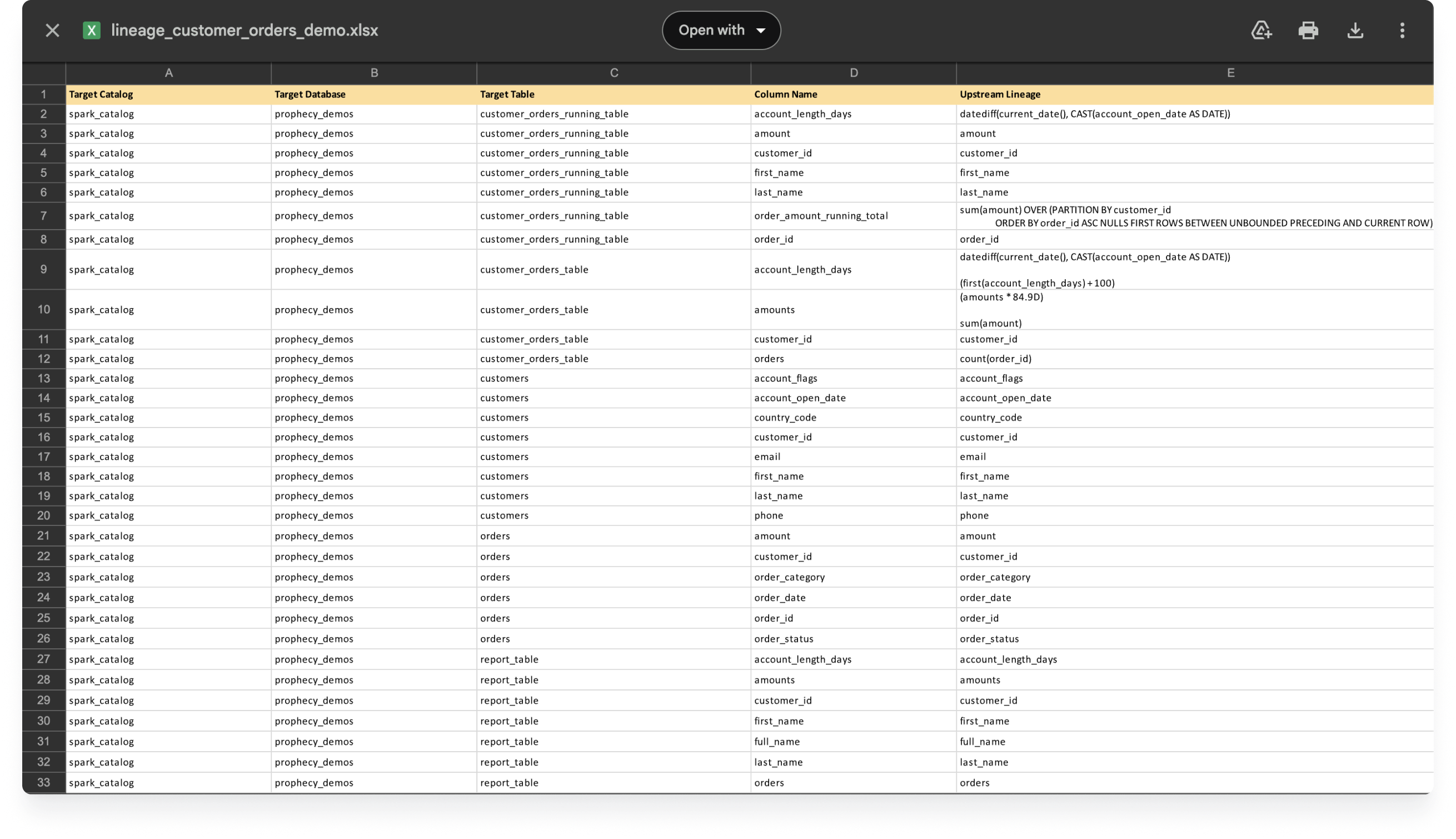
After a successful run, you should see a directory matchingOUTPUT_DIR in your repo containing Excel lineage files like pipeline_name_lineage.xlsx. This XLSX file will show detailed lineage information about your pipeline.
Troubleshooting
GitHub Action or GitLab CI doesn't run as expected
GitHub Action or GitLab CI doesn't run as expected
If your workflow doesn’t run as expected:
- Check for error messages in GitHub workflow run logs or GitLab job logs.
- Verify that you have set all environment variables and secrets correctly.
- Ensure your Prophecy access token is valid and has the necessary permissions.
- Confirm that the Project ID and Pipeline ID are correct in the workflow file.
Lineage extraction returns outdated results
Lineage extraction returns outdated results
The knowledge graph caches lineage data to improve extraction performance. In some cases, cached data can become stale or outdated, preventing accurate lineage extraction for older pipelines or specific branches. Clear the cache when lineage extraction returns outdated results for pipelines that have been updated. To do so, use the Clear Index API.Endpoint: Headers:Example:After clearing the cache, the next lineage extraction for the specified project and branch rebuilds the knowledge graph data from scratch.
POST https://app.prophecy.io/api/lineage/sql/clearIndexReplace the base URL with your environment URL for Dedicated SaaS deployments.
X-AUTH-TOKEN: Your Prophecy Personal Access TokenContent-Type:application/json