


Available for Enterprise Edition only.
An existing Azure Synapse Analytics environment
A properly configured Azure Synapse Analytics environment is required before configuring a Synapse fabric on Prophecy. Prophecy configurations include the following:-
A Synapse workspace with proper security configured. If you don’t have an existing workspace, you may deploy one from the Azure Marketplace.
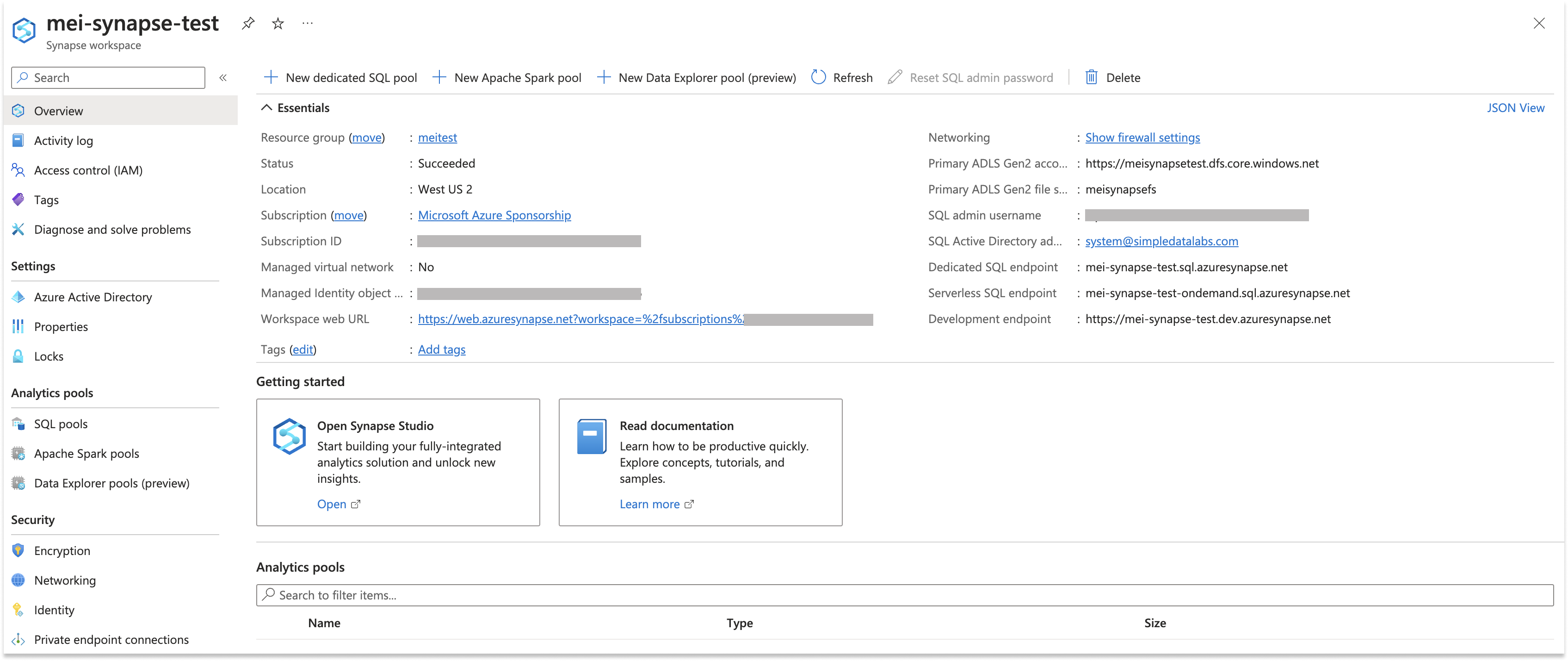
-
Deploy a Synapse Spark Pool if one doesn’t already exist.
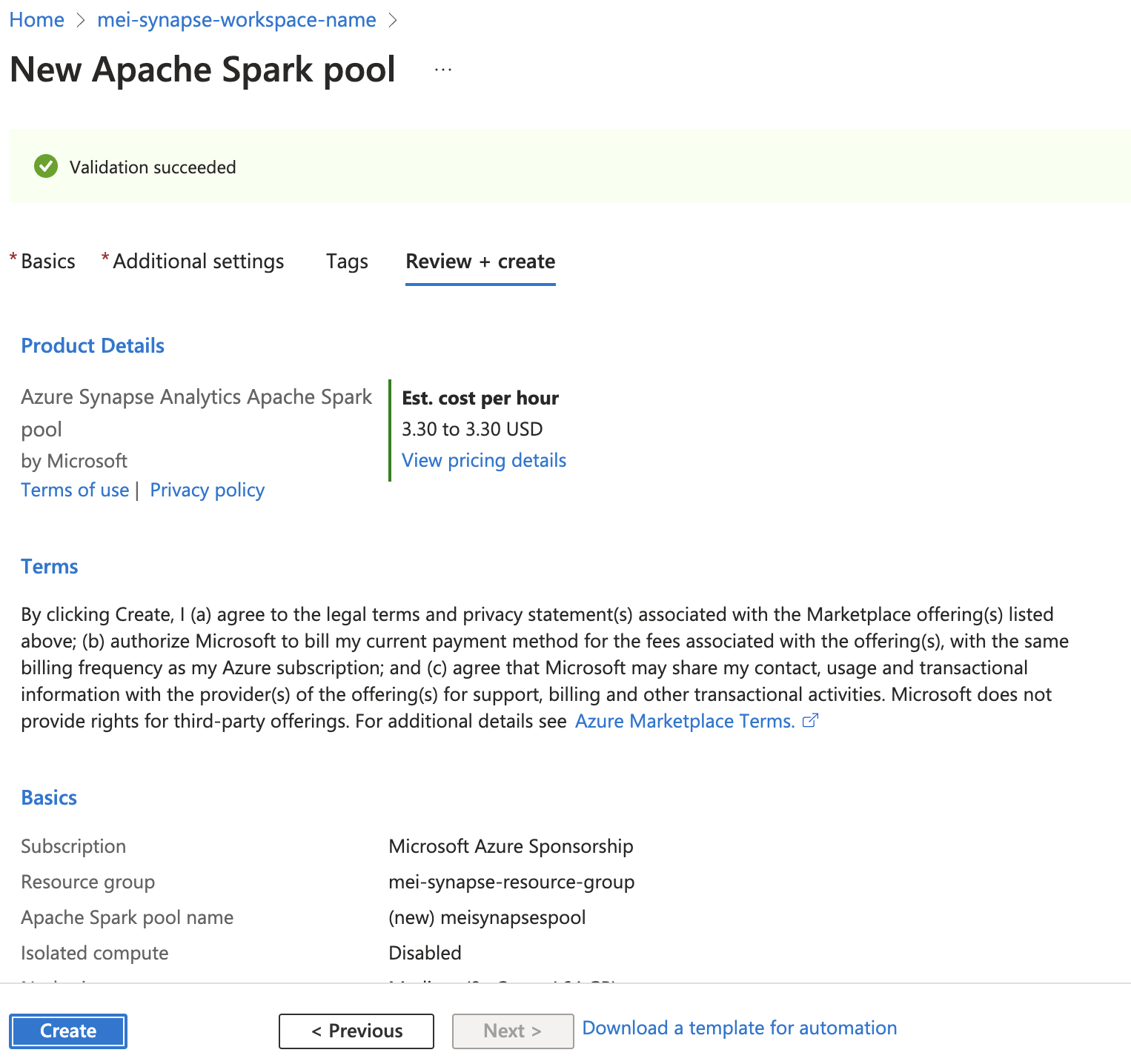
-
Make sure the Application is registered.

-
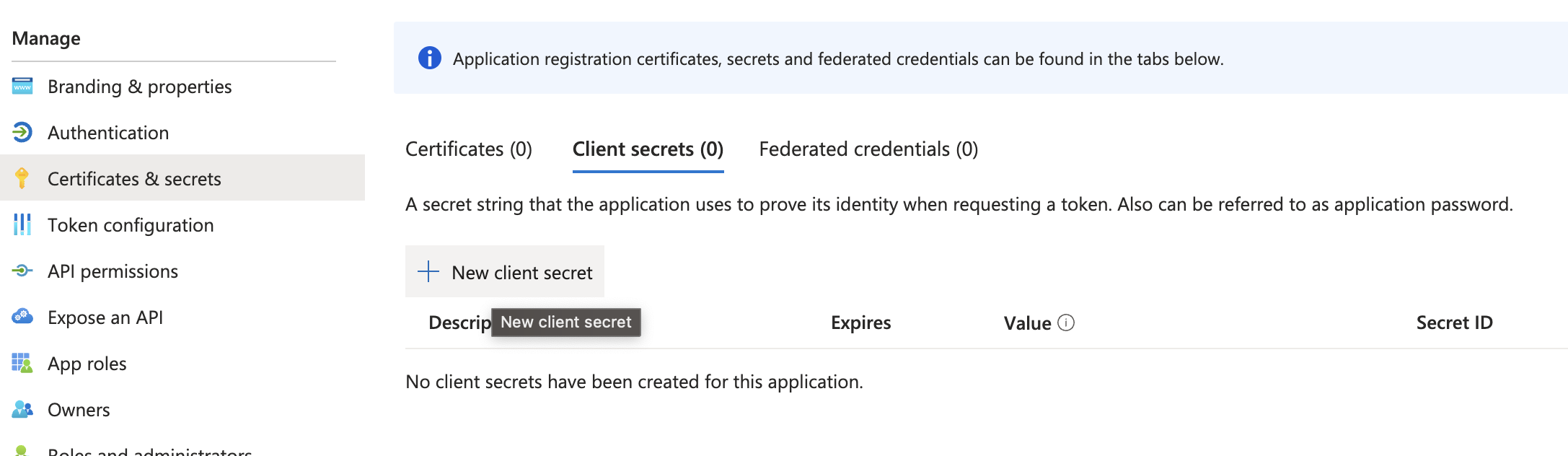
Create a secret for your Application.
-
Make a note of your secret. We need this information for your fabric.
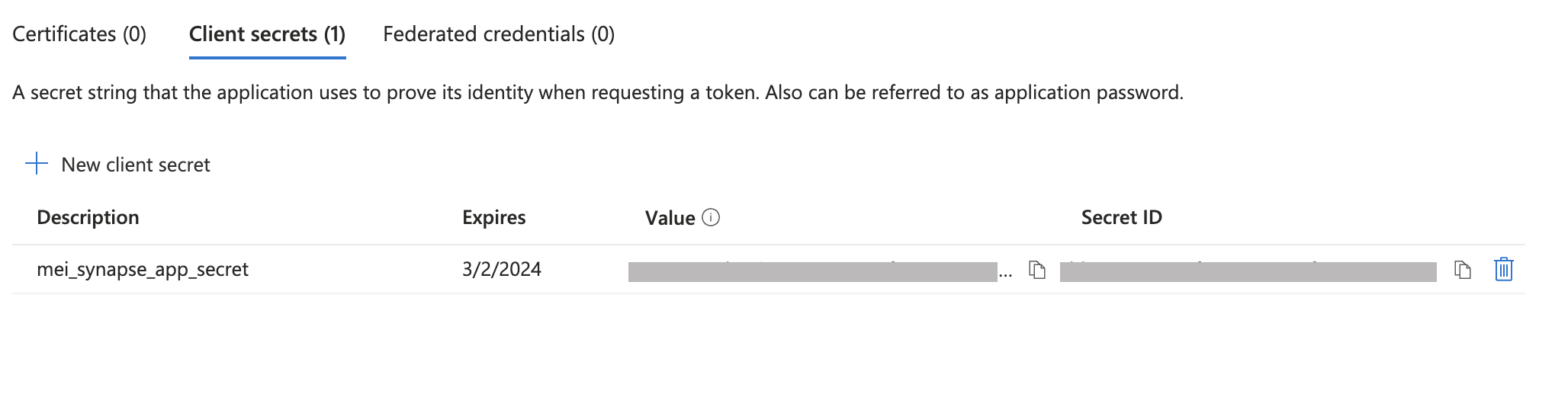
- Configure Application, Workspace, Storage roles to ensure proper access.
Configure connectivity between Synapse and Prophecy
Note that the Prophecy public IP is3.133.35.237.
- Open Prophecy and click Create Entity from the left navigation menu. Then, click on the fabric tile.
- Name your fabric and click Continue.
-
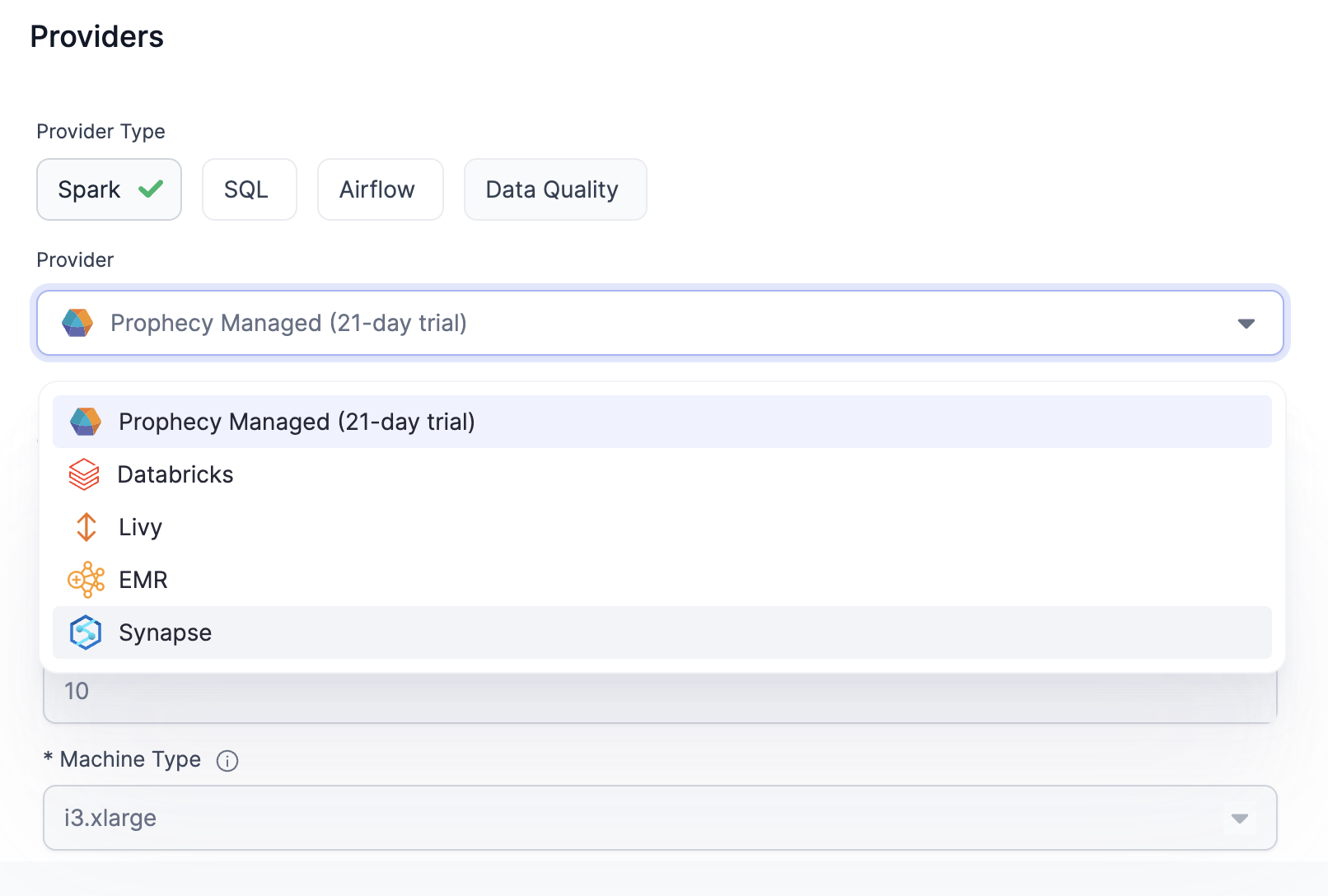
Choose Synapse as your Provider.
-
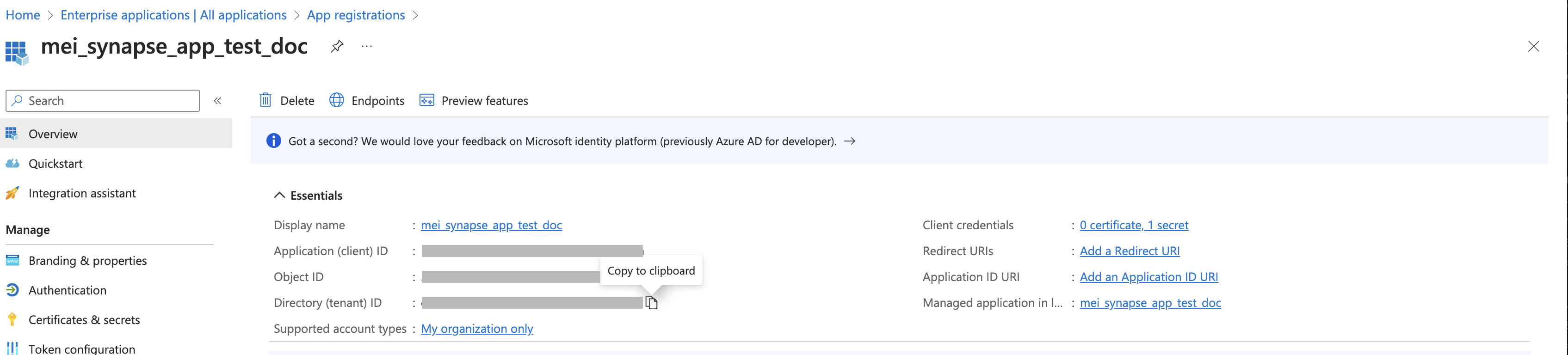
Copy and paste your Application Client ID, Secret Value, and Tenant ID from the App Registration page.
-
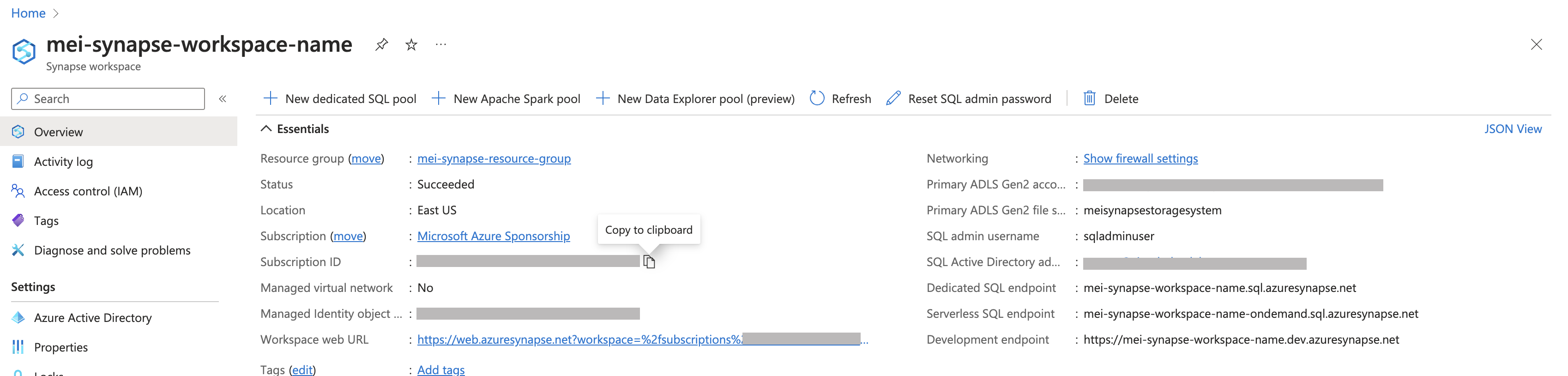
Copy and paste your Synapse Resource Group Name and Subscription ID from your Synapse workspace.
- Click on Fetch environments.
-
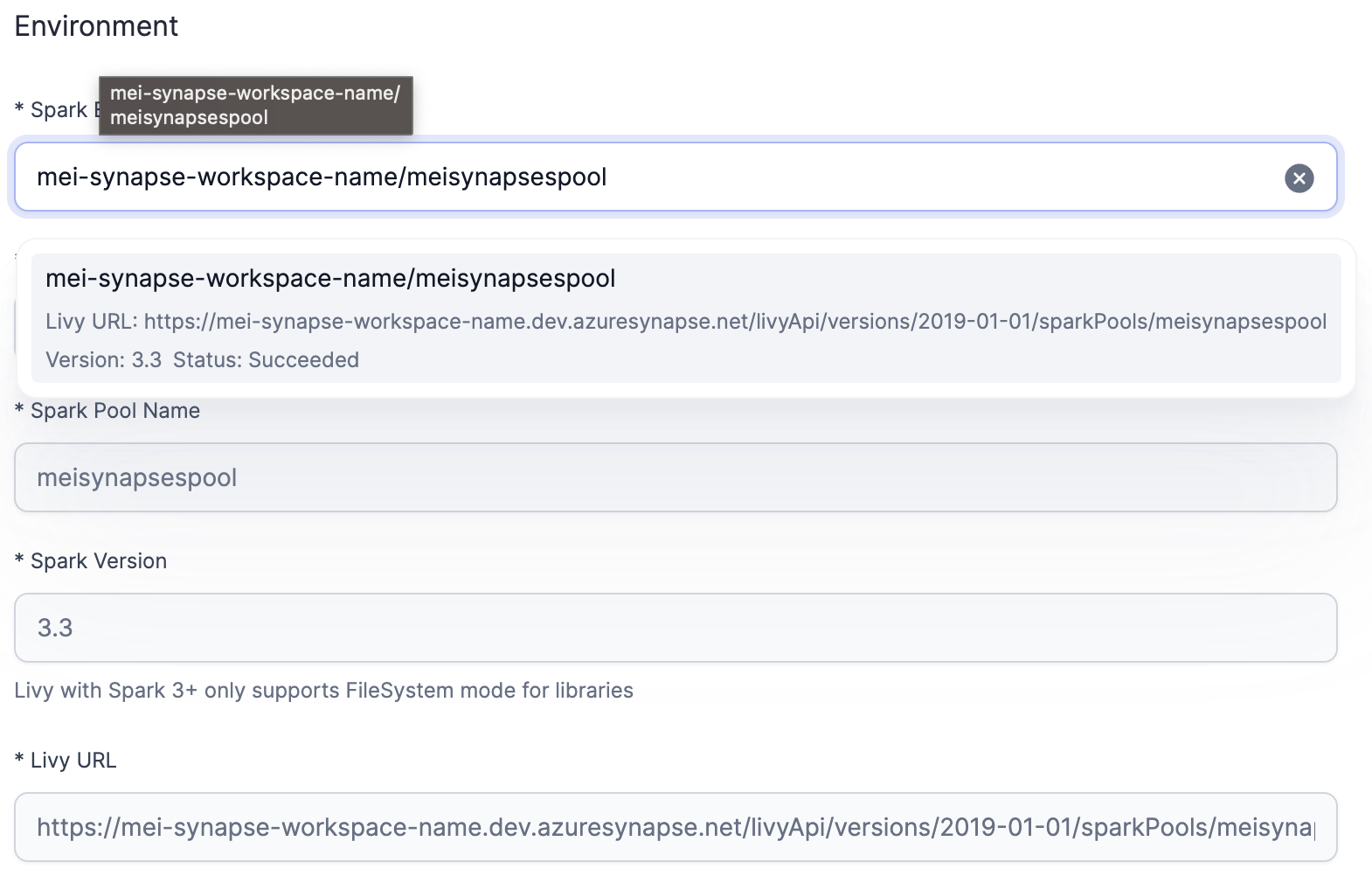
Select your Spark pool from the Spark environment dropdown. All other fields should be automatically populated after selecting your Spark Pool.
-
Click on Add Job Size and configure the Job size that you would like to use for processing.
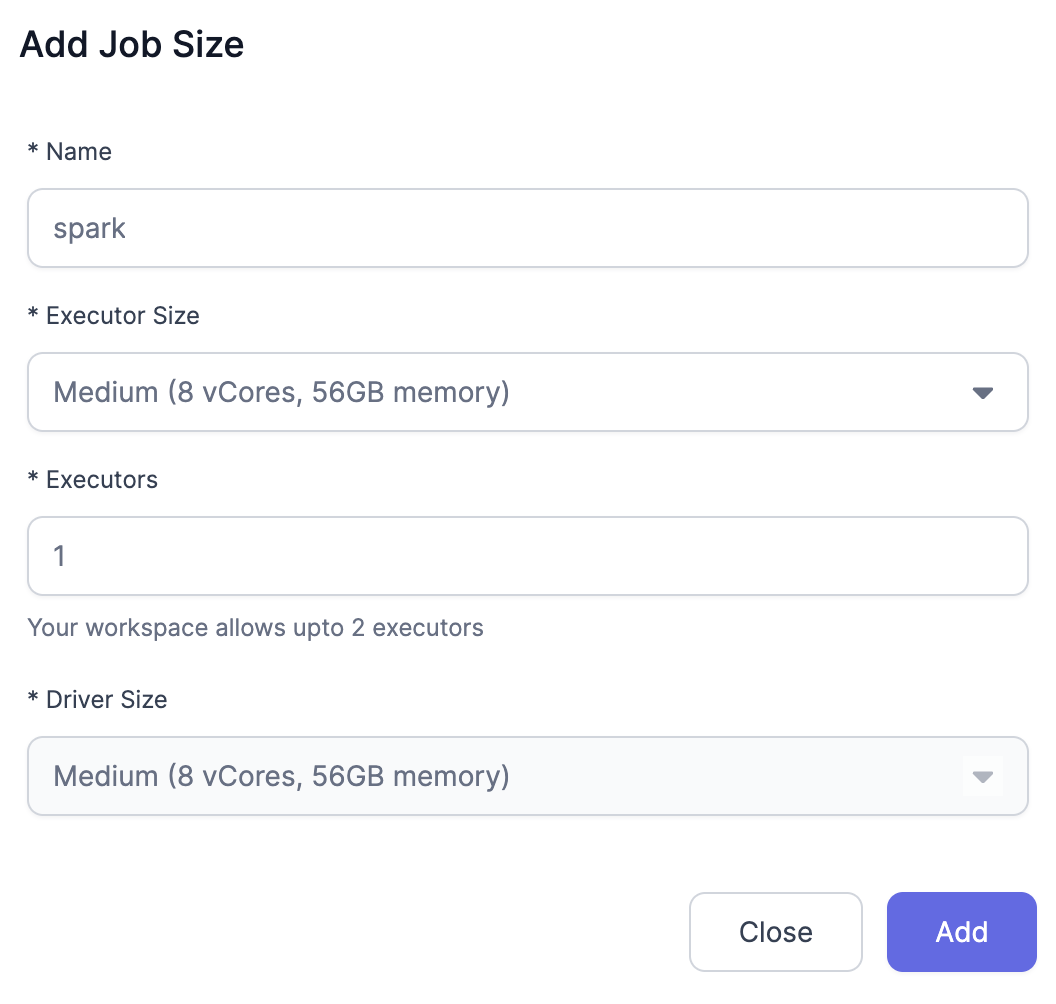
-
Under Scala enter the following Path:
https://prophecypublicazure.blob.core.windows.net/prophecy-public-libs/prophecy-scala-libs/ -
Under Python enter the following Path:
https://prophecypublicazure.blob.core.windows.net/prophecy-public-libs/prophecy-python-libs/ - Click on Complete.