


Available for Enterprise Edition only.
Schedule a Databricks job
- You can create a job either for a specific project or generically for any project.
-
To schedule a job for a specific project, either:
- Click the Schedule button at the top of a pipeline’s visual canvas, then click New Job in the modal that opens. (You can still add other pipelines to the job.)
- Click + to the right of Jobs in the left sidebar.
- To schedule a job for any project, click the Create Entity button in the left navigation bar. Hover over the Job tile and select Create.
-
To schedule a job for a specific project, either:
Build the job
Once you add a job, Prophecy opens a visual canvas that lets you add and connect gems for the job. Seven gem types are available when defining Databricks jobs. Each gem represents a discrete task, such as running a pipeline, executing a notebook, or triggering another job.Pipeline gem
The Pipeline gem triggers a Spark pipeline that was developed and published in Prophecy. Use this gem when you want to include an existing Prophecy pipeline as a stage within a Databricks job. To add a pipeline gem:- Drag the Pipeline gem onto the job canvas and click it to open its settings.
- Enter a descriptive name for the gem.
- Select pipeline from dropdown menu.
-
Either confirm or configure Pipeline Configurations:
- To confirm, view input parameters in the Schema tab (visible by default when you open the gem).
- To change configuration, click the Config tab. This tab allows you to override values in the Schema tab: input_path and processing_date.
Script gem
You can use the Script gem to add ad-hoc Python code to the job. This gem corresponds to a Databricks Python script task, which is a.py file that executes within the Databricks runtime on the cluster associated with the job.
To add a Script gem:
- Drag the Script gem onto the job canvas and click it to open its settings.
- Enter a descriptive name for the gem.
- Enter the Python code you want to execute.
Notebook gem
The Notebook gem lets you include Databricks notebooks as part of a Prophecy job. Use this gem when you want to orchestrate a notebook that already exists in Databricks as one stage within your job. To add a Notebook gem:- Drag the Notebook gem onto the job canvas and click it to open its settings.
- Enter notebook path for the Databricks notebook you want to run.
- The path must reference a notebook that already exists in Databricks.
- Ensure that the user running the job has Databricks permissions to access this path.
Prophecy does not support creating or editing notebooks directly in Prophecy. All notebooks must
be created and maintained within Databricks.
If Else gem
The If Else gem lets you branch a job’s execution path based on a logical condition. Use this gem when you want the job to continue along one branch if a condition is met, and along another branch if it is not. To add an If Else gem:- Drag the If Else gem onto the job canvas and click it to open its settings.
- Enter a left operand, operator, and right operand to create a logical comparison.
- Supported operators:
- equals
- not equals
- less than
- greater than
- less than or equal to
- greater than or equal to
- Supported operators:
Branch behavior
- If the condition evaluates to true, the job continues along the upper branch.
- If the condition evaluates to false, the job continues along the lower branch.
RunJob gem
The RunJob gem lets you trigger another job that has been configured in your workspace. Use this gem to chain jobs together or orchestrate dependent workflows as part of a larger process. To add a RunJob gem:- Drag the RunJob gem onto the job canvas and click it to open its settings.
- Choose a job from the dropdown menu, or manually enter the Job ID of the job you want to trigger.
- (Optional) Check Wait for job completion before proceeding if you want the current job to pause until the triggered job finishes running.
Model gem
The Model gem lets you run either an entire Prophecy (dbt-style) project or a specific SQL model within one. Use it when you want to include data modeling or transformation logic as part of a Databricks job. You can configure the Model Gem in two modes:Run Entire Project
Use this mode to execute all SQL models, tests, and seeds within a selected project.Run a SQL model
Use this mode when you want to run a single SQL model from within a project.DBT properties
These options control dbt-style behavior when running a project or SQL model:Note: The Model Gem refers to data models (SQL/dbt) rather than machine learning models. It
lets you compile and run Prophecy or dbt projects as part of a Databricks job orchestration.
Delta Live Tables Pipeline gem
The Delta Live Tables Pipeline gem lets you run data pipelines that have already been created and deployed in Databricks. Use this gem when you want to orchestrate an existing Delta Live Tables (DLT) pipeline as part of a Prophecy job. To add a Delta Live Tables Pipeline gem:- Drag the Delta Live Tables Pipeline gem onto the job canvas and click it to open its settings.
- Choose from available DLT pipelines for the current fabric.
- (Optional) Enable the Trigger full refresh checkbox to force a full refresh when the pipeline runs.
Apply conditions to gems in the Conditions tab
Use the Conditional tab to control when and how the gem runs within the job. You can define run conditions or configure the gem to run multiple iterations with For Each.Apply Run conditions
Run conditions determine when the gem executes based on the status of preceding gems.- All succeeded – Runs if all upstream gems succeed.
- At least one succeeded – Runs if at least one upstream gem succeeds.
- None failed – Runs if all upstream gems complete without failure.
- All done – Runs after all upstream gems finish, regardless of success or failure.
- At least one failed – Runs if at least one upstream gem fails.
Use For Each
Use For Each to run the gem multiple times with different parameter values. You can use For Each for all job gems except for the If Else gem.- Click Run multiple iterations [For Each].
- Enter a parameter name and a variable name to define the iteration context.
- Set the number of concurrent runs to control parallel execution.
Run the job
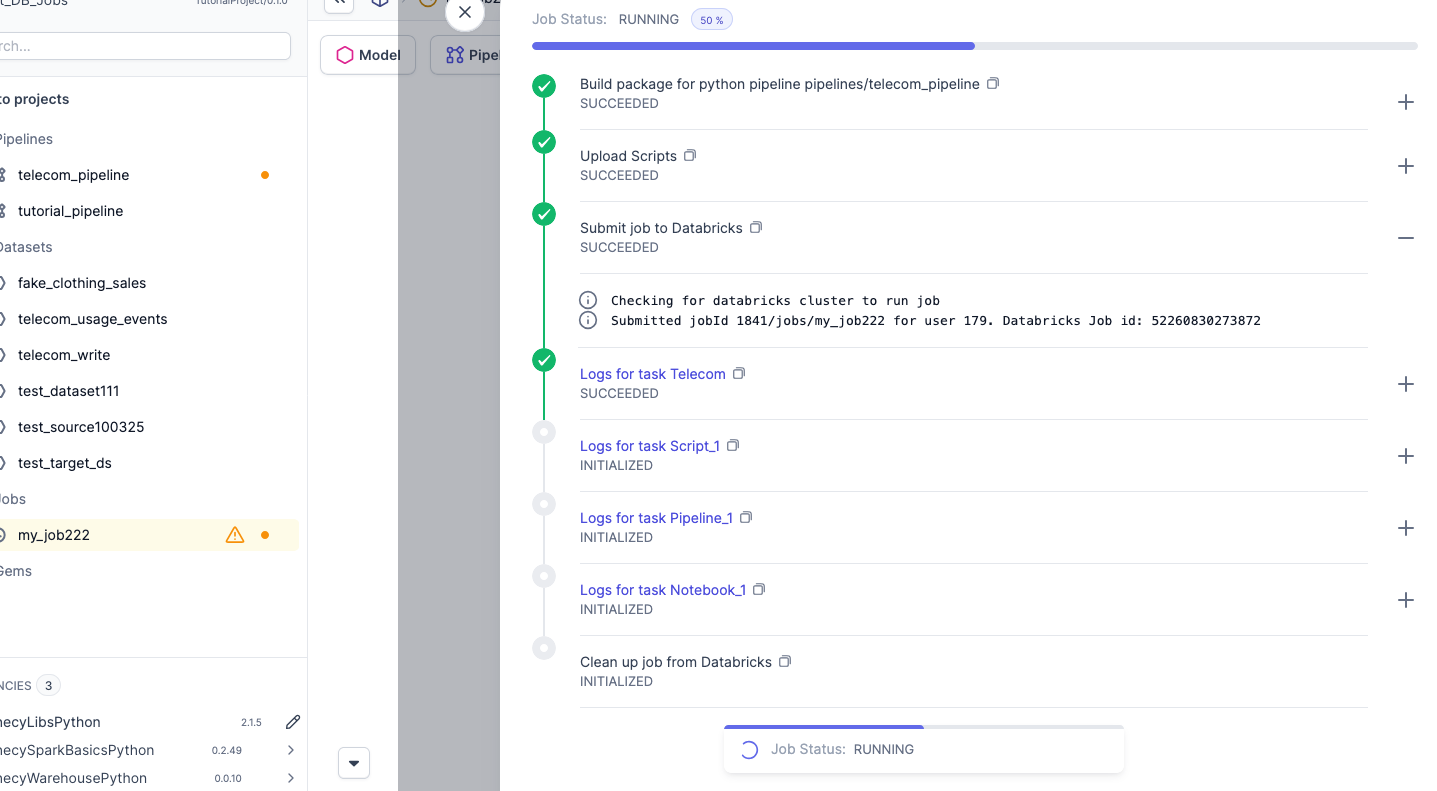
When you are satisfied with the job’s configuration, you can run it interactively to test it on demand. This lets you validate that the job works correctly before you deploy it.- Make sure you are connected to a fabric.
- Click the run button in the lower right-hand corner of the job configuration page.
Configure clusters for job gems
By default, all Jobs gems run in the same cluster. You can configure clusters for individual gems. This option is especially useful for heavy-duty and production pipelines. To do so:- Select the gem by clicking its border.
- Click Configure a Cluster.
- Once the cluster is created, select cluster from dropdown menu.
- Choose Multi at the top of the visual canvas. When the job runs, each gem runs in its own independent cluster. All clusters are the same size as the cluster selected for the job.
Deploy job
In order to deploy the job on Databricks, you need to release and deploy the job from Prophecy. See Deployment for more details. To release and deploy the job:- Click Enable in the upper right corner of the visual canvas.
- Click Release in the upper right corner of the visual canvas.
- In the modal that opens, follow the steps to create a git tag for the version, commiting, pulling, and merging changes.
- On the Release and Deploy page of the modal, assign the job a Release Version (such as
0.3.0), and click Release and Deploy.
Make sure to enable the job before creating a Release. If not enabled, the job will not run.If a job’s selected fabric is changed, it will create a separate Databricks job definition. The previous job (with the previous fabric) will be paused automatically and the new version will be scheduled.