When you create an Alteryx bundle in the Prophecy transpiler, you can analyze, change, and validate your migration before the actual transpilation begins. Use this document to understand what you can do when setting up the transpilation.Documentation Index
Fetch the complete documentation index at: https://docs.prophecy.ai/llms.txt
Use this file to discover all available pages before exploring further.
Upload bundle
- Select the Alteryx source type and click Next.
- Fill in the bundle details:
- Name the bundle.
- Choose the language your pipelines will be converted to.
- Choose the team that will have access to the bundle.
- Choose the target project of the migration. This list will be filtered by projects that are written in the language you chose.
- Select the Git branch where the Prophecy code will be uploaded.
- Choose the Spark fabric that will be used for Spark computation.
- Click Next to continue.
- Upload your Alteryx files that you wish to convert to Prophecy pipelines.
Import pipelines
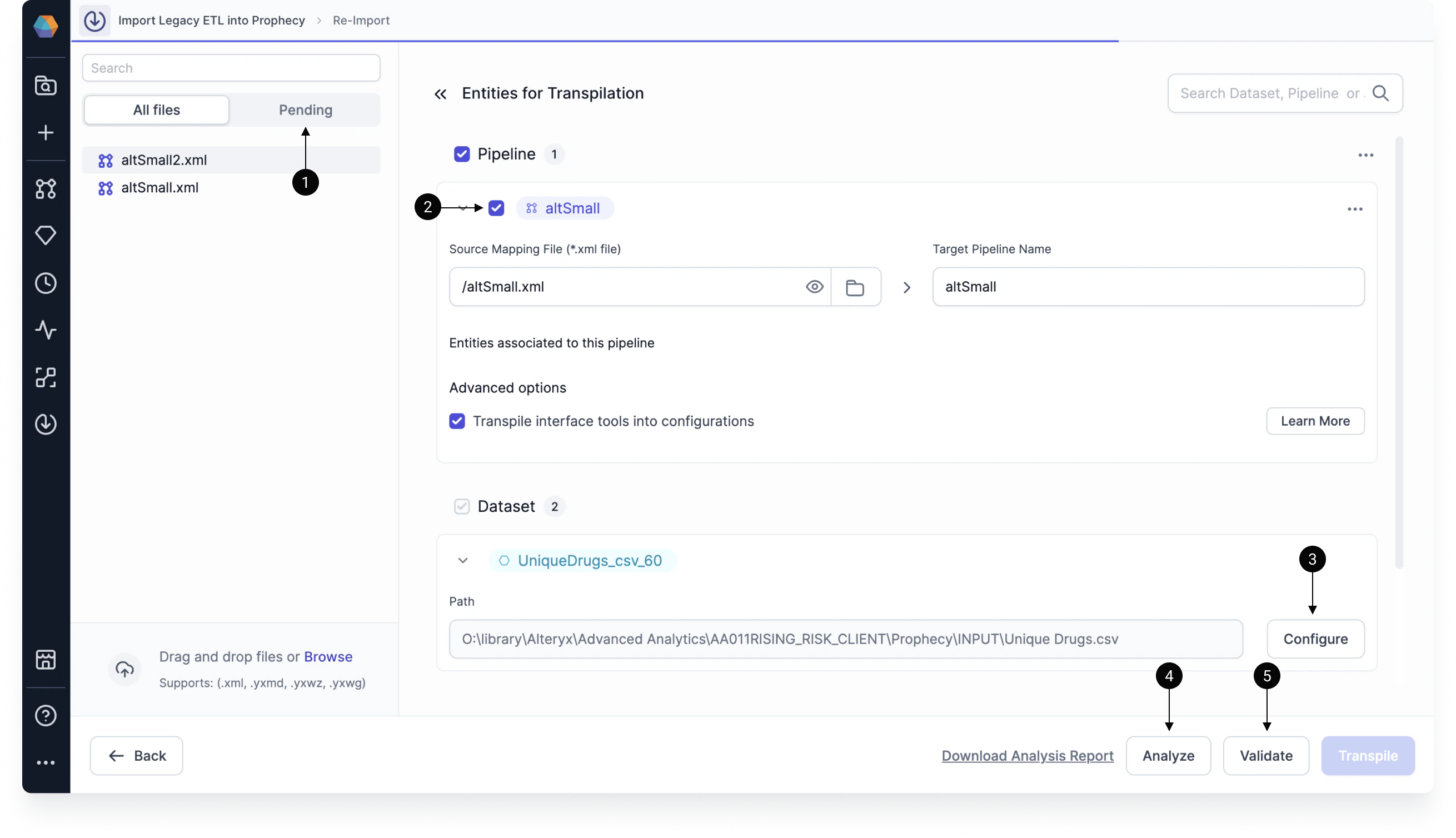
Next, you’ll want to configure how your pipelines are imported into Prophecy.- Stage pipelines. In the left sidebar, you will see the files you uploaded in the previous step. These are automatically staged for import. If you upload additional Alteryx files on this page, then you will have to manually stage them for import. All unstaged files can be viewed in the Pending tab of the left sidebar. After staging your pipelines, you can edit some configurations before the transpilation occurs.
- Disable pipeline import. Once a pipeline is added under Pipelines, you have the option to disable the import by deselecting the relevant checkbox. Disabling the import can be useful if you want to save the pipeline in the import configuration so you can import it later. However, you also can delete the pipeline from staging.
- Configure datasets. Before transpiling your pipelines, you have the option to configure included datasets. This includes a dataset’s type, location, and properties. Importantly, you are able to configure the dataset schema and preview the data before importing.
- Run analysis. If you want to better understand the outcome of your transpilation before running it, you can use the Analyze feature. For more information, visit Alteryx migration analysis. This is only available for migration to Spark projects.
- Validate the transpilation. Before you can start the transpilation, you must validate it. When you click Validate, Prophecy will make sure that the migration is possible given the set of files that you wish to import. If the validation succeeds, you can click Transpile.
Import transpiled entities
After your files are transpiled, you must import them into Prophecy. When you click Import, you will see a list of transpiled entities that you can create on import. You can either import all of the entities, or you can disable some before importing.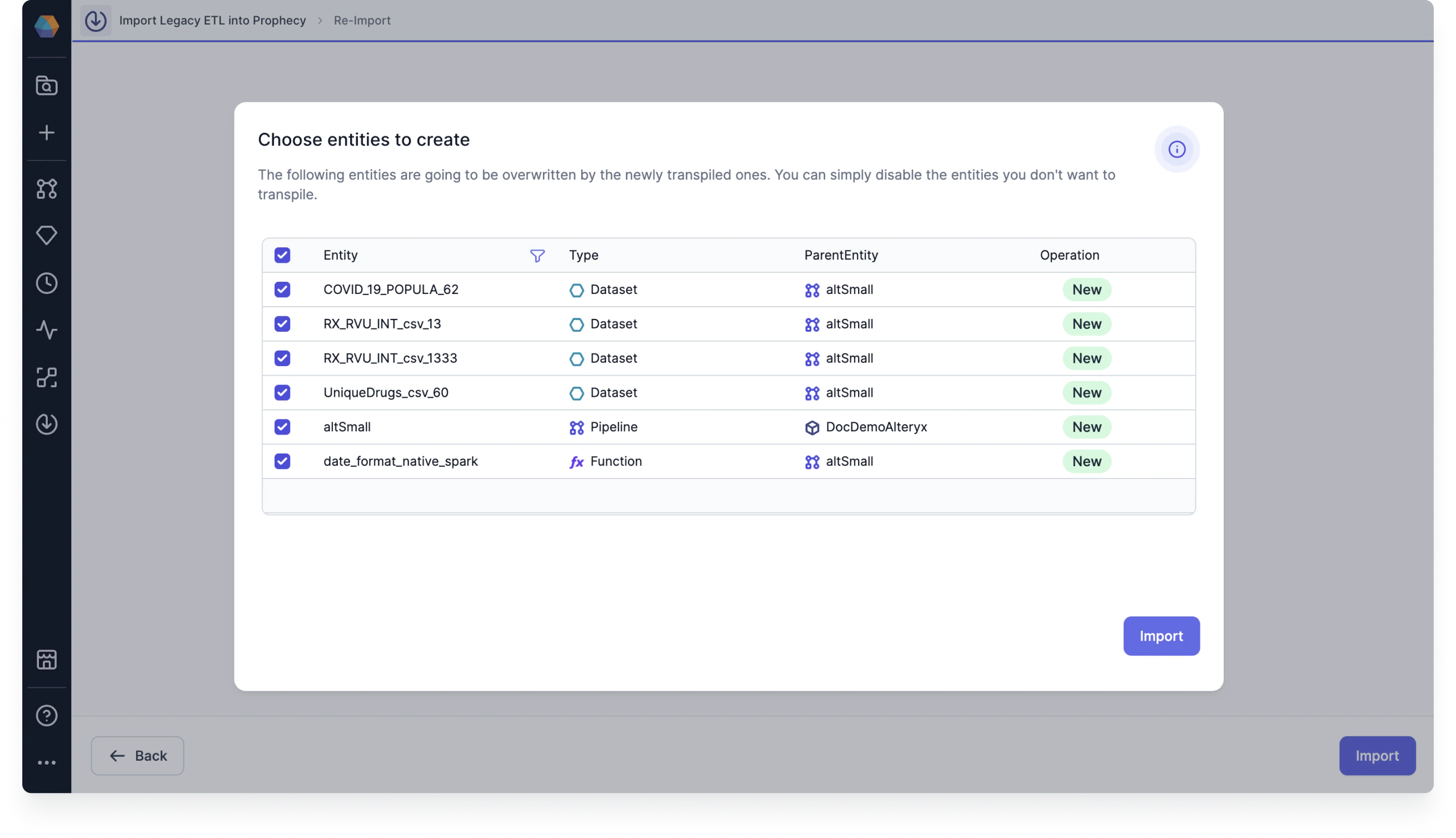
Review bundle metadata
After you successfully import a bundle, it will have an Imported status on the Transpiler page. If you click on the bundle, you will see the bundle metadata, which includes information about all of the imported entities in the bundle. In other words, you can review the pipelines, jobs, datasets, configurations, and functions. You can click on any entity to open it in a new tab in the project editor. Additionally, you can review the coverage, status, source, language, project, and fabric of the bundle in the right tile.Reimport pipelines
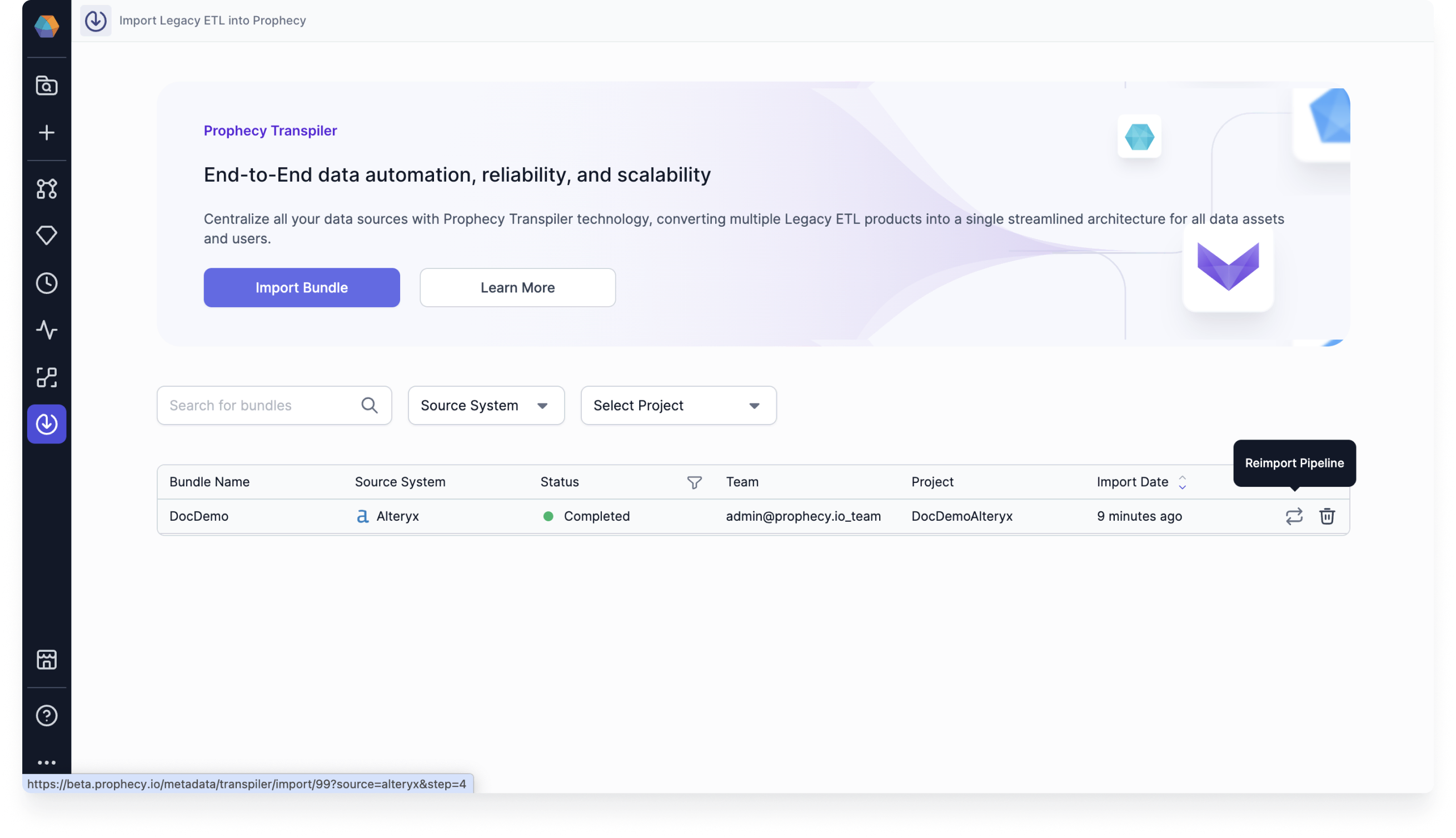
If you want to update or restart your transpilation, you can click on the Reimport Pipeline button in the Transpiler page.