

Limitations
Review the supported versions and migration scope:- Prophecy supports transpiling files from Alteryx Designer version 2023.2 and later.
- Prophecy cannot migrate Alteryx schedules. You must manually configure your schedule in your Prophecy project after you transpile your Alteryx workflow. Then, you can monitor your schedule on the Monitoring page.
Prerequisites
To migrate workflows from Alteryx to Prophecy, you need to:- Ensure that the Alteryx Transpiler is enabled in your Prophecy environment.
- Export the Alteryx workflows that you want to migrate as files. Prophecy accepts
.xml,.yxmd,.yxwz,.yxmc, and.yxzpfiles. For more information on these file types, visit Alteryx File Types in the Alteryx documentation.
Differences between importing Databricks, BigQuery and Snowflake SQL
The SQL dialect generated during import depends on the selected fabric:- Databricks fabric → Databricks SQL
- BigQuery fabric → BigQuery SQL
- Snowflake fabric → Snowflake SQL
- SQL syntax: Generated SQL follows the target engine (Databricks, BigQuery, Snowflake).
- Tool support: Some Alteryx tools may map differently depending on engine capabilities.
What Prophecy creates during migration
Depending on your workflow and import settings, Prophecy creates:- One or more SQL pipelines.
- Supporting datasets and tables.
- Pipeline configurations from Alteryx interface tools.
- An orchestration pipeline for split workflows.
Procedure
1
Create a bundle
Start with creating a new Import bundle. A bundle stores uploaded files, validation results, and generated entities.
- On the left navigation bar, click the Import icon (arrow pointing down in a circle).
- At the top of the page, click Import Bundle.
- In the Source Type tab, select Alteryx.
- Click Next.
-
In the Bundle Details tab, fill out the following fields:
- Click Next.
-
In the Upload Files tab, upload the Alteryx files you want to migrate.
Prophecy accepts
.xml,.yxmd,.yxwz,.yxmc, and.yxzpfiles. - Click Next. The Transpilation step opens.
2
Configure Import details
Configure how Prophecy imports your workflows.
- In the left sidebar under All files, review the files you uploaded.
- If necessary, add more files to the bundle by dragging and dropping or browsing your local file system.
- To stage a file for transpilation, click on the file. The file appears under Entities for Transpilation.
-
For each pipeline that you stage:
- Review the Source Mapping File to verify the original file that corresponds to the new pipeline.
- Verify or change the Target Pipeline Name, which will be the name of your new Prophecy pipeline.
- Check the Entities associated with this pipeline section to see the datasets that will be created.
- Enable the Transpile interface tools into configurations checkbox if you want to convert interface tools from Alteryx into pipeline configurations in Prophecy.
- Check the Break into Multiple Workflows checkbox to split large Alteryx workflows into smaller Prophecy pipelines. See Split large workflows into multiple pipelines below for more details.
- Optionally, enable Preserve Visual Containers to keep Alteryx container groupings together during workflow splitting.
- Click Validate to have Prophecy check that the migration is possible for all staged files. Validation checks whether the uploaded workflows can be successfully transpiled and identifies unsupported tools, missing metadata, or configuration issues before conversion begins.
-
Once validation passes, click Transpile to begin the actual conversion process. The Transpile button is only enabled after successful validation.
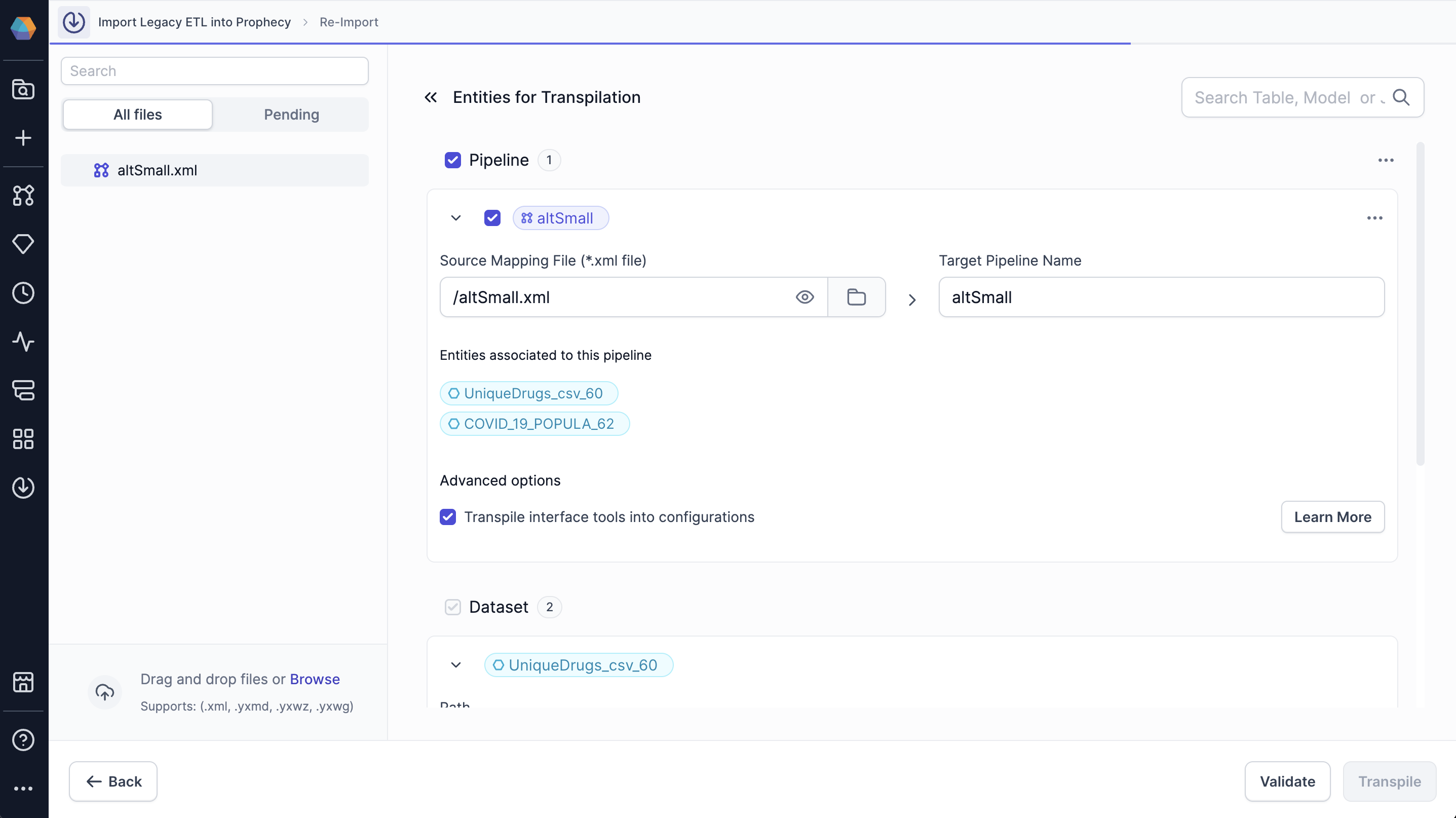
Once you add a pipeline or table to the bundle, you can disable the import by deselecting the
relevant checkbox. Disabling the import is useful if you want to save the pipeline or table in the
import configuration to import it at a later time.
3
Import transpiled entities
Import the transpiled entities into your project.
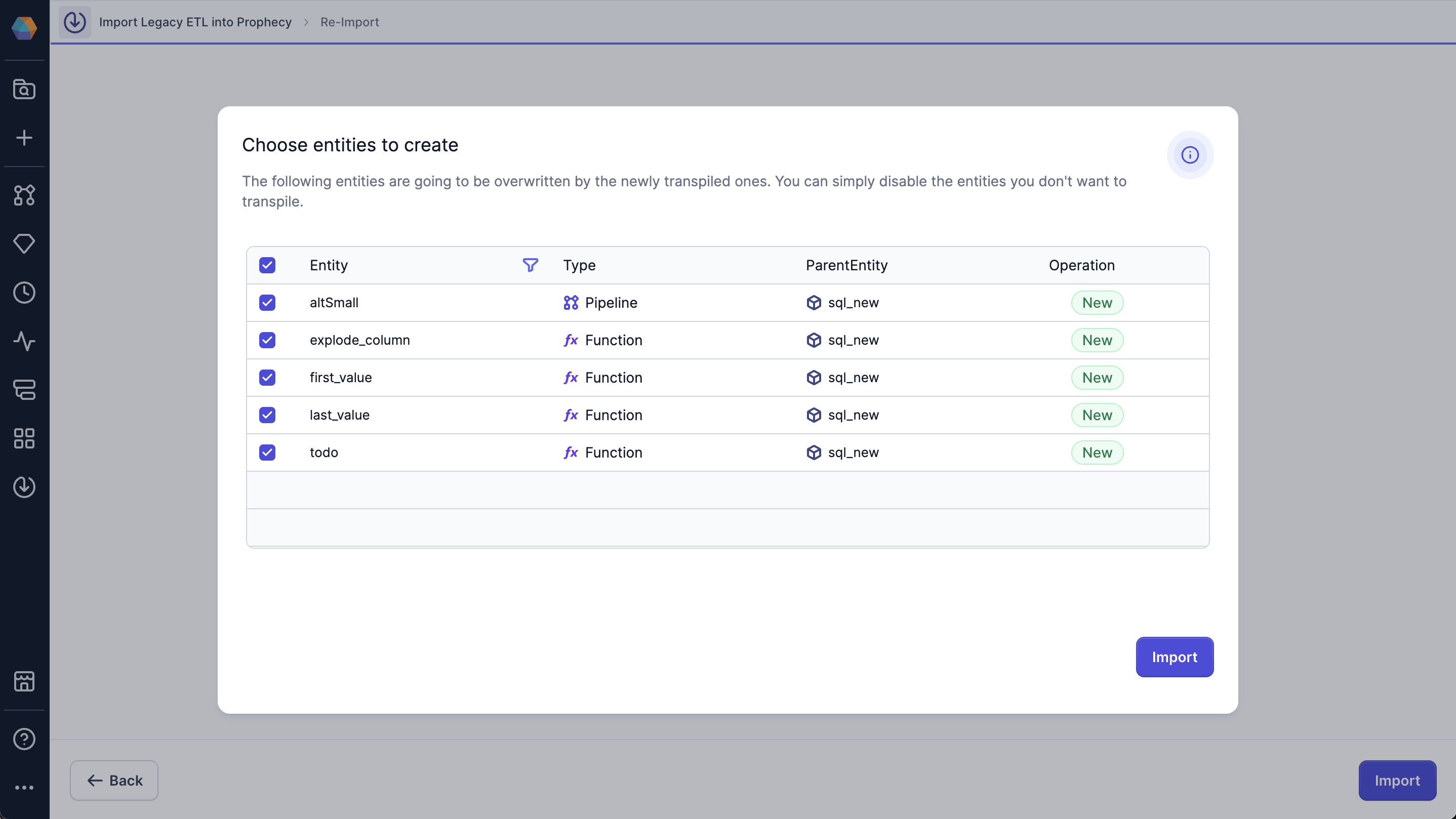
- After you click Transpile, the Choose entities to create dialog opens.
- Review a list of entities that the transpiler has detected.
- Disable entities that you do not want to migrate, if needed.
- Click Import > Import.
-
Click View Bundle Details.
4
Review Prophecy project
Verify and adjust transformations as needed. If there isn’t an equivalent gem for a certain transformation, Prophecy inserts a placeholder gem in your pipeline where you can write your own SQL statements to achieve the required functionality.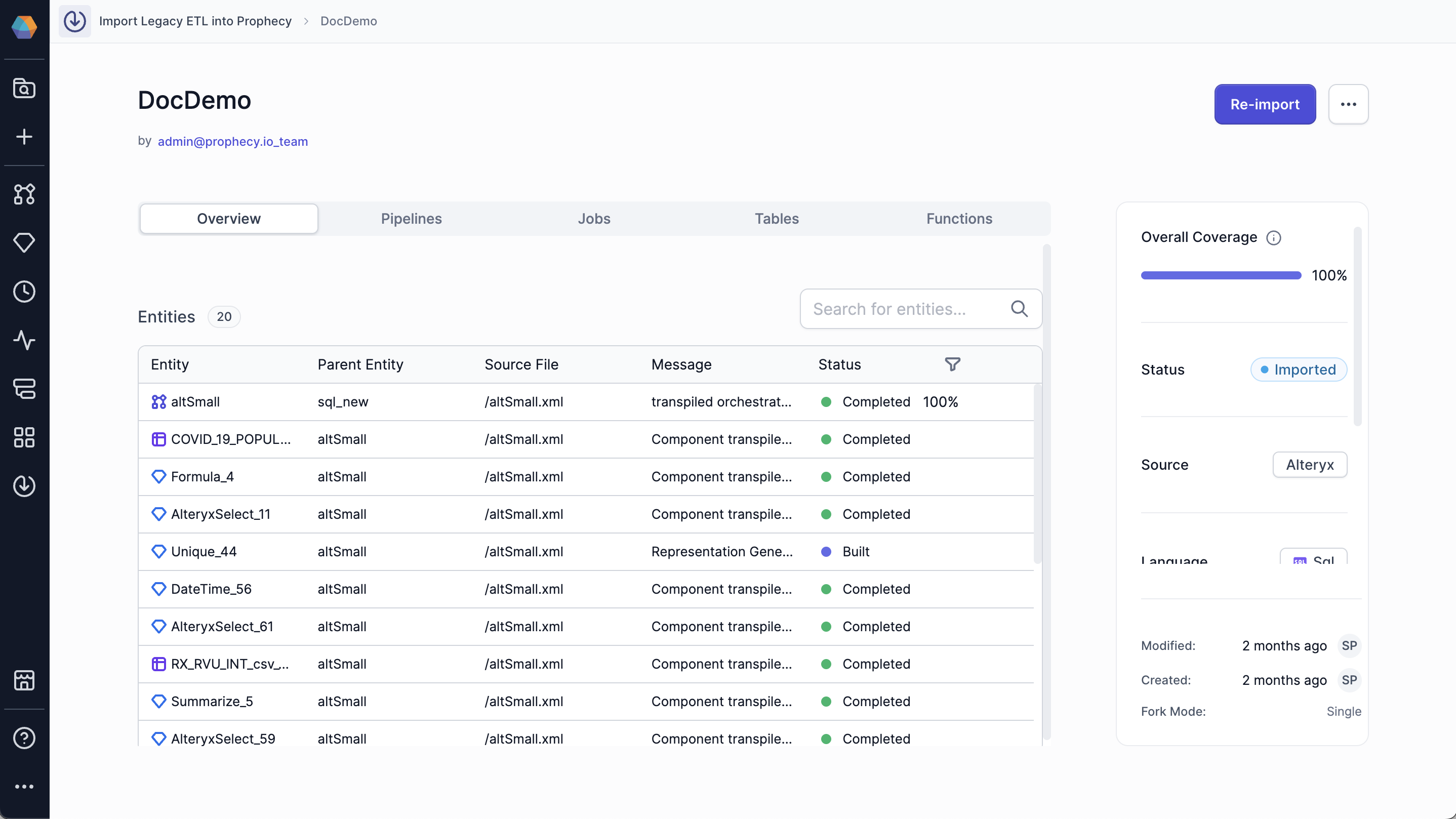
Step 5: Review bundle metadata
After you successfully import a bundle, you see the Imported status on the Transpiler page.To see the bundle metadata, which includes information about all of the imported entities in the bundle, click on the bundle.If Prophecy cannot fully transpile a transformation, it inserts a placeholder gem so you can manually implement the required SQL logic. In some cases, you may be able to use Prophecy’s Agent to generate this SQL.
5
Validate migrated pipelines
Open your bundle and run your pipeline to verify that it writes the same output as your Alteryx workflow. If not, modify or add additional gems to make the output the same.Before you deploy your project into production, we recommend that you run both your Alteryx workflow and Prophecy pipeline in parallel for at least two weeks. This helps you see if Prophecy consistently produces the same output as Alteryx.
Reimport pipelines
If you want to update or restart your import, click on the Reimport Pipeline button on the Transpiler page.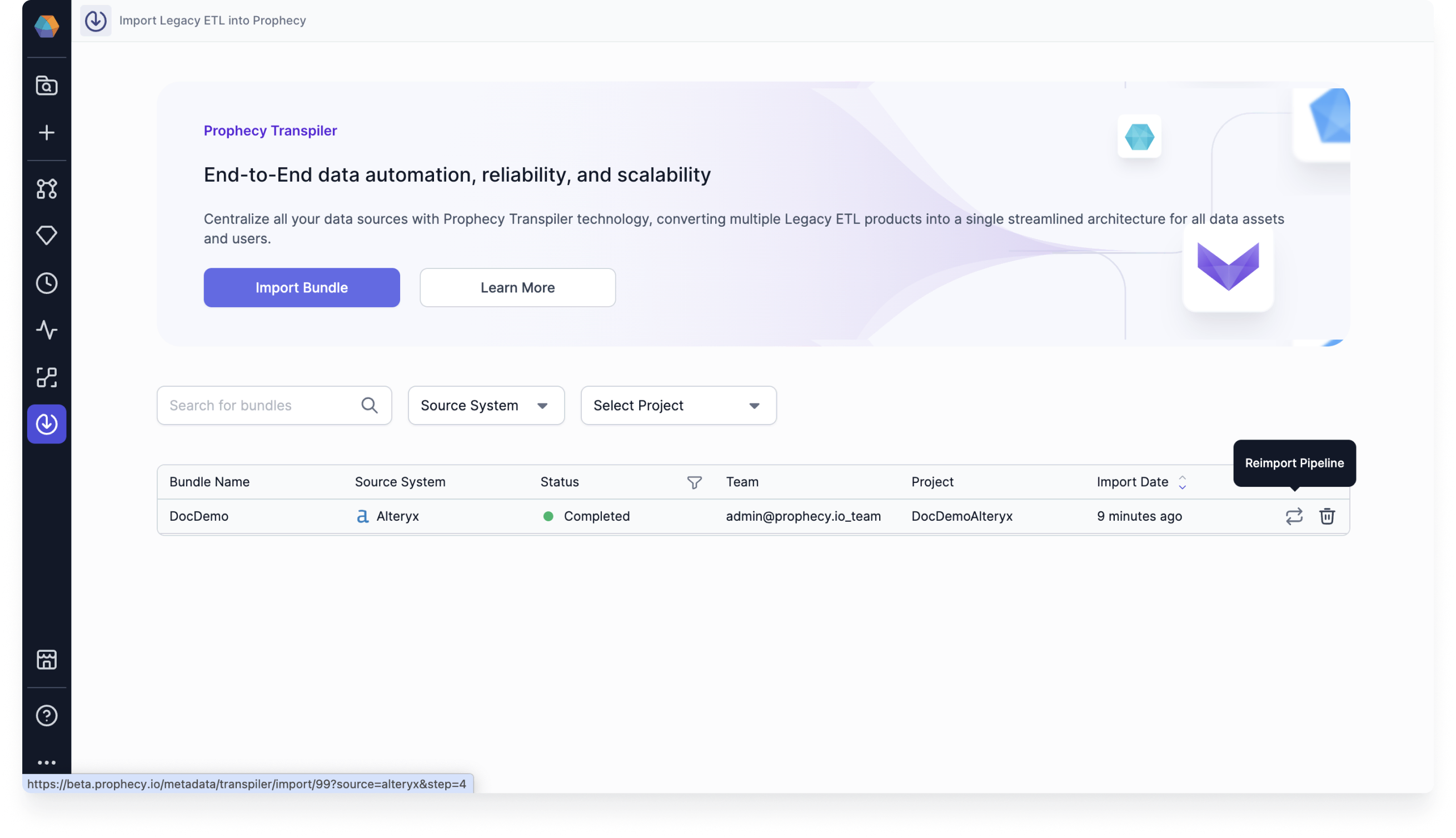
Split large workflows into multiple pipelines
For large SQL workflows, you can enable Break into multiple workflows during import. When enabled, Prophecy can split a large Alteryx workflow into multiple smaller Prophecy pipelines. When a workflow is split, Prophecy creates:- An orchestration pipeline that runs the generated pipelines in sequence.
- Multiple generated sub-pipelines, named with suffixes such as
_part1,_part2, and so on.
- Prophecy does not split the contents of a visual container across multiple pipelines.
- Connections that cross pipeline boundaries are replaced with intermediate datasets that transfer data between generated pipelines.
- Intermediate source and target datasets appear in labeled visual containers in the generated pipelines.
- The resulting pipeline contains fewer than 200 gems.
- The workflow structure cannot be safely divided into multiple pipelines, such as when required schema information is unavailable.
- When workflows contain dependencies that prevent safe splitting.