

- Changes between environments (for example, dev vs. prod).
- Should differ between pipeline schedules.
- Is shared across multiple pipelines.
- Will correspond to user-entered fields in analysis dashboards.
High-level workflow
Using parameters in Prophecy follows a simple flow:- Define parameters to declare the values your pipeline expects.
- Reference parameters inside gems in pipelines.
- Run pipelines using a specific set of parameter values.
What are parameters?
A parameter is a named placeholder for a value that may change between runs. For example, instead of hard-coding a file path in the pipeline, such ass3://my-bucket/prod/customers/, you define a parameter called customers_path and assign it the value s3://my-bucket/prod/customers/.
Inside the pipeline, you reference the parameter rather than the literal value.
Parameters are defined in parameter sets, which group related parameters together. Every project and pipeline has a default parameter set, which serves as the baseline definition. You can later create additional parameter sets—for example, one for development and one for production—without redefining the parameters themselves.
Types of parameters
Prophecy supports two scopes for parameters:- Project parameters
- Pipeline parameters
| Parameter type | Description |
|---|---|
| Project parameters | Shared across all pipelines in a project. Project parameters support concrete types. Values are interpreted based on their content. For example, expressions like concat("first_name", "last_name") are recognized as valid SQL and evaluated accordingly, rather than treated as literal strings. |
| Pipeline parameters | Specific to a single pipeline. String expressions are evaluated at runtime. If you define a pipeline parameter called concat("first_name", "last_name"), the value injected during usage is first_namelast_name. |
If a pipeline parameter and a project parameter share the same name, the pipeline parameter overrides the project parameter.
Parameter storage and editing
All parameters are defined inparameters.py. If a parameter can be represented in dbt.yaml, it is also written there. Otherwise, it remains only in parameters.py.
This enables support for richer data types that are not compatible with YAML.
Parameters can be edited through:
- The visual editor
parameters.pydbt.yaml(when supported)
Supported data types
Prophecy supports typed parameters at both the project and pipeline level.| Data type | Description |
|---|---|
| Array | A list of values of the same type, added one by one in a multi-value input field. Stored in parameters.py. |
| Date | A calendar date in dd-mm-yyyy format, chosen using a date picker. Stored in parameters.py. |
| String | A plain text value, entered via a single-line text input. |
| Boolean | A true or false value, selected from a dropdown. |
| Int | A 32-bit integer entered in a numeric field. |
| Double | A 64-bit floating-point number entered in a numeric field. |
| Long | A 64-bit integer entered in a numeric field. |
| Float | A 32-bit floating-point number entered in a numeric field. |
| SQL Expression | A SQL expression, either configured through dropdown menus or entered as custom code. |
Define parameters
You intiially define parameters by adding variables to the default parameter set. You must define values for default parameters. To define project or pipeline parameters:-
Open the parameter settings.
For pipeline parameters, you must open the relevant pipeline first.
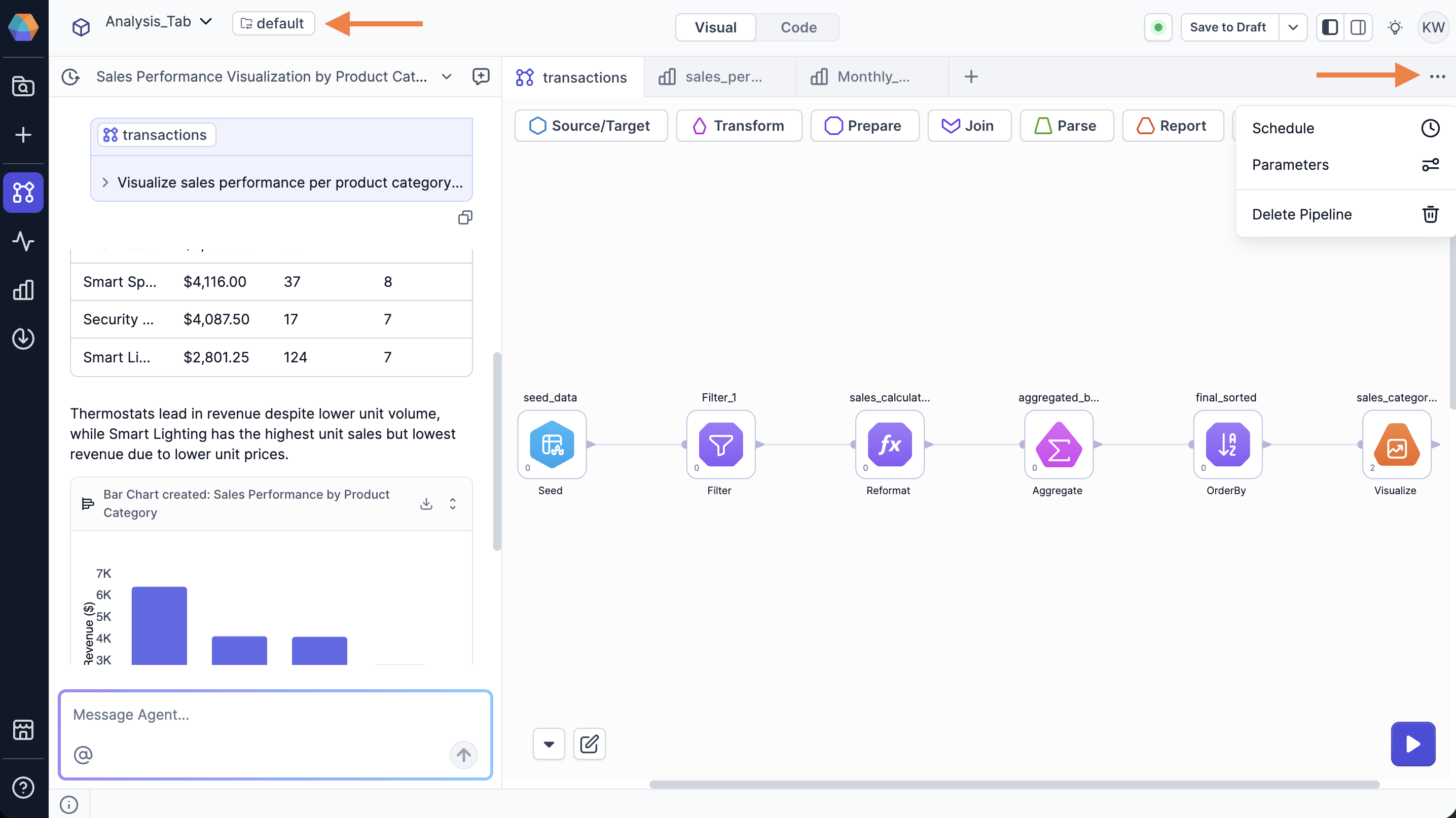
- Select either the Project Parameters or Pipeline Parameters tab.
- Click + Add Variable.
- Enter a name and a value for the variable.
- Click Save.
Usage (precedence and selection)
At runtime, you can use both project and pipeline parameters. When multiple values are defined, parameters are resolved in the following order (lowest to highest priority):- Default project parameter set
- Custom project parameter set
- Default pipeline parameter set
- Custom pipeline parameter set
Migration behavior
Project parameters have been enhanced as as version4.2.7. If you created project parameters in earlier versions, Prophecy automatically migrates them to the new system.
During migration:
- Values in double quotes are treated as strings
- Numeric values are inferred as numeric types
- Values are parsed using a SQL parser:
- If valid SQL → stored as SQL expression
- Otherwise → treated as string
What’s next?
Now that you understand how parameters are defined, continue with:- Using these parameters in your pipelines and analyses.
- Creating additional parameter sets at the project or pipeline level.