

Deployed Projects
The Deployed Projects tab in the Observability interface shows all projects that have been published to Prophecy fabrics. It lets you view details on release versions and recent execution status at the project level. For each project deployment, Prophecy provides the following information.
Use the following filters to narrow the results:
When a project is published to multiple fabrics, Prophecy creates an individual project deployment for
each fabric. You will see all of these deployments in the Deployed Projects page. You cannot
revert or delete a project deployment.
Scheduled Pipelines
The Scheduled Pipelines tab in the Observability interface displays all pipelines configured with a schedule across environments. It provides details on pipeline execution frequency and recent run outcomes. Use this page to verify that pipelines are scheduled correctly and to identify patterns of success or failure. For each scheduled pipeline, Prophecy provides the following information.You may see multiple rows for the same pipeline if the parent project is deployed to multiple
fabrics.
Run History
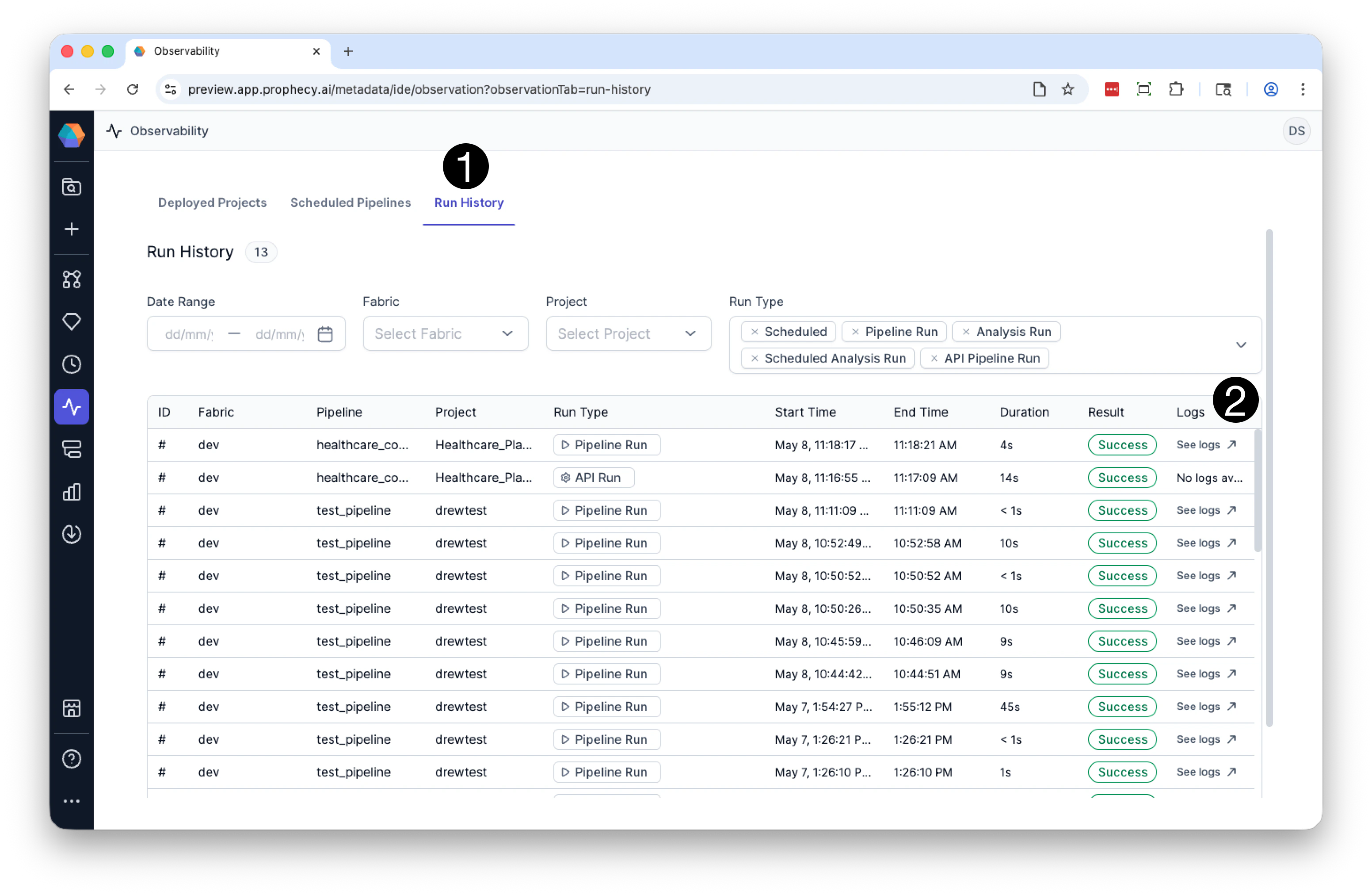
Use the Run History tab in the Observability interface to view and analyze recent pipeline runs across all fabrics and projects. This page provides detailed metadata for each run, including its type, duration, status, and execution context. You can also use Run History to open historical runtime logs and inspect previous pipeline executions in Historical Mode. Use the following filters to narrow the results.
For each historical pipeline run, Prophecy provides the following information.
Open historical runtime logs
You can inspect completed pipeline executions directly from the Run History table. To open historical runtime logs:- Open the Run History tab and locate the run you want to inspect.
- Click See logs in the far-right column.
- Runtime logs for the selected execution
- The historical pipeline snapshot
- Component execution statuses and progress information
Historical runtime logs and pipeline snapshots are retained for a limited period of time and may
not be available for every historical run.