

- Environment-specific settings (dev, staging, prod)
- Regional configurations (US, EU, APAC)
- Tenant- or customer-specific values
- Currency, locale, or compliance variations
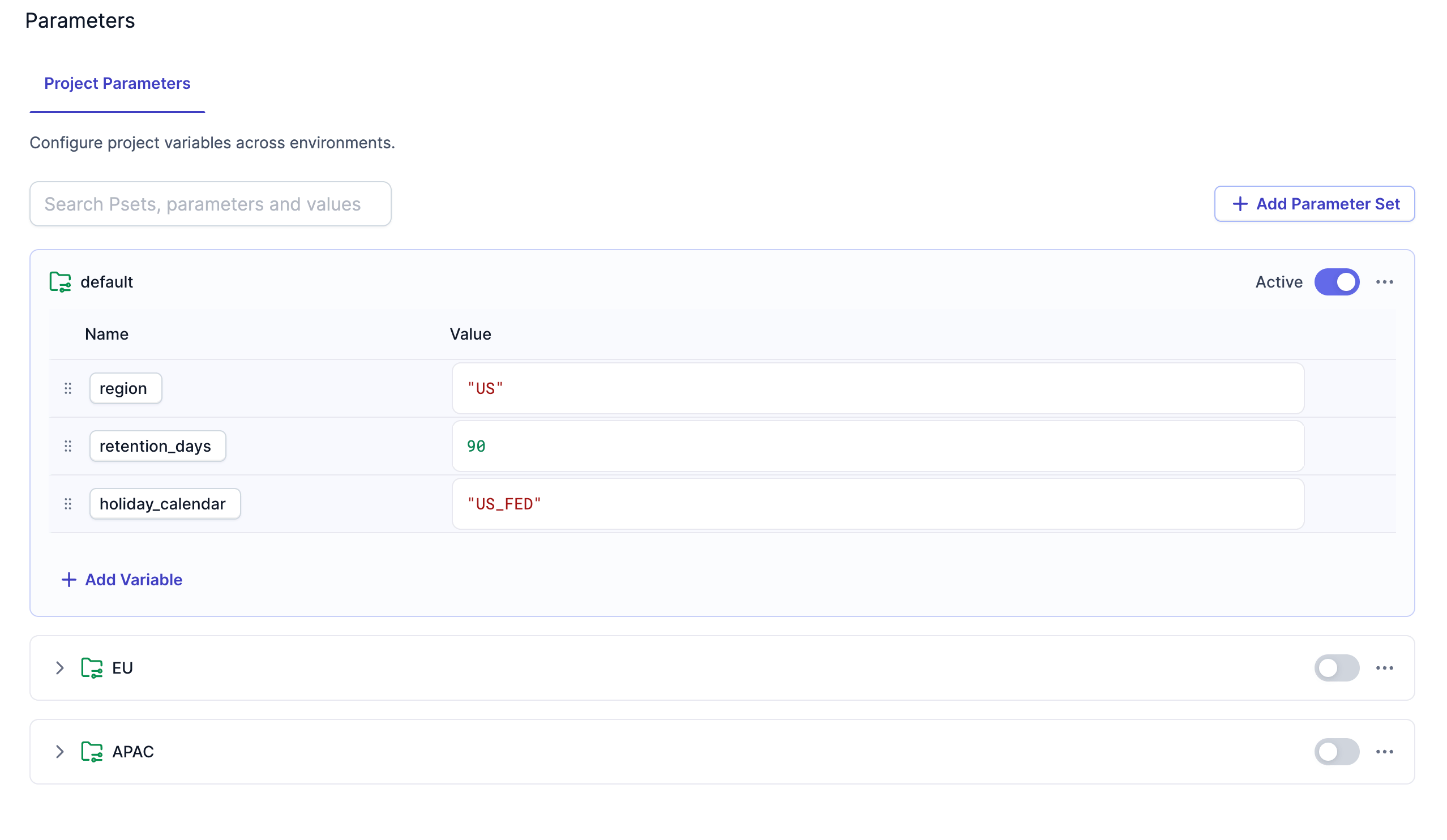
Set hierarchy
When you first open parameter settings, both project parameters and pipeline parameters include an empty default parameter set. The default set serves two purposes:- It defines the list of parameters that exist.
- It provides baseline values that other sets can inherit.
- All parameters from the default set appear automatically.
- You provide new values for any parameters you want to override.
- Any value you do not override is inherited from the default.
Create parameter sets
Each project and pipeline has a default parameter set. Follow the steps below to create a new parameter set.1
Open parameter settings
Open parameter settings from the default set or the pipeline menu.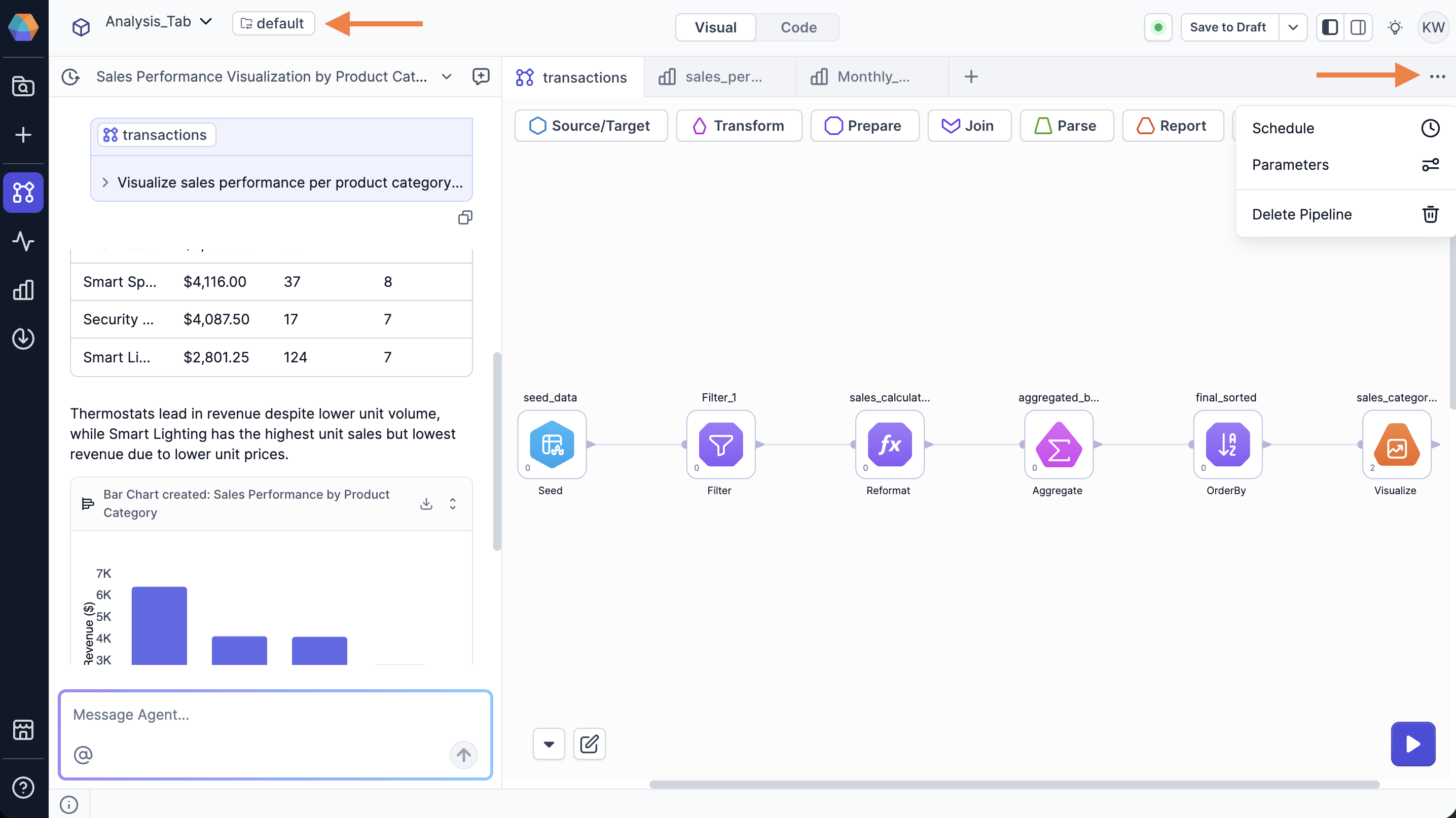
2
Define default values
- Select either Project Parameters or Pipeline Parameters.
- Add variables to the set by clicking + Add Variable.
- Enter values for each variable or choose to inherit from the default set.
- Click Save.
3
Add and activate a new parameter set
- Click + Add Parameter Set.
- Enter a name for the parameter set.
- Assign values to the variables or leave them empty to inherit the default.
- Toggle Active to make this set the active configuration.
- Click Save.
Example
There are many use cases where you may want to leverage multiple parameter sets. This example demonstrates how to use parameter sets to process sales data for different global regions. When you switch regions, you often need to change more than one piece of information at a time. In this scenario, we use two parameters that must stay in sync:currency: Labels the final report (for example, USD or EUR).fx_rate_table: Tells the pipeline which database table contains the specific exchange rates for that region.
Define the default values (USA)
First, set up your standard operating values in the default set:- Open the parameter settings.
- Click + Add Variable and name it
currency. - Set the value to
USD. - Click + Add Variable again and name it
fx_rate_table. - Set the value to
fx_rates_usd. - Click Save.
currency and fx_rate_table in any pipeline in the project. By default, your pipeline will use these values for interactive runs.
Create a regional override (Europe)
Next, create a set for your European operations:- Click + Add Parameter Set and name it
Europe. - In the
Europeset, change the value ofcurrencytoEUR. - Set the value of
fx_rate_tabletofx_rates_eur. - Toggle Active to make this set the active configuration.
- Click Save.
Europe, you update your entire project to handle European data without manually changing every pipeline component.