

How analyses work
An analysis acts as a UI layer on top of a data pipeline. The general workflow is:- You create an analysis connected to a pipeline.
- Interactive components are bound to pipeline parameters.
- Users enter values in the analysis UI.
- Prophecy executes the pipeline using those values.
- Results render in charts, tables, and other components.
Edit mode and preview mode
Analyses have two primary modes:- Edit mode — Build and configure the analysis layout. Add components, configure charts, and bind inputs to parameters.
- Preview mode — Run the analysis as an end user would. Enter runtime values, execute the pipeline, and review the results.
- Use the Agent
- Create manually
Overview
Use the Agent to automatically generate a pipeline and analysis from a prompt.Add source data
Add a dataset to your pipeline:- Open the Source/Target gem category.
- Click Table.
- Open the gem and select + New Table.
- Choose Seed as the type.
- Name the dataset
home_tech_transactions. - Paste your data and click Load Data.
- Click Save.
Generate an analysis
In the Chat interface, enter a prompt:- Transform the data.
- Create a visualization.
- Generate a pipeline.
- Generate an interactive analysis dashboard.
Continue building
You can continue prompting the Agent to:- Add new visualizations
- Modify transformations
- Expand the dashboard
Add interactive components
To add interactive components to the analysis, you’ll need to embed a pipeline parameter in the pipeline. Pipeline parameters enable dynamic behavior in pipelines by allowing values to be set at runtime. In this case, pipeline parameter values are set by the end user when they run the analysis.Create a pipeline parameter
In this section, you’ll define a pipeline parameter calledregion. The parameter will capture the region that the user selects, allowing the pipeline to filter transactions based on the region the user wants to see.- Open the pipeline tied to the analysis.
- Click default in the project header to open the parameter settings.
- Open the Pipeline Parameters tab.
- In the default parameter set, click + Add Parameter.
- Name the parameter
region. - Set the parameter type to
String. - Click Select expression > Value.
- Enter
Northas the default value to be used during interactive pipeline runs. - Click Save.
Add a filter
Next, add a Filter gem to the pipeline. To make the filter condition dynamic, you’ll use the pipeline parameter in the gem.- Add a Filter gem directly after the Source gem and before the next gem (generated by the Agent).
- Open the Filter gem configuration.
-
For the filter condition:
- Click Select expression > Column and select the
Regioncolumn. - Click Select operator and select equals.
- Click Select expression > Configuration Variable and select the
regionparameter.
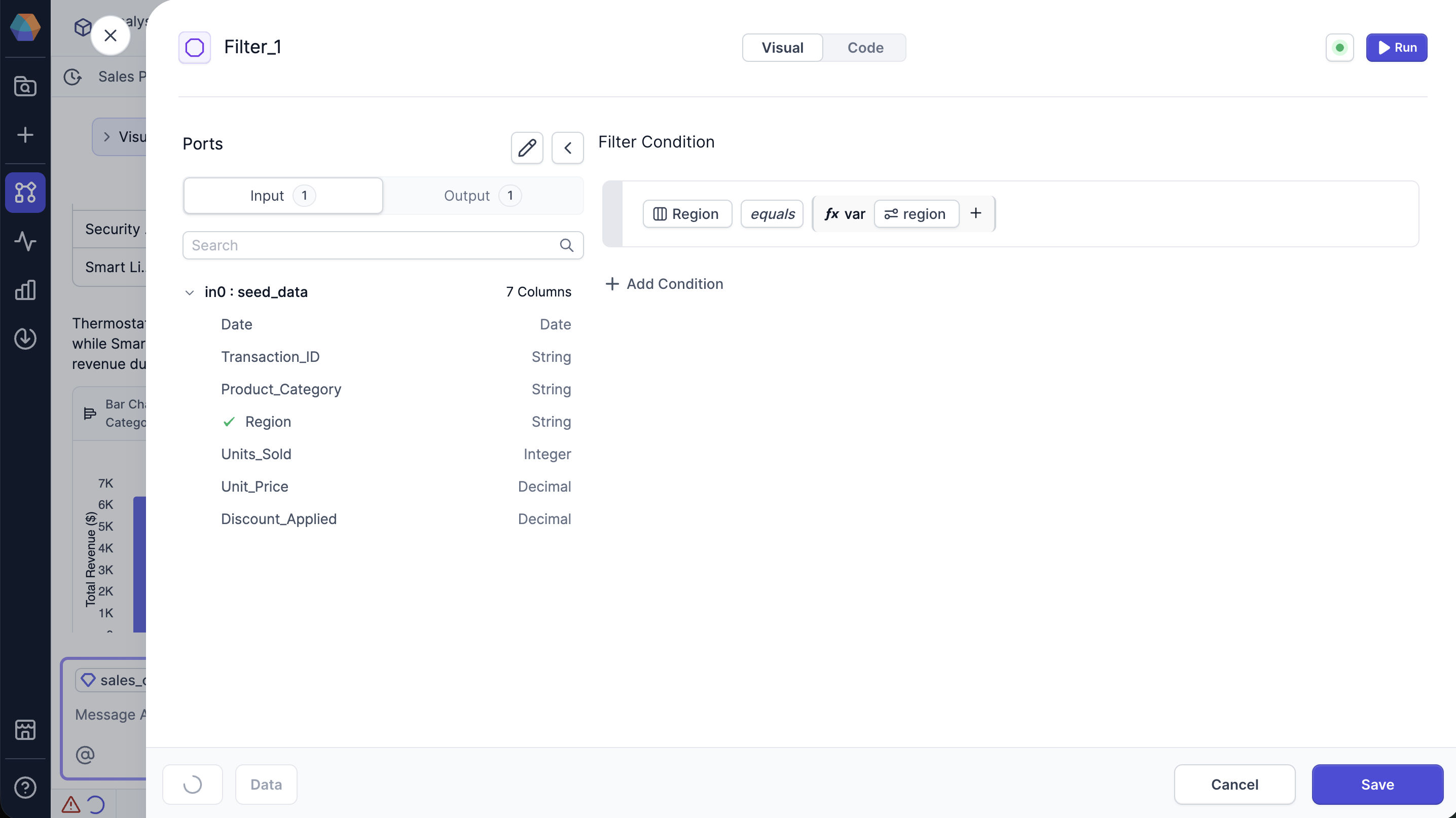
- Click Select expression > Column and select the
- Click Save.
Add a Text Input component
Add a Text Input component to allow the end user to enter the region they want to see.- Open the analysis dashboard that the Agent created.
- Click Edit.
- Open the Interactive dropdown and select Text Input.
- In the Inspect tab, for the Configuration field, select the
regionparameter. - For the Label, enter
Region. - Drag the Text Input component above the bar chart visualization.
Configurations
Analyses support multiple saved configurations. Configurations appear under the analysis in the App Browser. Each analysis can contain multiple configurations, which can be selected, renamed, scheduled, or run independently. A configuration is a named set of runtime values for the analysis. Configurations allow teams to create reusable presets for different environments, users, or operational scenarios. For example, an analysis might include:- A
productionconfiguration. - A
stagingconfiguration. - Configurations for different regions or business units.
Run the analysis
Let’s return to the analysis preview so we can test the new component.- From the analysis, click Back to Preview.
- In the Region field, enter
West. - Click the Run button.
- Review the bar chart to see the total sales by product category for the West region.
Share the analysis
You can share published analyses with other teams for interactive consumption and execution. Access to analyses is controlled by Prophecy’s team-based permission model. If your team owns a project, you have full edit access. This means that you can build, edit, and delete analyses in the project. If a project is shared with your team, you cannot edit any pipeline’s or analysis’s structure. However, you can run analyses from the shared project. This ensures that your data engineering team can share pipelines they developed without exposing them to changes.To learn more, reference the documentation on team-based
access.