

Find tables in your SQL warehouse
Ask the Agent to search for tables in your primary SQL warehouse. Based on your query, it returns:- A short list of relevant datasets and their descriptions.
- A full list of datasets that match your criteria.
Explore datasets
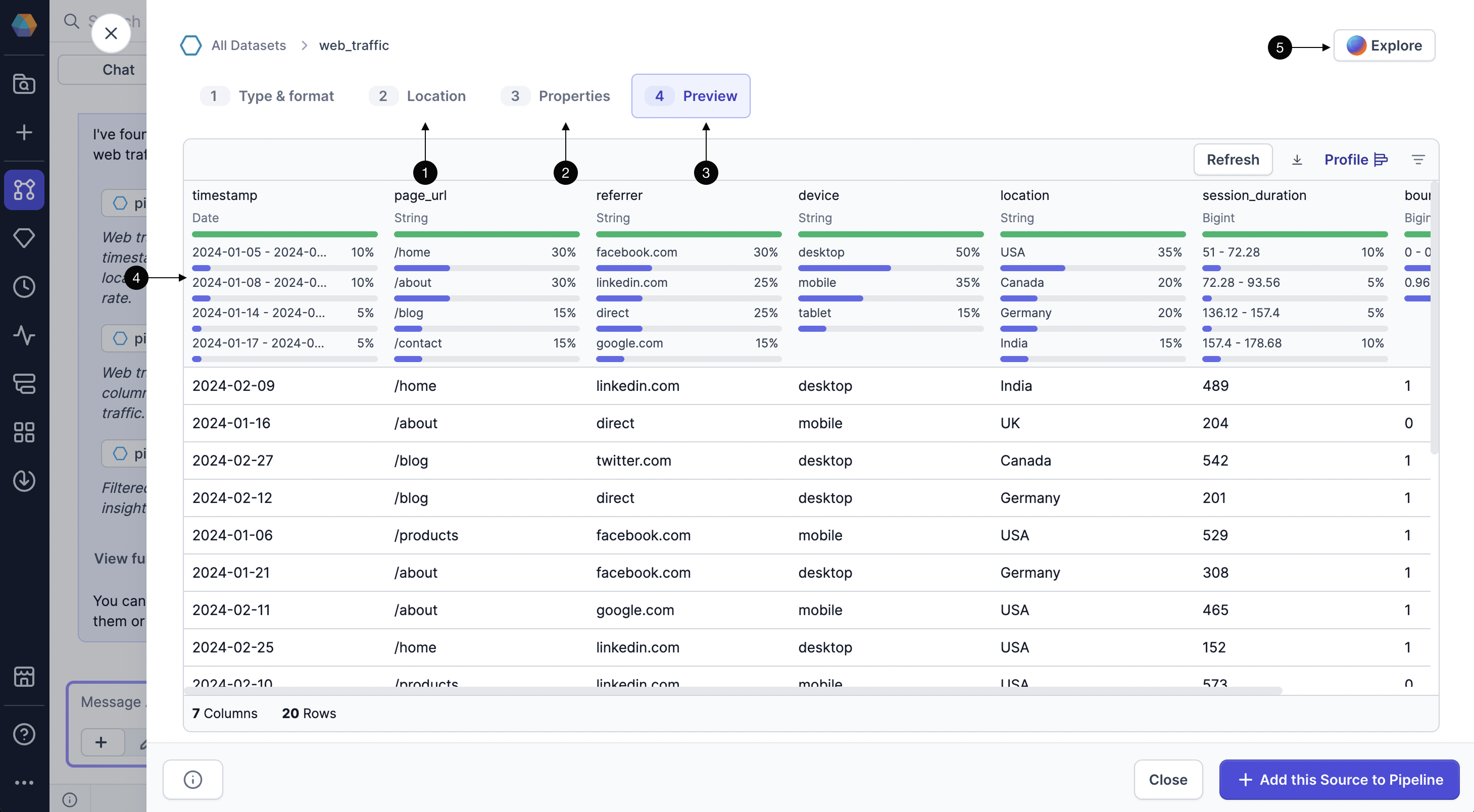
To learn more about a dataset, you can click on it inside the chat. This opens a dialog where you can:- Find the location of the dataset in the warehouse.
- Look over the schema of the dataset.
- Preview a sample of the data in the dataset.
- Review the data profile of the sample.
- Open Explore to chat with an Agent that limits responses to the context of the dataset.
Describe a dataset
If you want a summary of dataset information, you can ask the Agent to describe a table. The Agent will provide a quick overview of key metadata, including the database and schema the table belongs to, as well as the names and data types of each column. This helps you understand the structure of the dataset without having to open or query it directly.Compare datasets
If you ask the Agent to compare datasets, you can quickly assess which dataset is more suitable as a source for your pipeline by analyzing differences in schema structure, column names, data types, and size. This allows you to identify which dataset aligns better with your pipeline’s requirements, such as having the right fields, consistent naming conventions, or expected formats, without needing to inspect the full data.View sample rows from a table
To preview data from a table, ask the Agent to return a sample. You can request a random sample from the table or specific rows, such as “the ten most recent purchases over $100”. All queries are executed under your existing warehouse permissions. The Agent returns:- A table showing the sample data.
- A Preview option for a closer look.
- SQL execution logs for transparency.
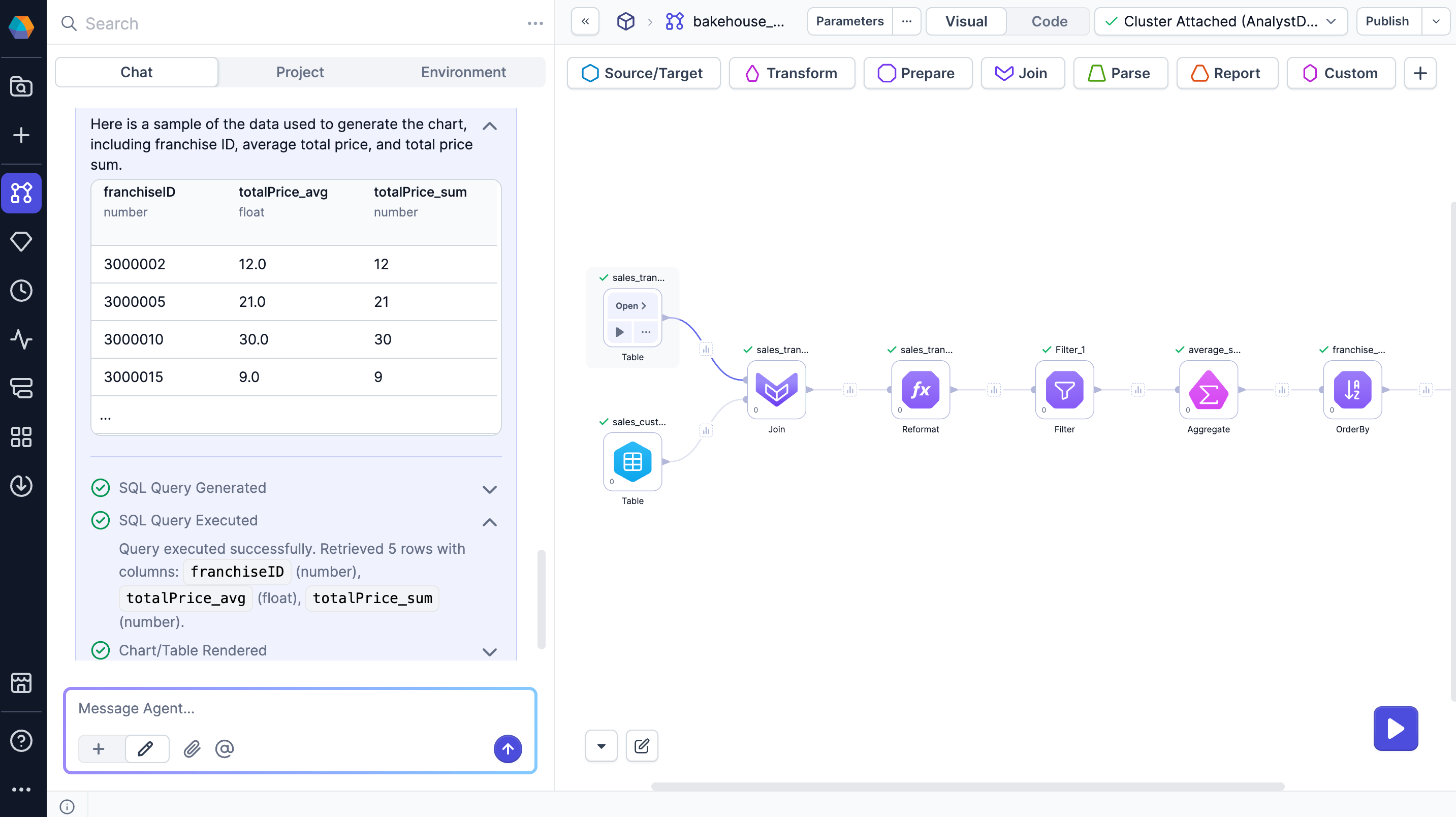
Table preview
Click Preview to open a larger view of the data sample. In this view, you can:- Download the data as a JSON, Excel, or CSV file.
- Show or hide columns.
- Add the full dataset to the canvas (if not present already).
Visualize table data
You can also ask the Agent to generate charts for data visualization. The Agent returns:- An embedded chart directly in the chat.
- A Preview button to open a detailed view.
- SQL execution logs showing how the chart was generated.
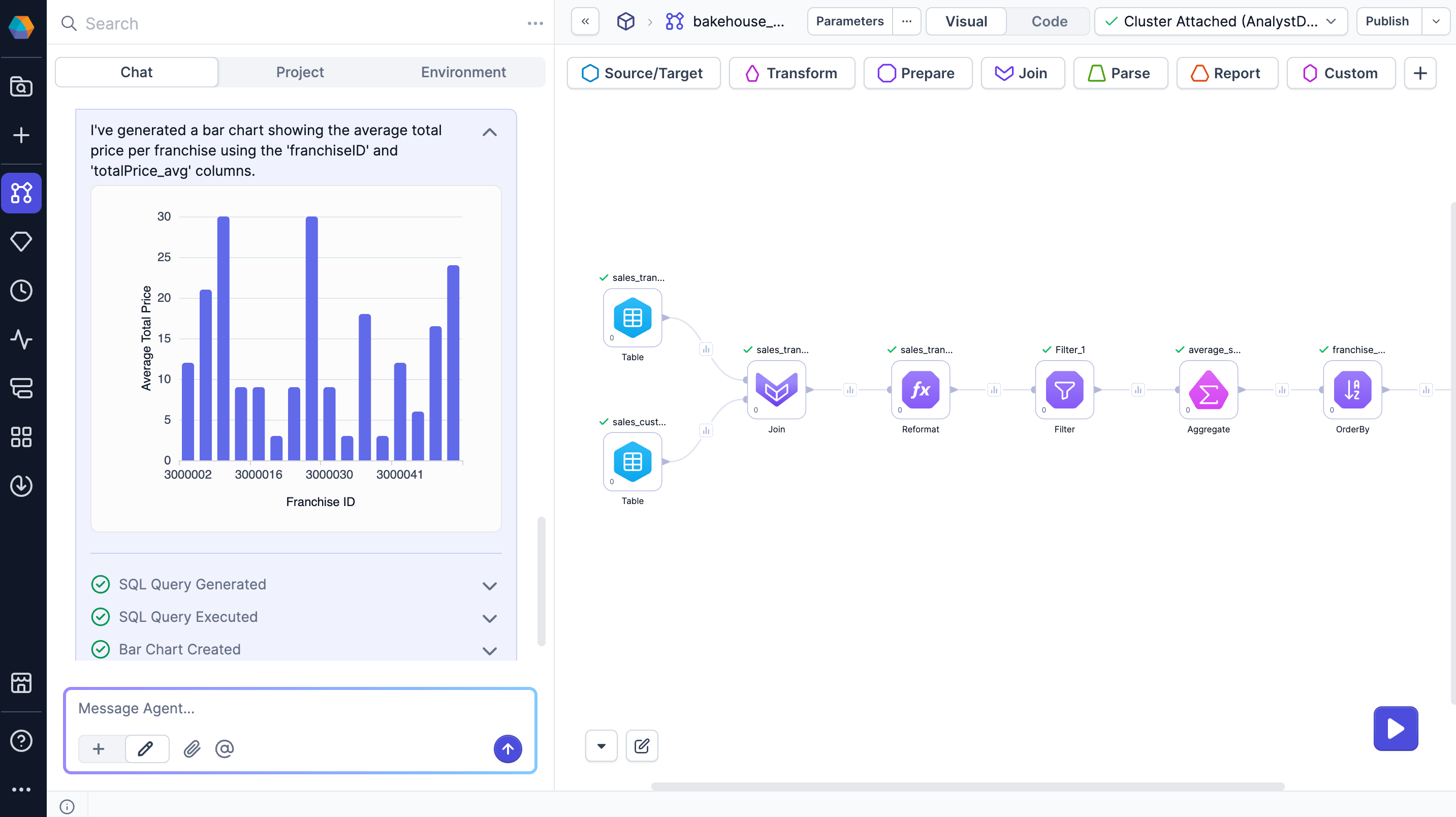
Chart preview
To see a larger version of the chart, click Preview. This opens the data visualization dialog, which has two tabs.To learn more about data visualization, see
Charts.
Sample prompts
Here are some sample prompts that you can ask to search, explore, and learn about the data.Troubleshooting
The Agent can't find my table
The Agent can't find my table
The Agent depends on a knowledge graph to retrieve metadata about components like datasets. If the Agent does not recognize a table that you try to reference, it could be because the knowledge graph has not been indexed recently enough to capture the dataset.For detailed instructions on indexing, see Knowledge graph indexer.