

What the Transform Agent can modify
The Transform Agent operates strictly within the active project. It can:- Create and refactor pipelines.
- Generate and update analyses.
- Modify datasets and related project artifacts.
- Update project documentation.
Execution model
The Transform Agent can retrieve metadata and limited data samples to validate generated transformations. When executing SQL or running pipelines, the Agent operates under the permissions of the user who invoked it. When generating output tables or executing write operations, changes take effect immediately in the connected warehouse under the invoking user’s permissions. Existing warehouse access controls and governance policies are always enforced.Model architecture
The Transform Agent is built on a specialized deployment of Claude Code and is optimized for Anthropic Opus 4.5. Prophecy augments model reasoning with structured tool access to project artifacts, metadata, and connected warehouse systems. The model is not used in isolation; all actions are mediated through Prophecy’s execution layer and project boundaries. Enterprise customers may configure approved Anthropic endpoints in supported deployment environments. Using alternative models may affect output quality.Prerequisites
You need at least one Source gem in your pipeline to add transformation gems with AI chat.Provide a transformation
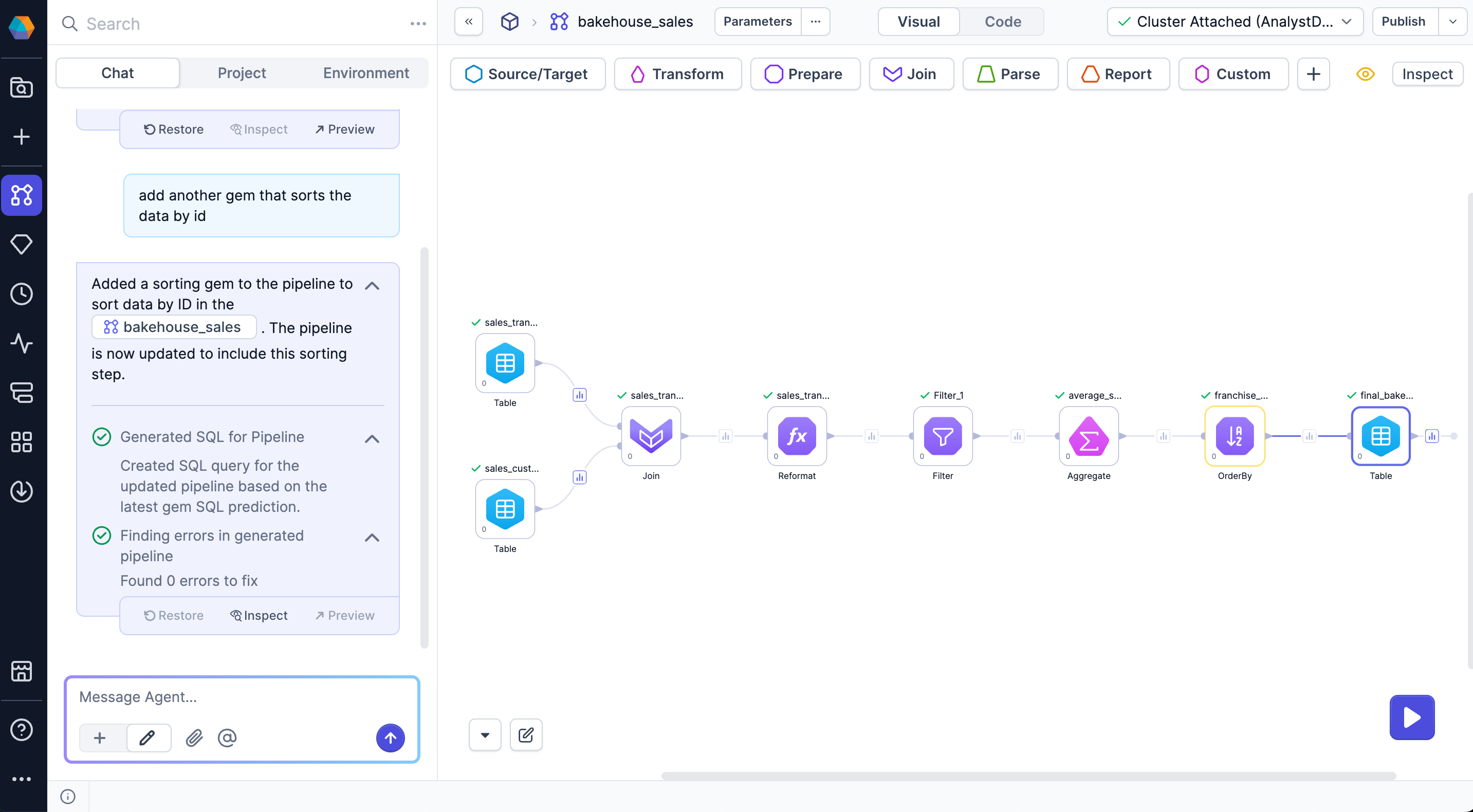
To generate a transformation, enter a prompt that describes the desired data operation. The Agent returns:- One or more gems on the pipeline canvas.
- A description of the applied changes.
- Options to restore, inspect, or preview changes.
- A group of SQL execution logs.
Inspect pipeline changes
To understand the Agent changes:- Select Inspect on the chat that generates a transformation.
- Review the configuration panel beginning with the first modified gem. Modified gems appear in yellow.
- Hover over the Previous and Next button to display a minimap of the pipeline. This shows you the specific gem you are viewing in the context of the pipeline.
- Use the Previous and Next controls to move through other modified gems in sequence.
- Examine both the input and output of each gem to confirm that the transformation produces the expected result.
Restore a previous state of the pipeline
To revert changes or try another transformation from a previous state, select Restore from the reply you want to revert to in the chat history. The pipeline will match the earlier version. You can also manage versions from the main project version history.Create output tables
After adding various data transformations in your pipeline, ask the Agent to save the result as a table. The Agent writes the output to the default database and schema configured for your connected fabric. This allows you to persist results and reuse them in downstream workflows.Project history
All changes made by the Agent are saved in the project version history. Commits are clearly marked as authored by the Agent.If you did not save your project before interacting with the Agent, Prophecy will automatically
save your changes before the Agent proceeds.