

Workflow
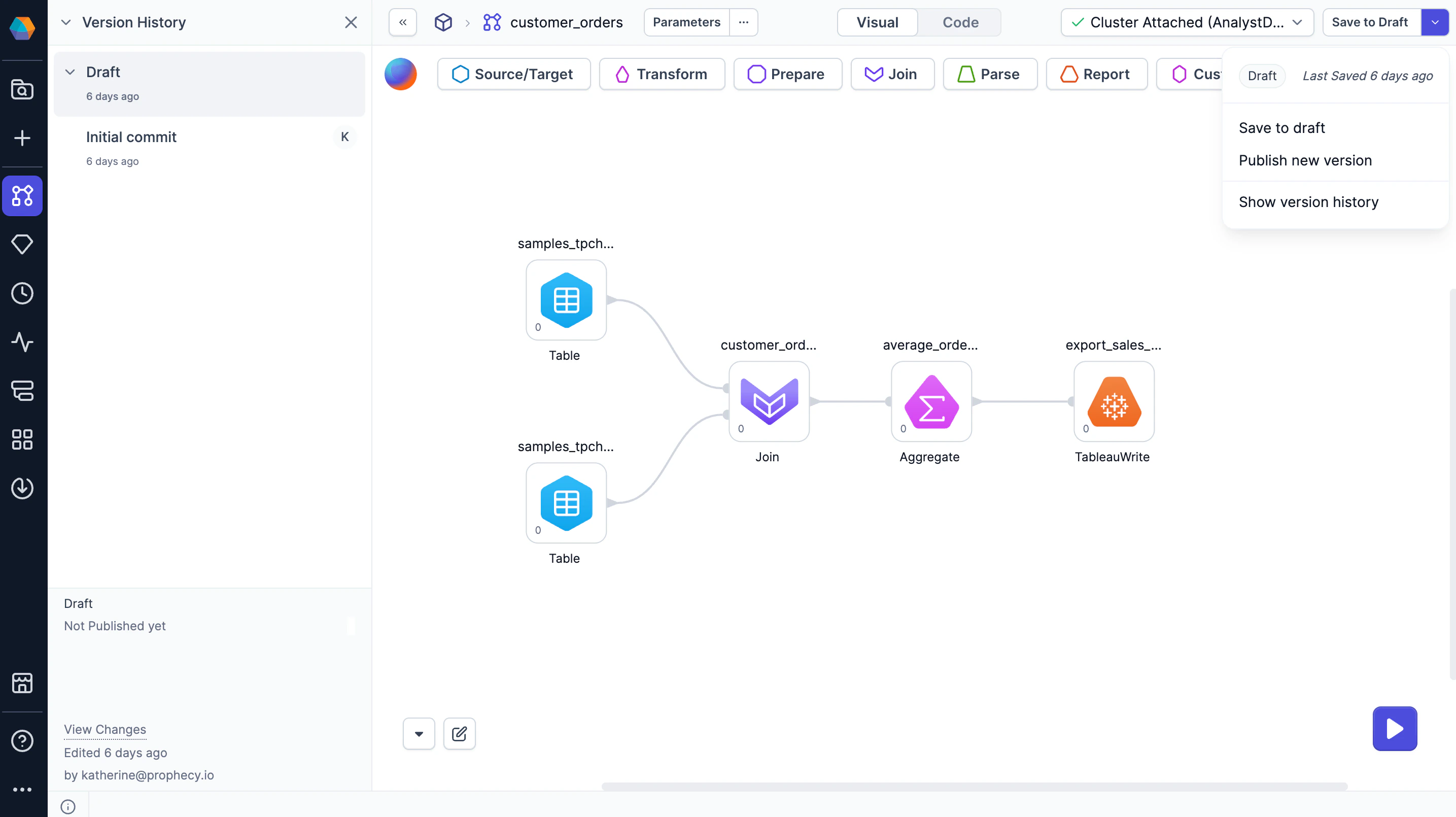
The following sections describe the versioning workflow, where Prophecy creates a linear version history per project where you can audit changes, see collaborator activity, and revert to previous versions.Save to draft
As you develop your project, Prophecy automatically preserves your changes. However, we recommend periodically saving your changes as drafts. To do so:- Open the version menu in the Studio header.
- Click Save to draft.
- Fill out the Version description to summarize the changes made since the last saved version, or let AI generate one for you.
- Review your changes in the Changes since last saved section.
- Click Save.
Publish a new version
When you’re ready to use your project in production, you’ll publish it. For an in-depth review of the publication process, see project publication.Show version history
Prophecy tracks different versions of your project that you save and publish. To access the version history:- Open the version menu in the Studio header.
- Click Show version history.
Restore previous version
To restore a previous version:- Open the version menu in the Studio header.
- Click Show version history.
- Find the version you want to restore. (This can be a published version or a draft.)
- Hover the version and click … > Restore this version.
Publish a previous version
To publish a previous version:- Open the version menu in the Studio header.
- Click Show version history.
- Find the version you want to publish. (This can be a published version only—not a draft.)
- Hover the version and click … > Publish.