
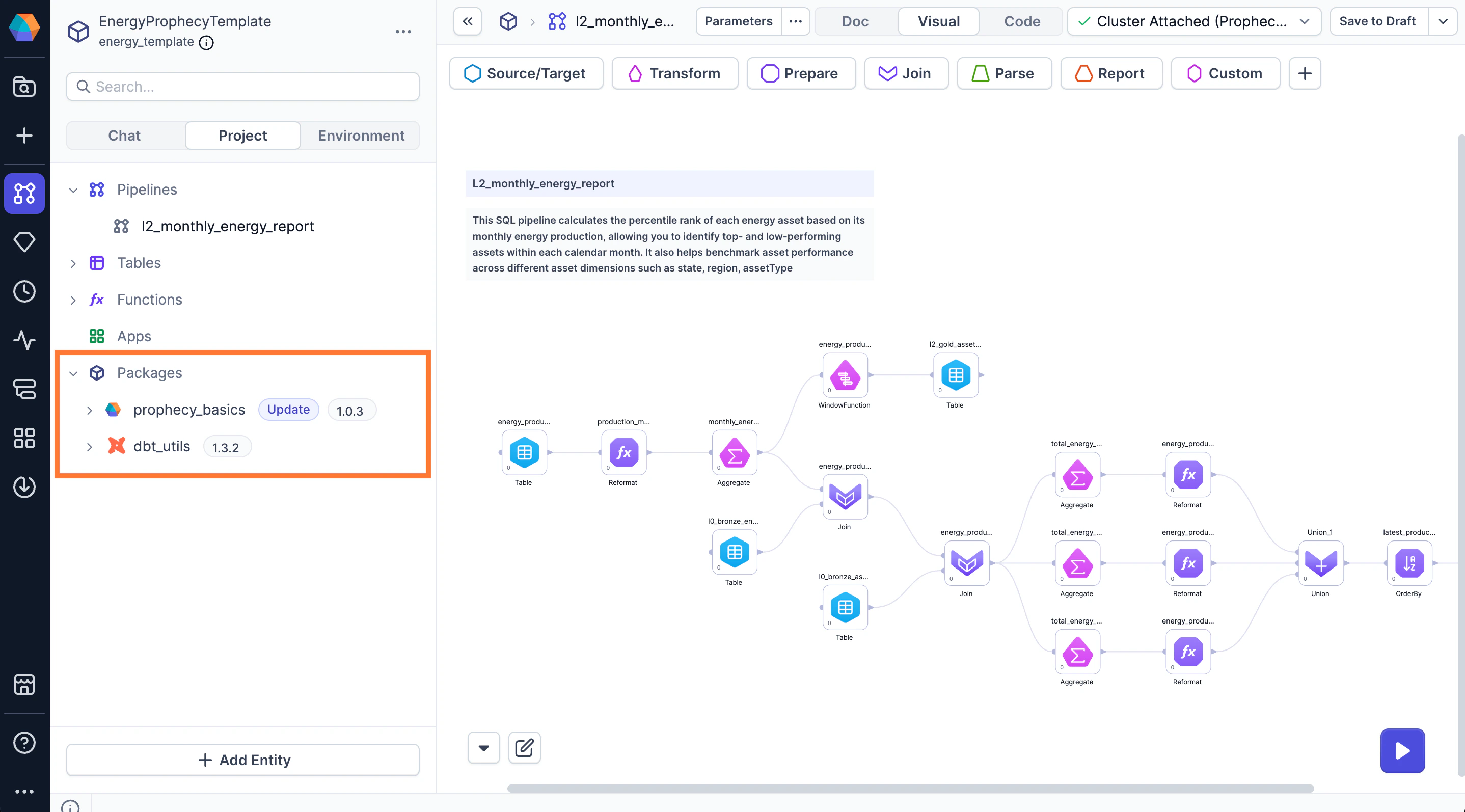
Dependencies allow you to reuse logic in your SQL projects, so you can build on work that’s already been tested and versioned. Dependencies are scoped at the project level, and can include packaged Prophecy projects, as well as external packages from GitHub or the dbt Hub.
Because packages can be improved over time, you can update your project dependencies whenever a new version is published. Your project will continue to use the current version until you choose to upgrade.
Dependency types
There are three types of dependencies for SQL projects.
Prophecy Project
When you import a project from the Package Hub as a dependency, you gain access to all its components, including pipelines, gems, and functions for use in your own project. If a new version of the project is published, you can update your dependency version to take advantage of the latest changes.
Prophecy Project dependencies have the following parameters:
| Parameter | Description |
|---|
| Project Dependencies | Choose from a dropdown list of compatible projects that are published in the Package Hub. |
| Auto-upgrade | When enabled, the package will automatically upgrade to the latest version available. No manual updates will be required. |
GitHub
Dependencies can be saved to GitHub repositories and imported from there.
GitHub dependencies have the following parameters:
| Parameter | Description |
|---|
| Git Repository | Link to the GitHub repository containing the dependency. |
| Revision | Git tag, commit hash, or branch name that points to the version that you want to import. |
| Sub Directory | Path of the subdirectory in the repository that contains the dependency (if not in the root directory). |
| Warn unpinned | Whether to point to your repository without specifying any version, commit, or branch. Enabling this option may result in unexpected behavior if there are changes to your latest default branch. |
dbt Hub
Packages in the dbt Hub can be used to extend typical SQL functionality. If the package contains macros, you can use them via the Macro gem.
dbt Hub dependencies have the following parameters:
| Parameter | Description |
|---|
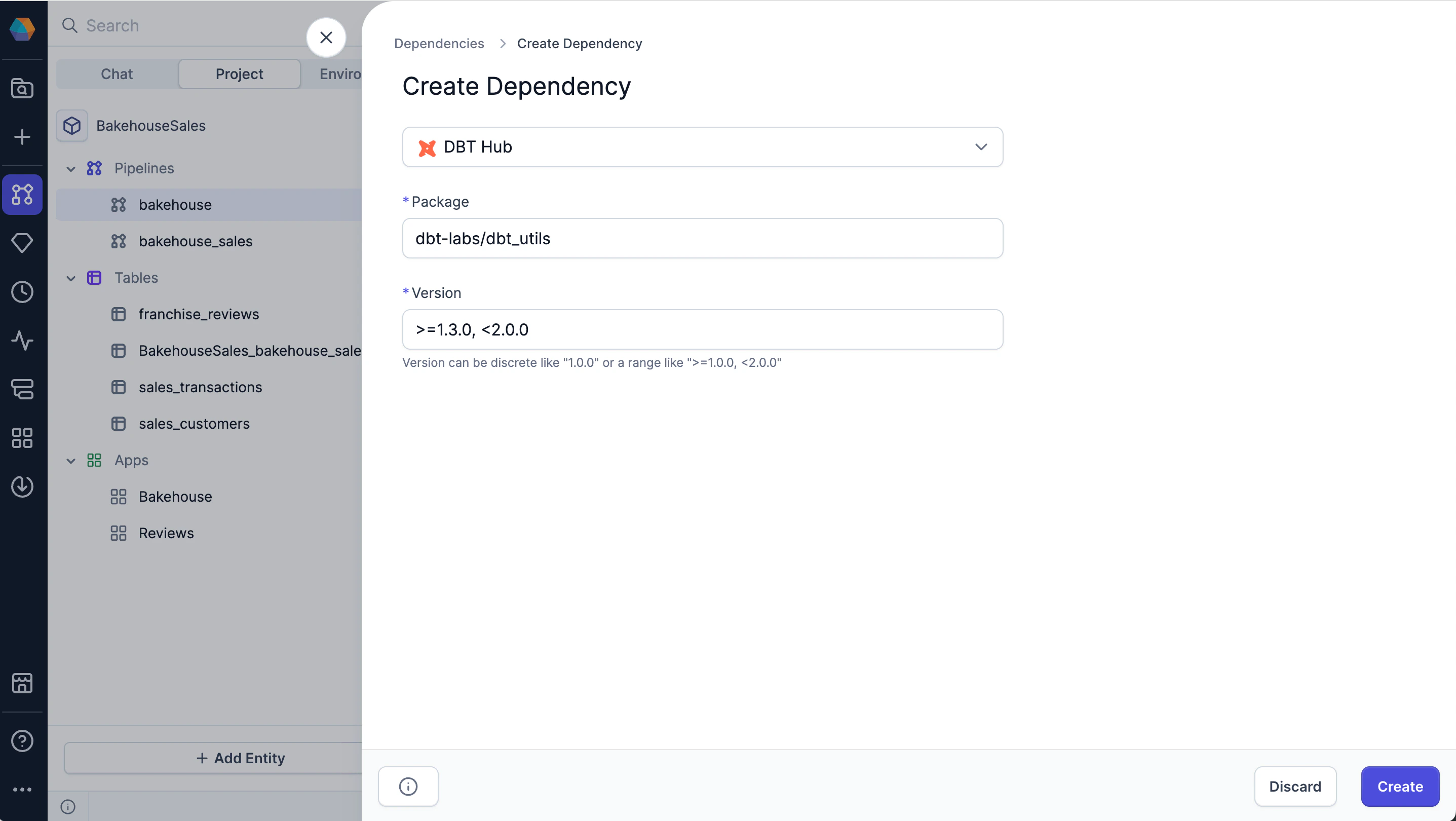
| Package | Package name or path (e.g., dbt-labs/dbt_utils). |
| Version | Package version or version range. |
Add a dependency to your project
To add a dependency to your project:
- Open the Options (ellipses) menu in the project header.
- Select Dependencies.
- Click + Add Dependency.
- Choose the dependency type (Project, GitHub, or DBT Hub).
- Fill in the required fields to import the correct package version.
- Click Create.
- Click Reload and Save to validate and download the new dependency.
Dependencies are stored at the project level within the packages.yml file of the project code.
You can also browse packaged projects in the Package
Hub and import them from there.
Use dependency components in your project
When you add a dependency to your project:
-
The dependency will be visible in the Packages section of the left sidebar. Expand a dependency to view the various functions, gems, and other components that it may contain. You can drag these components directly onto the visual canvas.
-
Any gems in the package will automatically appear in the gem drawer on the canvas itself.
Manage your project dependencies
To manage your project dependencies, there are two options:
A) Open your project in the Studio. Then, click … > Dependencies in the project header.
B) Open your project in the Studio. Then, hover the Packages section of the left sidebar and click the gear icon.
From here, you can add, edit, update, or remove dependencies from your project.