- Variant interference data sampling limit
- Backend language
- Use original project browser layout
- Show models
- Enable manual compilation
Variant interference data sampling limit
This number controls the maximum number of records Prophecy parses to infer the schema of variant data types. The default limit is 100 records. Adjust this value based on your data characteristics:- Increase the limit for complex structures where 100 records may not capture all schema variations.
- Decrease the limit for simple datasets where processing fewer records improves performance while maintaining schema accuracy.
Backend language
Private Preview This setting specifies the programming language used for project compilation and code generation. Currently, Prophecy supports SQL and Python as the backend language for data analysis projects. The backend language determines:- The syntax used in generated code
- The runtime environment requirements
- The project artifacts produced
When you switch your project’s backend language (like from SQL to Python or vice versa), not every feature or configuration translates perfectly. For example:
- Unit tests are only available for PySpark but not for SQL.
- Some gems may not have an equivalent in the other language. If a gem can’t be converted, you’ll see an error stating that Prophecy does not support the gem in the current language.
- Write modes can vary between languages. For example,
SCD2 Soft Deleteis only available for Python. - Macros in SQL do not have a direct Python equivalent, so switching may make some logic untranslatable or unavailable.
Use original project browser layout
When you open a project, Prophecy restores the last saved project state when one is available. If there is no saved state, the default layout depends on whether AI is enabled and whether the project already contains entities. You can reverse this layout by clicking the Use Original Project Browser Layout toggle.Show models
Many pipeline transformations are compiled into models under the hood. If you are working on a pipeline, you can view and edit the code of underlying dbt models in a pipeline. (You cannot visually edit these underlying models). To view the dbt models created in the backend for pipelines in SQL projects, click the Show Models toggle.Enable manual compilation
To enable this feature, you must set
EDITOR_ON_DEMAND_COMPILATION: 'true' in cp-env-cm of your
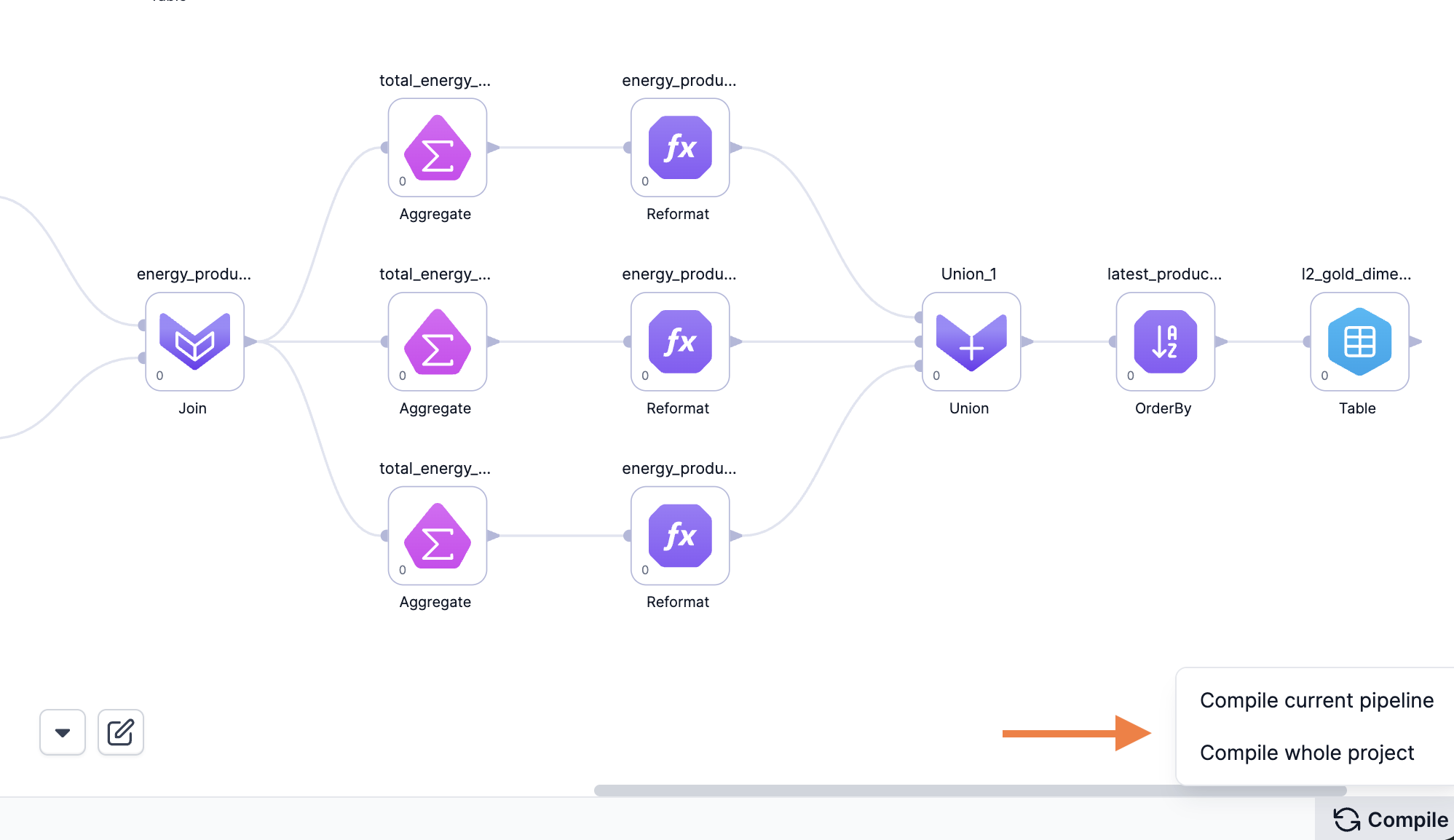
Prophecy deployment.- Disabled (default): Prophecy compiles automatically. This provides immediate feedback on compilation errors and ensures your project remains in a functioning state.
- Enabled: You compile the pipeline or project manually by clicking Compile in the Studio footer. Use manual compilation when working with large projects where automatic compilation slows down your workflow or any time you need more control over when compilation occurs.