

Make connections wireless
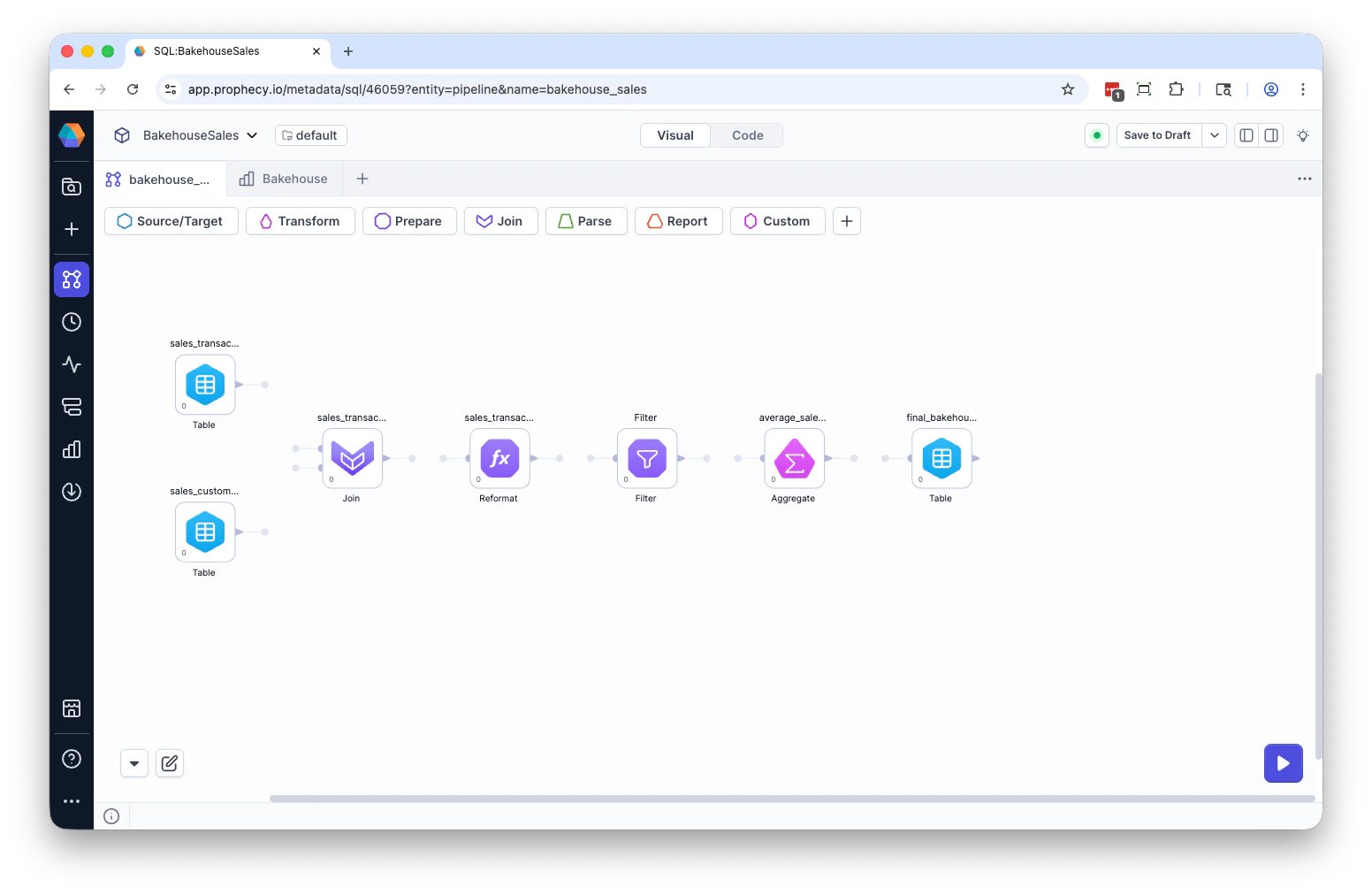
You can convert wired connections into wireless ones from a gem’s action menu. To make a connection wireless:- Click the gem whose connection you want to modify.
-
Open the gem’s action menu (
...). -
Select one of the following options:
- Make incoming connection wireless.
- Make outgoing connection wireless.
Restore wired connections
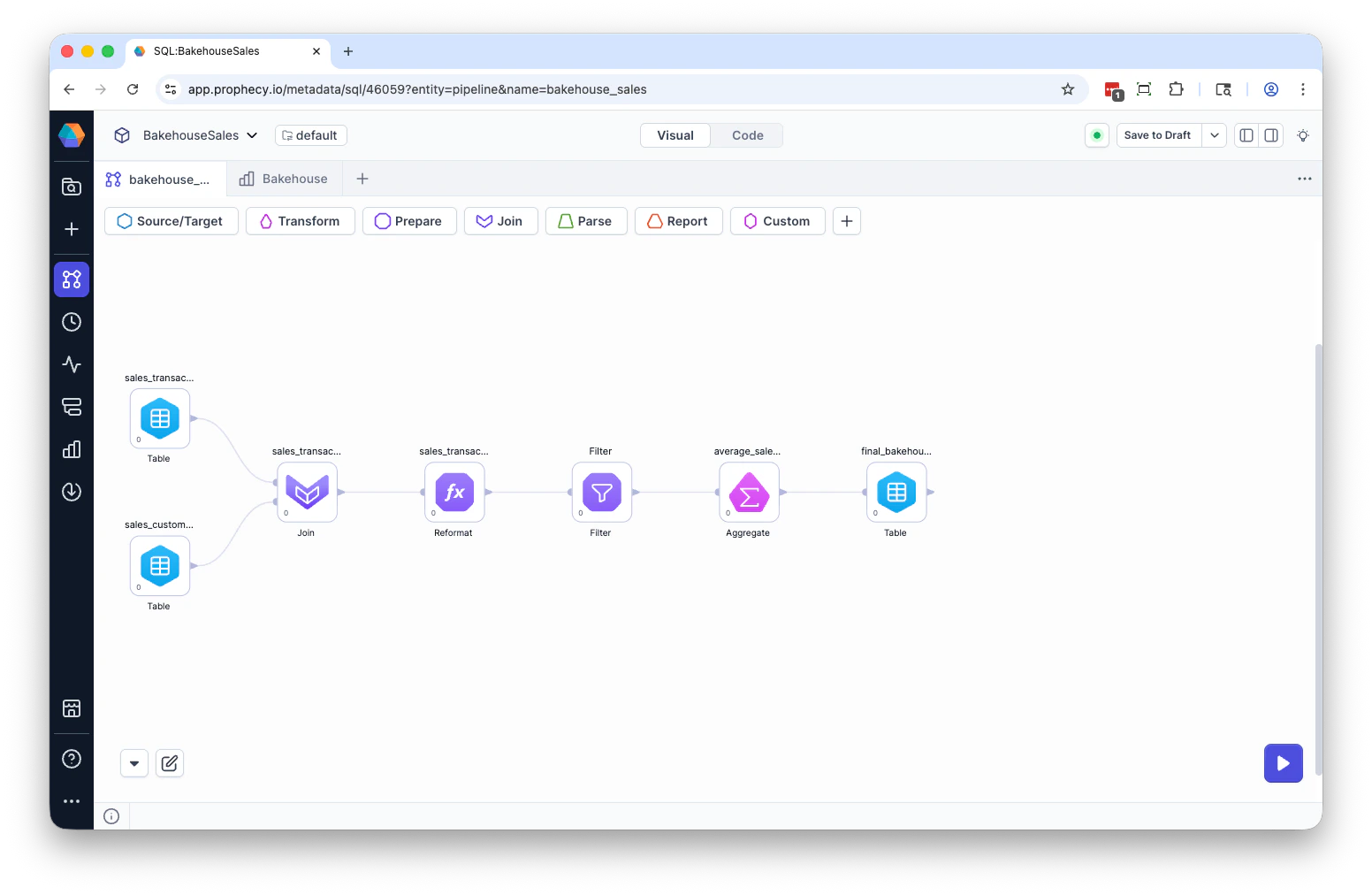
To restore visual connections:- Click the gem with wireless connections.
-
Open the gem’s action menu (
...). -
Select one of the following options:
- Make incoming connection wired.
- Make outgoing connection wired.
When to use wireless connections
Wireless connections are most effective when:- Pipelines contain many parallel branches or long cross-canvas connections.
- You want to reorganize or refactor a pipeline without rearranging large sections of the canvas.
- Visual clarity is more important than showing every physical connection.