

How inspection works
Inspecting a pipeline typically involves the following:- Reviewing the pipeline as a whole.
- Reviewing the logic inside a gem.
- Reviewing the data output after that gem runs.
- (Optionally) Examining the SQL behind a gem.

- View pipelines on the canvas to see how data is flowing.
- Open a gem to inspect and modify its configuration.
- Use the Data Explorer to view the output after a step.
- Use the Data Profile to analyze distributions, nulls, and data quality.
- Use the visual expression builder to review or refine a gem’s expression logic.
- Inspect SQL using code view.
Inspect the overall pipeline
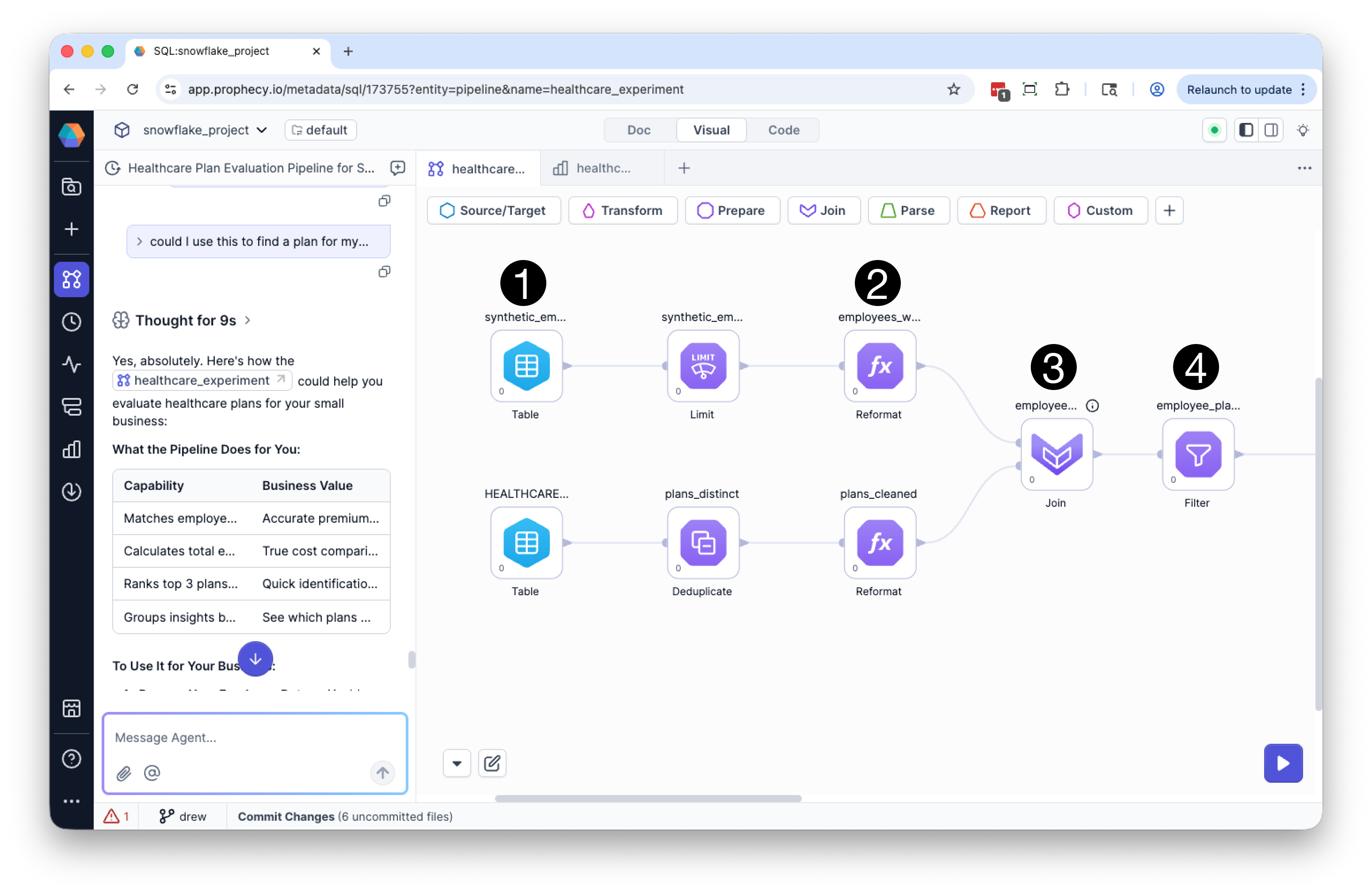
Begin by reviewing the pipeline as a whole to understand how data flows through each step. On the pipeline canvas, look at:- The sequence of steps — how data moves from sources to final outputs.
- Joins and branching paths — where datasets are combined or split.
- Inputs and outputs — what each gem receives and produces.
- Key transformation points — where filtering, aggregation, or enrichment occurs.
- Does the pipeline follow the intended logic from start to finish?
- Are joins happening in the right place and in the right order?
- Are there unnecessary or missing steps?
- Does the final output reflect the transformations you expect?
- Table gems, which visualize your data sources.
- Reformat gems, which transforms one or more column names or values by using expressions and/or functions.
- Join gems, which combine data from two or more datasets based on a shared column value.
- Filter gems, which filter output rows based on defined criteria.
Inspect a pipeline step
To understand what a step is doing:- Identify the gem you want to inspect on the canvas.
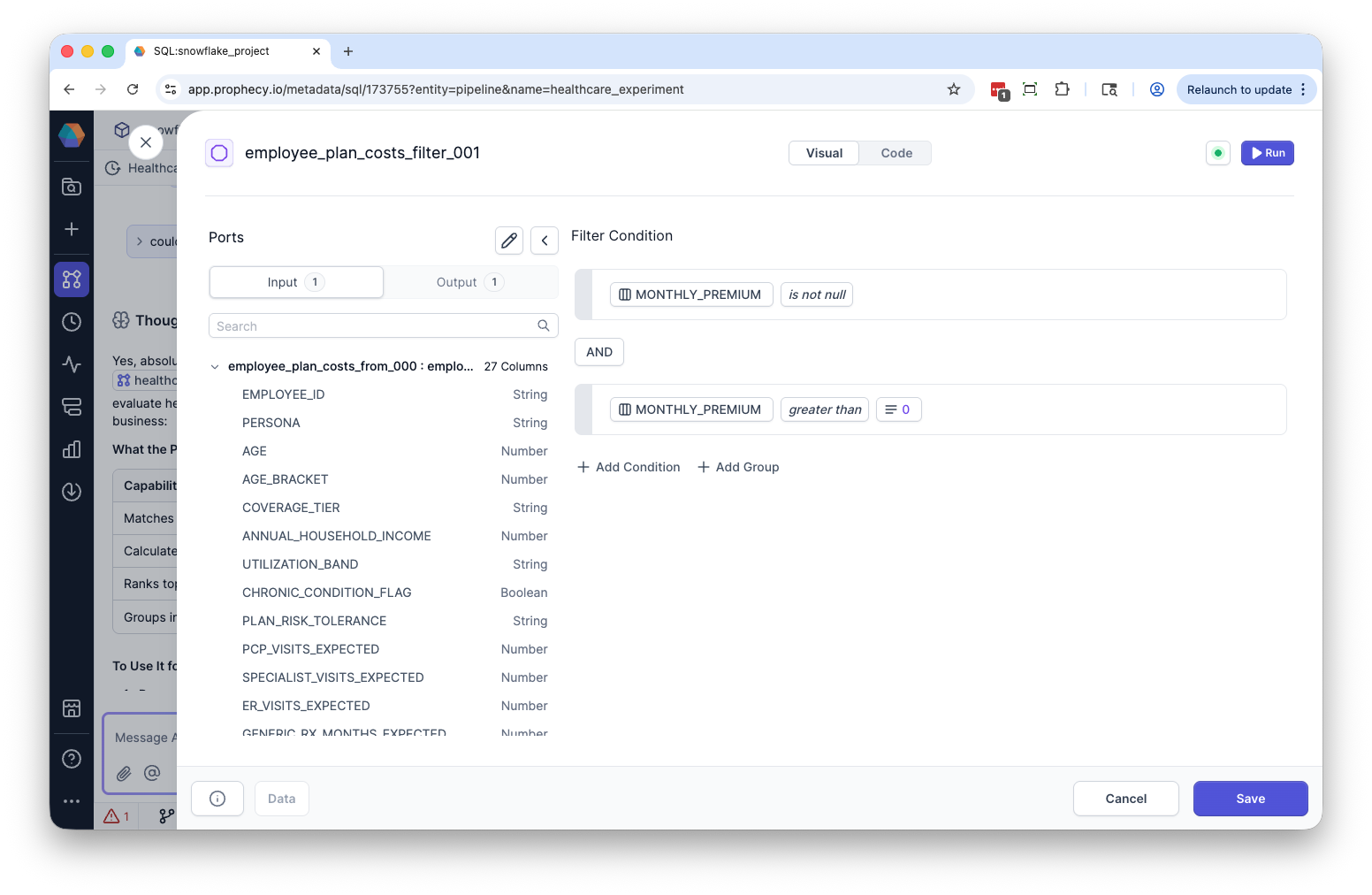
- Open the gem to review its configuration.
- Check how inputs are transformed:
- joins and join conditions
- filters and conditions
- derived or reformatted columns
- If the gem includes expressions, review them using the visual expression builder.
MONTHLY_PREMIUM is null or zero.
Inspect results
After reviewing the logic, validate the output:- Run the pipeline up to and including the gem.
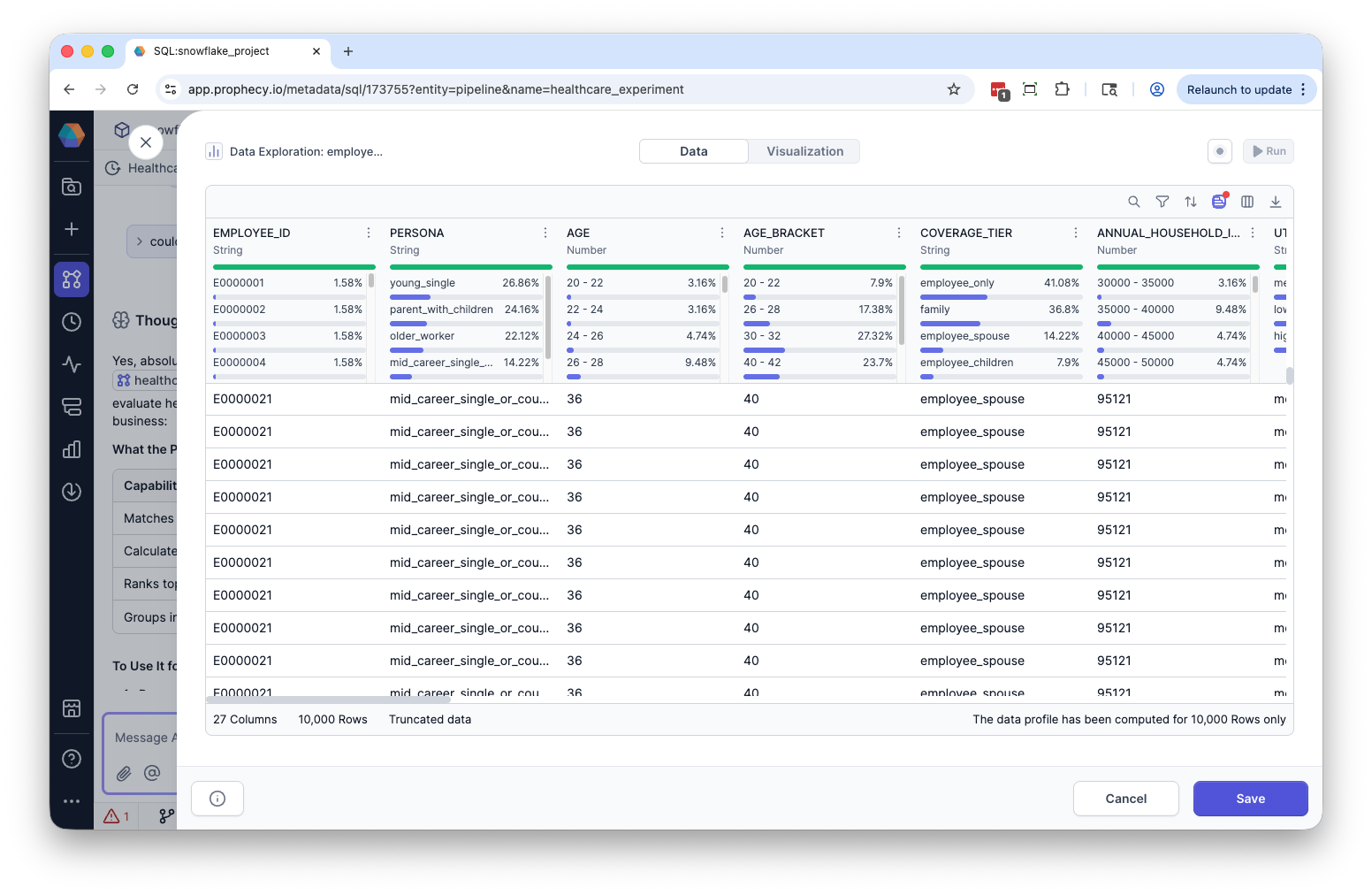
- Open the result in the Data Explorer.
- Review:
- rows and sample values
- column names and types
- schema changes from previous steps
What to look for
When inspecting a pipeline step, focus on whether the output matches your expectations:- Did the number of rows change in the way you expected?
- Were any rows unexpectedly dropped or duplicated?
- Did the schema change correctly (new columns, renamed fields, type changes)?
- Are there unexpected null values or missing data?
- Do derived columns contain the correct values?
- Do joins and filters behave as intended?
Inspect expressions
Some transformations rely on expressions defined inside a gem. Use the visual expression builder to:- Review comparison logic and conditions
- Combine conditions with logical operators like
ANDandOR - Work with parameters and dynamic values
Inspect generated SQL
All pipelines compile to SQL that runs in your warehouse. You can inspect this SQL to verify exactly how transformations are executed. To do this:- Open a gem.
- Switch to code view.
- Review the generated SQL.
- Confirm how joins, filters, or aggregations are implemented
- Debug unexpected results at a lower level
- Validate performance or query structure
Next steps
- Learn more about working with gems in the gems overview
- Explore outputs using the Data Explorer
- Analyze data quality with the Data Profile
- Build and refine logic using the visual expression builder